A channel decision sheet for a fictional Bristol print shop
| Message | Instagram choice | Facebook Page choice | Publish route |
|---|---|---|---|
| New botanical print is in stock | Show close detail and the current shop profile route | Show the print with an explicit current product link | Two tailored versions if the Page link matters |
| Saturday collection hours changed | Short visual notice only if followers need it | Clear hours and location in the Page notice | Separate posts; facts must be identical |
| One finished print is framed | Image-led process or product story | Share only if Page visitors have a distinct reason to see it | Instagram only unless a Page purpose exists |
| Local workshop opens booking | Show the experience and verify the booking route | Include date, place and a working booking link | Tailored versions; verify current places |
| Customer photograph arrives | Pause for permission and context | Pause for Page-specific permission and context | No post until rights and purpose are clear |
| An offer expires today | Check that wording can be corrected promptly | Check linked page and scheduled Page posts | Pause or schedule a clearly dated correction |
Start with the customer task on each channel
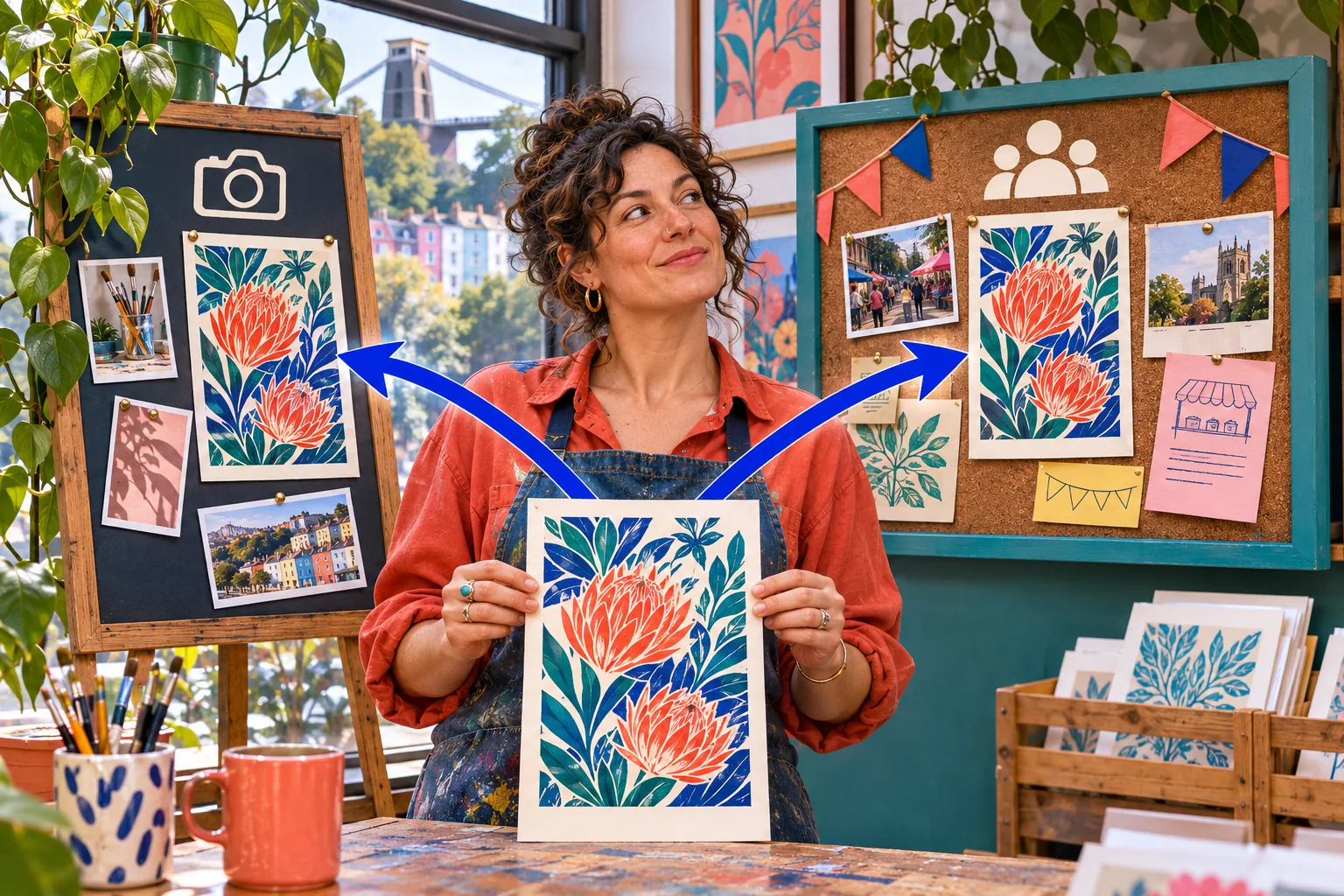
A connected account does not mean every piece of content needs two copies. Imagine a fictional Bristol print shop releasing a botanical art print. On Instagram, a close photograph may answer what the paper and colours look like. On its Facebook Page, a local customer may need collection hours, the current price and a working product link. Both messages can be true, but the useful next action differs. Write down the customer's likely question before choosing a posting control.
Make a two-column brief: what should a person understand after seeing the Instagram version, and what should a person understand after seeing the Page version? If the answers and destination are the same, a one-off share can be efficient. If the Facebook customer needs a clickable product page and the Instagram customer needs a profile route or a direct enquiry, prepare separate text. The point is to make a real task easier, not to fill every feed.
Meta has made audience and cross-posting controls more prominent in the Facebook composer, but placement in an interface is not a recommendation to turn them on. The owner still decides who can see a post, whether the content fits the destination and what happens when an offer changes. The UK product-launch guide handles a full launch plan; this guide handles the account and publication decisions that make a two-channel message dependable.
Identify the business accounts and their access
Write the public URL and exact name of the professional Instagram account, the intended Facebook Page URL, and the person who controls each. A business may have an old Page, a personal Facebook profile and a newer Page with a similar name. Those are different destinations. An employee's ability to open a Page in a browser is not proof that they can connect it to an Instagram account or publish as that Page. Check the account type and role within Meta's current business settings.
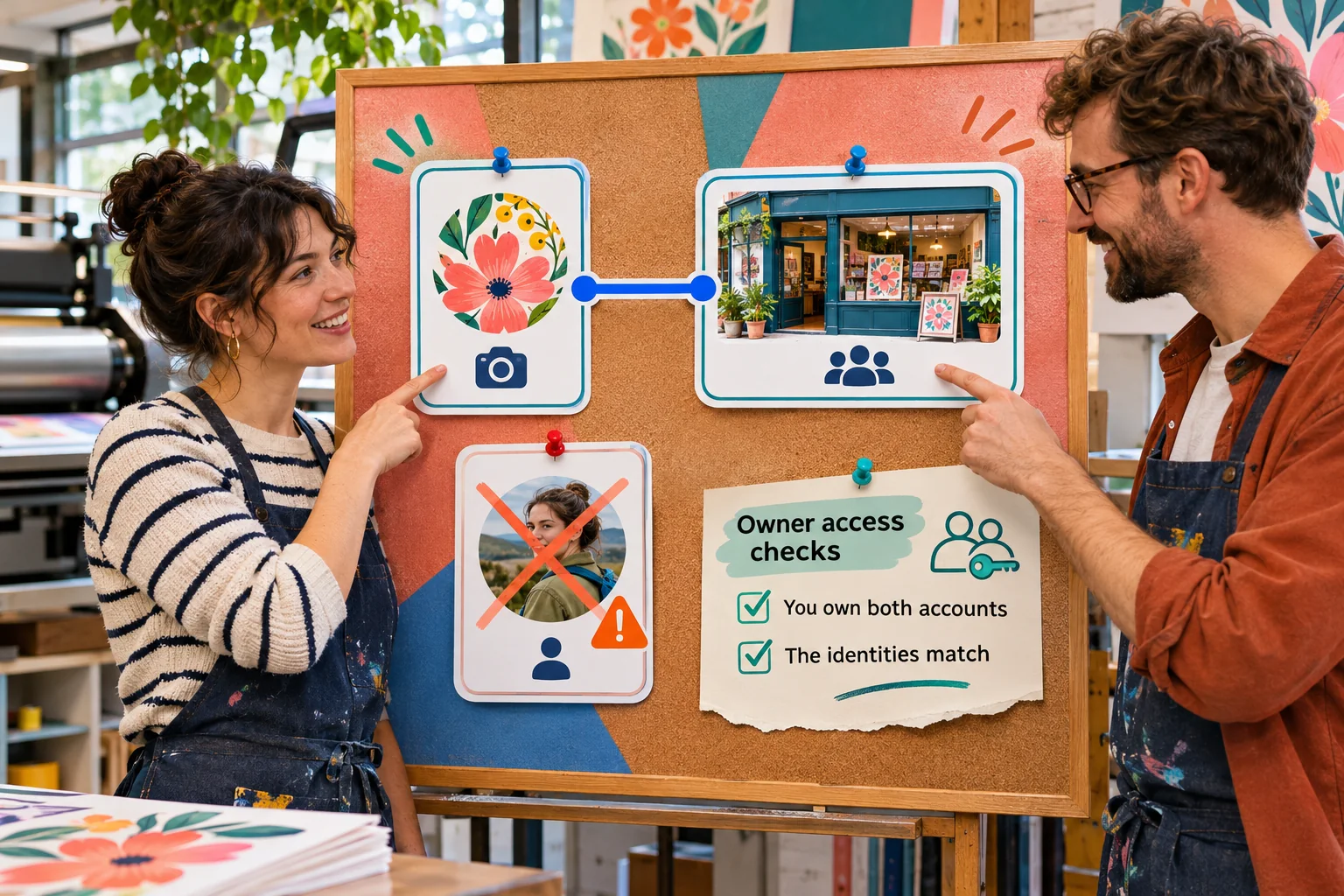
The shop owner should do the initial identity check rather than asking an agency to guess from a logo. Compare the Page's public description, address or service area, current website and recent posts with the Instagram profile. If the brand has more than one branch, note which Page serves this announcement. An outdated duplicate Page can look plausible in a selection list. Keep a dated record of the chosen pair and ask a second staff member to verify it before enabling any ongoing sharing.
Use Meta's professional Instagram–Page help for the current prerequisites and screens. The exact permission names can vary with business setup and interface changes, so confirm what your account actually shows. Use the platform's own role and connection prompts; do not share a personal password as a shortcut. If the owner lacks the required control, resolve the Page access with the legitimate business administrator before connecting anything. Publishing through a personal profile by mistake exposes the wrong identity to customers.
- Write down the public Instagram handle and intended Page URL.
- Confirm that the person making the change has appropriate Page and Instagram access.
- Check whether the Instagram account is a professional account before relying on Page publishing controls.
Separate the Page connection from the share setting
There are two questions: is the professional Instagram account connected to the business's Facebook Page, and is a particular post or category of posts selected for sharing? Treating those as one switch causes avoidable mistakes. A connection can make a Page available as a destination without making every Instagram image appropriate for it. Conversely, a sharing menu may show a personal Facebook identity when the business owner intended a Page. Read the selected destination, not just the word 'Facebook'.
Meta's account settings are also changing names. In 2026 Meta announced that Accounts Center would gradually become Meta Account, while some settings remain inside individual apps. Someone following an older screenshot may see a different label. Look for the current account or connected-experiences area, then inspect the Page link and sharing controls separately. Do not assume an exact tap sequence from a guide remains identical for every account, phone or rollout stage.
For the fictional print shop, a useful safe state is a verified Page connection with automatic sharing off. The owner can then choose a destination for a specific post and see what the preview shows. Automatic sharing can be considered later if the same facts, format and customer path will routinely work on both channels and someone is assigned to review the public result. This is a workflow choice, not a claim about extra reach or recommendation.
Connect the right Page with an owner-led preflight
Before opening a connection prompt, pause scheduled publishing and write down what is already live. If the Instagram account was linked previously, check which Page is connected and whether a contractor still has access. Changing a link while people are scheduling posts can create a confusing mix of destinations. Ask the owner or authorised administrator to start from the current Instagram professional settings, Page settings or Meta Business Suite and follow Meta's current official connection flow.
At each selection screen, read the full Page name and verify its public URL against the preflight note. Check that the Instagram handle is the intended professional account. If Meta asks for a role or business-portfolio action you do not understand, stop and have the administrator review it rather than accepting broad access casually. Record the date, the person who confirmed the pair and any existing posting tools that may need their own reconnect. A successful-looking connection badge is only the first check.
Make a harmless draft about a current, ordinary shop fact and inspect the available destinations without publishing it. A draft lets the team see whether the intended Page is offered and whether a personal profile or old Page appears instead. If you cannot verify the destination, leave ongoing sharing off. Once the pair is clear, publish a genuinely useful low-risk item, then inspect both public URLs. This confirms the actual path that matters to customers rather than relying on a settings screen alone.
- Open the connection settings from the account owner’s current Meta interface.
- Check the Page name and public URL before confirming any prompt.
- Record who changed it and test a draft before enabling an ongoing share setting.
Choose one-off sharing, separate posts or a planned workflow
Use one-off sharing when the same image, facts and basic customer invitation work on both channels. For example, a photograph of a print ready for display may be useful in each place if neither caption depends on a different link or a temporary offer. Check the destination and audience selector for that individual post. An ongoing auto-share setting is a larger commitment because a later personal-feeling Story, a stock update or an unfinished test could travel further than intended.
Choose two tailored versions when the destination, caption, crop or timing differs. Meta Business Suite supports selecting business destinations and preparing content for them, subject to what that account and format permit. The owner can also publish separately in each app. Neither route should be chosen because a scheduler makes it easy to tick two boxes. For the Bristol shop's workshop booking, the Page version can include a current booking URL while the Instagram version can explain the profile or supported Story route.
Use the decision sheet above before each important announcement. The table is not a claim about what Meta will distribute. It asks whether both posts answer a customer need, carry the same verified facts and lead to a working next step. If one channel has no useful role, publish only on the other. If a staff member cannot monitor both destinations or correct a wrong offer promptly, delay the second publication until those responsibilities are assigned.
- Use one-off sharing when the same message is genuinely suitable in both places.
- Use separate versions when links, timing or audience questions differ.
- Leave automatic sharing off when nobody can routinely review both destinations.
Build one factual brief before writing two captions
Create a short source of truth for any offer that will appear in both places: product name, item shown, current price if stated, stock or booking status, delivery or collection terms, expiry, and the public destination. Assign one owner to confirm those facts immediately before publication. For the fictional print, a new colourway shown in a Reel should not lead to a Page link for an older colourway. A copied caption can preserve a stale price or date just as easily as a good sentence.
Distinguish a durable message from a temporary one. A process clip about how the shop prints on paper may stay useful longer than a 'last two places' workshop notice. For temporary claims, put a review or removal date in the publishing note. If a promotion or booking message is a UK distance-selling invitation, the shop should also verify that its linked page gives customers current terms; GOV.UK's guidance is a useful check for businesses selling at a distance. This guide is a publication workflow, not legal advice.
If the post features a customer's photograph or words, the factual brief is not enough. Confirm the permission and context for the actual Instagram and Page uses before sharing. The UK customer-photo guide covers that separate question. Keeping the identity, offer and permission records together makes corrections easier: the team can locate what was approved, the two public URLs and the person who can change a linked landing page when the offer ends.
Adapt the visual and next action for each destination
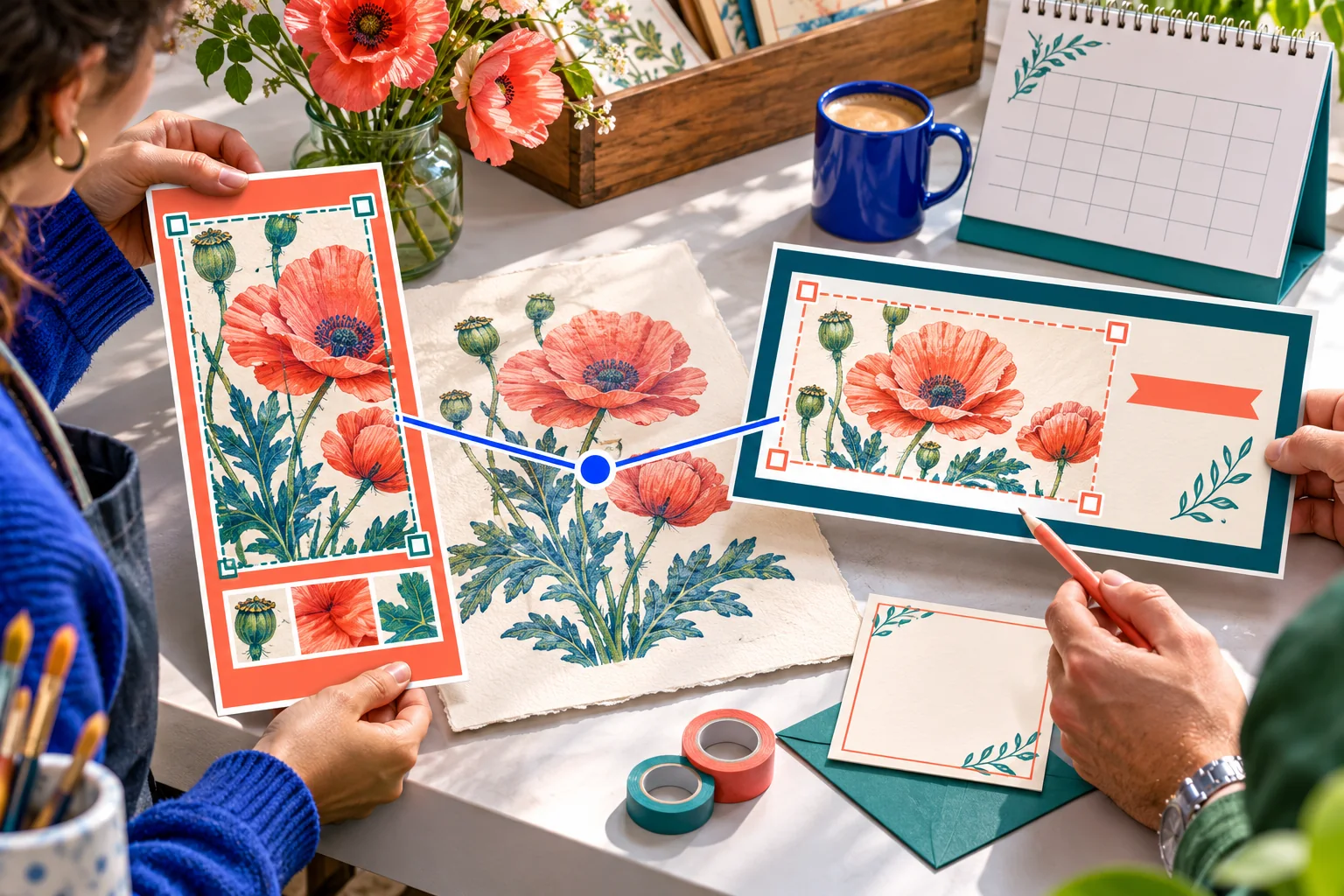
Start with the same accurate asset, then preview the crop in each selected format. A tall product photograph may show the important detail on Instagram but lose the full print or collection information in a wider Page composition. Move important detail into the safe centre, use legible contrast and check the small-screen version. If a crop changes what is being sold, make a separate version. The illustration beside this section depicts one print adapted to two frames, not a screenshot of a Meta composer.
Write the Instagram caption for someone who has just seen the image or Reel. Name the print and say the next action that is genuinely available from that account, such as a current profile link or a question the team can answer. Write the Facebook Page text for someone who may be looking for the practical detail: date, place, availability and the actual product or booking URL when relevant. Test each public destination. Do not paste a raw URL into a caption and assume it behaves identically on both services.
Check accessibility and context too. If the image carries crucial information, include it in readable post text or platform alt text where the control is available. A person who cannot see tiny image text still needs the price or collection change. A music-led Reel may need a separate caption or media treatment on a Page; test the current format in Meta's preview rather than assuming every effect, sound or sticker transfers. The aim is one truthful customer message expressed clearly twice when two posts are justified.
Preview, publish and verify both public versions
Before pressing publish or schedule, check each destination by its name and public URL. Inspect the selected audience control, format, crop, opening frame, caption, price, dates, link and any relevant disclosure. Check a phone-sized preview. If the message is time-sensitive, verify that the linked page or booking form is already current. A green tick in a publishing tool says little about what an ordinary customer will read after the post appears.
After publication, open Instagram and the Facebook Page in a separate ordinary-viewer session. Confirm that both posts exist, appear under the intended business identity and show the correct final text and media. Copy each live URL into the publishing note and test the customer path from there. A scheduled post may fail or a cross-post may go to the wrong destination even when the first channel looks fine. Inspect each result separately before sharing the announcement elsewhere.
When a Story or Reel is involved, check that particular surface rather than inferring from the feed. A Story may be temporary; save a dated record of what actually appeared if the message matters. Meta's official guidance covers which sharing options are available for a professional account and Page, but controls can differ by account and format. If a requested option is missing, publish a separate, accurately adapted post only after checking that you have the right to use its media on that destination.
- Check each selected destination and visible audience control.
- Inspect text, crop, sound, dates and linked route on a phone.
- After publishing, open both public posts and save the two URLs.
Diagnose a missing post, wrong Page or duplicate
If nothing appears on the Page, start with the simplest evidence: was the Page actually selected for this item, did the Instagram post publish, and is there a visible warning or failed schedule? Then check the professional-account/Page link, the current sharing setting, the format, and the person's access to both assets. Do not repeatedly publish the same message while guessing. A failed cross-post can coexist with a perfectly live Instagram post, so keep the two URL checks separate.
If the message appears under a personal profile or an old Page, stop ongoing sharing and confirm the account identities before another attempt. Record the wrong public URL, correct the exposed message if it contains a misleading offer, and ask the authorised owner to inspect the connection and selected destination. Do not remove an account link blindly when another staff member or tool depends on it. Note what was changed and test with a harmless draft before resuming a public campaign.
If the Page has two similar posts, identify whether one came from a manual Page schedule and one from an Instagram cross-post. Pause the remaining scheduled item, then keep the accurate customer-facing version and correct or remove the duplicate according to the business's normal review process. If a format or permissions problem persists, use Meta's current help and account support with the exact account, time, format and error shown; never send a password or private customer data as part of a support request.
- Wrong destination: check the selected Page and linked account before another post.
- Missing post: inspect format, share choice and any account or access warning.
- Duplicate post: stop the second schedule and correct the public version that is wrong.
Review response and results without merging the numbers
Use a small review sheet with two rows, one for Instagram and one for the Facebook Page. Record the live URL, posting time, whether the customer destination worked, actual questions received and any correction made. If account insights are available, label the metric and time window exactly as shown. Do not add two platform view totals and call them unique people; one person can encounter both posts, and platform metrics may be defined differently.
The Bristol shop might receive a Facebook question about collection hours and an Instagram message about paper texture. Those are different pieces of feedback. The appropriate next step may be updating the product page or answering common questions, not publishing more copies. Hand off order-specific details through private support rather than asking a customer to post them publicly. The separate UK customer-enquiry guide gives a more complete response workflow for messages arriving on both platforms.
A useful review also states what is unknown. Without a reliable customer route or supporting business record, neither a view count nor a follow proves an order. Even when a buyer arrives after seeing a post, other contacts may have influenced them. Keep confirmed orders, enquiries, link visits, views and follows in their own columns. The next cross-post decision should respond to a practical customer need and a verifiable publishing issue, not to an invented performance story.
Keep the connection healthy and separate service choices
Review the connected pair after staff changes, a new agency appointment, a Page rename or a branch change. Verify that the intended Page still appears in a draft and that automatic sharing is set to the business's current preference. Revisit old scheduled posts and Highlights when an offer expires. Keep an owner for corrections, a list of important public URLs and a current backup administrator through Meta's legitimate access controls. A quarterly check is more useful than waiting for a customer to report an old offer.
For an important new campaign, repeat the small preflight: identify both accounts, check current facts, choose a channel purpose, preview two versions if needed, inspect both live results and note what people actually asked. If the second channel adds no distinct reader value, leave it out. A business may legitimately use the same artwork twice, but a connected setting should never become the reason to publish an irrelevant duplicate. Review the UK launch and local-event guides for those separate planning tasks.
HitsBoost's UK Instagram follower service is a separate commercial decision from account connection and content publishing. If a business wants to compare package terms, it can review the UK follower options and assess the service on its own merits. A purchased follower count does not guarantee reach, engagement, recommendations, enquiries or sales, and it cannot fix a wrong Page or a broken customer link. Keep the publishing checklist and any service purchase evidence in different parts of the review.
- Review the Page link and share settings after staff or agency changes.
- Remove stale public offers from both channels.
- Keep the two live URLs and a dated correction owner for important announcements.
Frequently asked questions
Do I need a professional Instagram account to connect it to my Facebook Page?+
Use Meta's current professional-account and Page connection instructions. Check your account type, the intended Page and your access before starting; do not assume a personal Instagram profile has the same business publishing controls.
Is adding Facebook in Accounts Center the same as linking a Facebook Page?+
No. Review the specific professional Instagram–Page connection and the separate sharing destination. Meta is gradually renaming Accounts Center to Meta Account, so identify the actual Page instead of relying on one menu label.
Will connecting the Page automatically cross-post every Instagram post?+
Do not assume it will. Check the current sharing choices for the specific post and any ongoing auto-share setting. Treat a verified account link and a publication decision as separate steps.
Can I write one caption for Instagram and Facebook?+
Yes when the same facts and next action truly work in both places. If the Page needs a product or booking link while Instagram uses a profile route, write and test two tailored captions.
Why did my Instagram post appear on the wrong Facebook destination?+
Pause further sharing and inspect the selected destination, the professional account–Page link and any ongoing sharing choice. Ask the authorised Page owner to verify the exact Page URL before publishing again.
What if the Instagram post publishes but the Facebook Page post is missing?+
Check the Page selection and any error first, then the account link, access, current format and sharing setting. Verify the Page as an ordinary viewer before trying another publication; do not create duplicates by guessing.
Should I automatically share every Story and Reel too?+
Only if each format and message has a useful Page purpose and someone checks its public result. Preview sound, stickers, crop, text and destination because a format that works on Instagram may need a separate Page version.
Does posting on both channels or buying followers guarantee more sales?+
No. Check each public post, link and actual customer response. Posting twice and increasing a displayed count do not establish unique reach, engagement, enquiries or orders.
Compare Instagram Followers packages.
Prepare the public destination, then review the quantity and terms that fit your goal.
Compare UK Instagram follower options separately