
This English guide is shared with our global site. Follow related UK service links for current packages. Other service links open the global catalog in its stated currency.
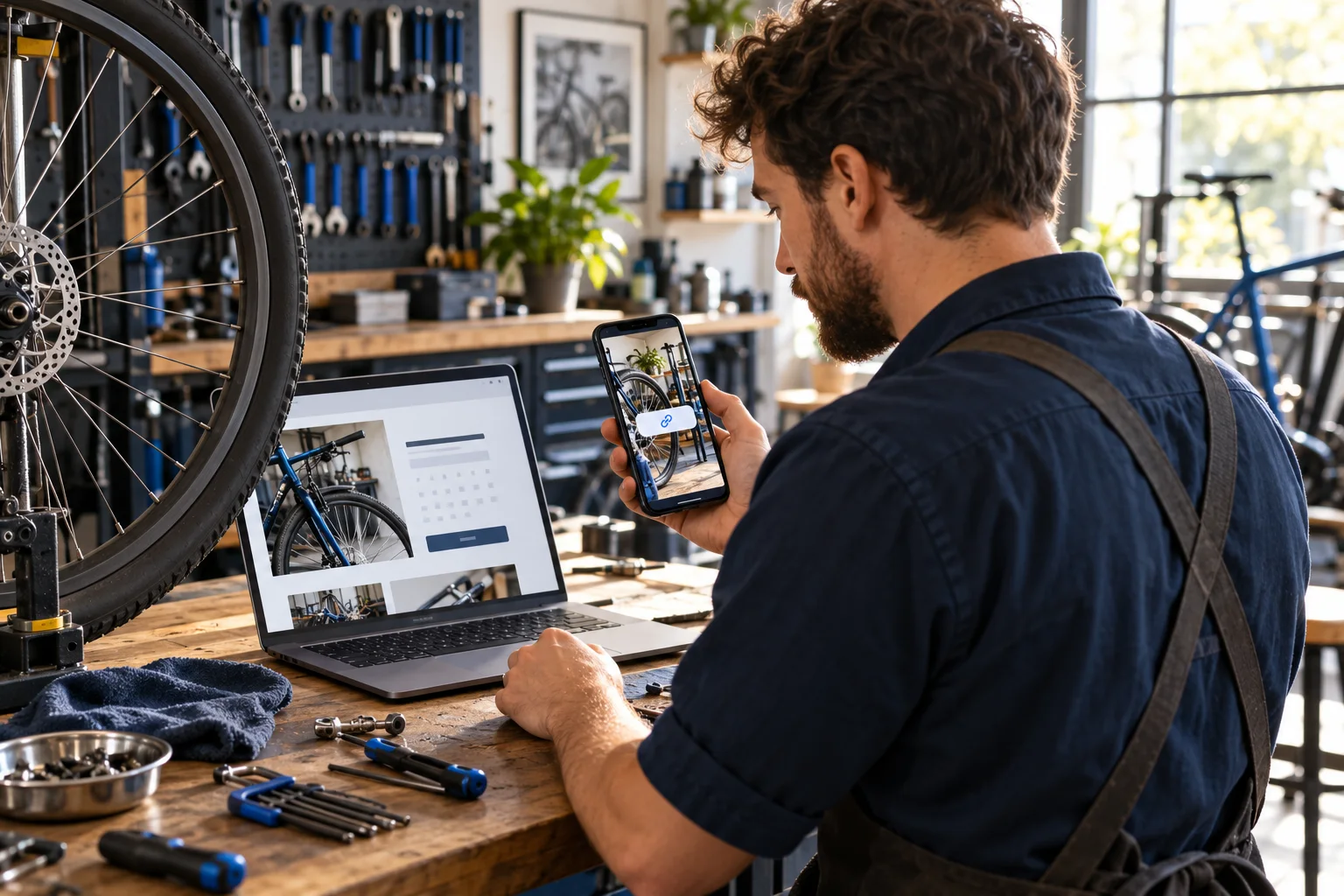
Choose a destination that matches the reader's task
| What the Story promises | Useful destination | Check before sharing |
|---|---|---|
| See the beginner workshop details | The current workshop description | The date, location, suitability and enquiry route are accurate. |
| Read the bicycle repair options | The repair services page | It explains the service shown and how the customer requests an assessment. |
| Find the shop entrance | Current directions or visit information | The address and opening arrangements match the Story. |
| Read the full maintenance checklist | The complete guide | The promised instructions are available and readable on a phone. |
| Check the item shown in the photograph | That item's current information page | The item, availability and price match the photograph and wording. |
| Ask about a place at an event | The event's current enquiry or booking page | The form works, the event has not ended and the invitation does not promise an unavailable place. |
Add the Link sticker while creating your Story
Use the Instagram app and confirm that you are in the account that should publish the invitation. The current iPhone Help instructions start with Create or a swipe right from Feed, followed by Story. Capture a photograph or video, or select existing material from the phone. Keep the intended web address ready so you can check the exact page before placing it in the sticker.
Open Stickers at the top and select Link. Instagram's current sticker guidance says to enter the address and use See Preview beneath it to inspect what someone will open. The original link-sticker announcement describes finishing with Done and positioning the sticker on the Story. Review the control your current app shows, then complete the Story and share it through the appropriate audience choice.
Check the Story itself before the final tap. A photograph of a repair demonstration with an invitation to read a maintenance guide should link to that guide. If you copied the workshop booking address while preparing another Story, correct the address now. Instagram's editing screen is the place to resolve that mismatch; a polished photograph does not make the wrong destination suitable.
- In the Instagram app, choose Create or swipe right from Feed, then select Story.
- Capture your photo or video, or select the material from your phone's gallery.
- Open Stickers at the top and choose Link.
- Enter the intended address and use See Preview to inspect its destination.
- Finish the sticker, position it clearly and review the Story before choosing Your Story to share.
Understand access without relying on an old follower rule
Instagram expanded Story link access beyond the earlier verified-account or follower-size restriction in October 2021. Its announcement explicitly said the feature could be used regardless of account size. That is historical evidence of the expansion, not a promise that every account today has every sticker. You do not need to buy followers to satisfy an old rule quoted from the former linking workflow.
The same announcement identified new accounts and accounts repeatedly sharing content against Instagram's rules as exceptions. It did not give a fixed number of days after which a new account must receive access. Do not turn that omission into a seven-day or thirty-day waiting promise. Current sticker Help also warns that not all stickers are available to everyone or for Reels, and advises checking that the app is current.
If Link is absent, begin with the actual screen and any account notice. Make sure you are preparing a Story rather than applying these instructions to a different format. If Account Status contains a relevant restriction, read its details and available review options. A missing sticker alone is insufficient evidence for a specific violation, and switching account type or paying a service is not a documented way to unlock it.
Choose the page that completes the Story's promise
Write the reader's task in one sentence before choosing a destination. They might need the workshop date, repair options, directions or a full explanation that will not fit in the Story. Then open the page that actually answers that need. A general homepage can be appropriate for an introduction, while a specific invitation usually deserves a page where that information is easy to find.
Read the linked page as someone who has only seen this Story. Does it name the same activity? Are the price, location and dates consistent? Can the visitor understand whether the next step is an enquiry or a confirmed booking? Correct discrepancies before sharing. Asking a person to hunt through an unrelated page for the promised detail adds a preventable obstacle to a useful visit.
Check the profile's wording too. If the bio says the shop takes repair enquiries while the Story promises immediate booking, the two invitations need clarification. Use the actual process the business supports. You can make a clear invitation without claiming instant confirmation, guaranteed availability or a discount that the destination does not offer. The destination table shows common choices and the factual checks each one needs.
Make the invitation and sticker understandable on a phone
Explain what someone will find after tapping. View workshop details is more useful for that task than a vague instruction to click here. If your app offers a custom sticker label, use it to describe the destination accurately. The Help page checked here verifies the URL and preview controls; it does not establish one universal custom-label menu for every account or app version.
Keep the sticker easy to identify against the picture and leave important details readable. Preview the composition on your phone: can someone understand the invitation without covering the very object or instruction it explains? Use the style and placement controls available in the editor. The original announcement describes tapping a placed sticker to see colour variations, but it supplies no evidence that one colour or screen position guarantees more taps.
If the invitation needs context, make a short sequence with a clear purpose for each item. A repair demonstration can introduce the problem, explain what the workshop covers and finish with its relevant page. Do not make a person rely on sound to discover essential dates or where the sticker leads. The Story-completion guide covers sequence planning; this guide focuses on making the linked action understandable.
Work through a bicycle workshop example
Imagine a bicycle shop running a beginner maintenance workshop. Its owner has a photograph of the bench, a short demonstration clip and a page explaining the event. The Story's purpose is to help interested riders decide whether to enquire about attending. This is a hypothetical planning example, with no claimed traffic figures, sales result or promise that a particular audience will respond.
The owner reads the event page first and checks its date, location and description. If places require confirmation by the shop, the wording says that clearly. They create a Story showing what the session covers, add the event page through Link and preview it. An accurate invitation might say Read the beginner workshop details; it should not imply that tapping the sticker reserves a place.
After sharing, a colleague who can view the Story opens the sticker and describes the next step they find. If the page is difficult to read, refers to a past event or sends enquiries to an unused address, the shop has a concrete repair to make before promoting the invitation further. The lesson is a working visitor journey: a relevant Story, a matching destination and an honest next step.

Test the real destination before and after publication
A useful link check follows the visitor's route. Start by opening the exact destination on a phone. Look for an accidental account-only page, a missing article, an expired event or a product different from the one shown. If the page asks for a login, decide whether that requirement is appropriate for the invitation. Your own signed-in session may hide a problem that another reader encounters.
Next, inspect the address entered into the sticker and use Instagram's See Preview control. After publishing, follow the actual sticker from the Story. A correctly spelled business name in a label does not establish that its address is correct. If you are directing someone to an Instagram profile, post or Reel, the separate copying guide explains how to identify those destinations; a website page requires its own address check.
Ask a colleague with appropriate access to try the ordinary journey and report what opens. They should be able to understand the page and find the promised information without being coached through each tap. Stop short of making a real purchase, reservation or other commitment just to prove a form exists. Inspect its available fields and instructions, then use the business's normal test process if a deeper transaction test is needed.
- Open the destination on a phone before placing it in the sticker.
- Confirm that the address identifies the intended page and that its important information is current.
- After publication, follow the actual sticker from the Story and check where it takes you.
- Ask an appropriate colleague to test the visitor journey and describe what they expected to find.
- Check the next step without submitting a real booking, order or other commitment merely as a test.

Plan corrections without assuming a published-link editor
The official workflow checked for this guide adds the link while the Story is being created. It does not document a universal control for changing the destination after publication. Plan accordingly: verify the address, text and placement before sharing, and inspect the controls actually available for your published item if you discover a mistake. An editing option for another kind of Instagram publication does not establish the same option here.
If your current app does not provide a suitable replacement control, prepare a corrected Story and decide how to remove the outdated invitation from view. Keep your source photograph or video so you can rebuild the item accurately. Review what will be removed before confirming any deletion. Do not repeatedly discard good content to test an assumed workaround, or tell readers that changing a bio link automatically changes a Story sticker.
Sometimes the address is correct but information on a page you control has changed. Update the page appropriately, then open it again through the actual sticker and check that its promise remains accurate. That repairs the destination's content; it does not rewrite an address embedded in an existing Story. If the invitation itself is misleading, correct that communication as well instead of sending people through an unexpected replacement offer.
Separate a missing sticker from a broken destination
Use the symptom checklist below to identify where the journey stops. A missing Link option concerns Instagram's publishing controls. A destination that opens to an error concerns the page or address. A working page with a closed enquiry form concerns what the visitor can do next. These problems need different evidence, so record the screen and action that failed before changing account settings.
For a missing sticker, Instagram advises updating the app and notes that availability differs. Its general sticker page also carries regional wording without making clear that every listed sticker has the same regional limitation. Do not interpret that as proof that link stickers are unavailable throughout a named continent, or assume that changing the phone's region solves the problem. Check the Story workflow and a relevant actual account notice first.
For an opening failure, copy the intended address again and test it independently. Compare it with the sticker's destination, then check the page on a phone. If Instagram continues to behave unexpectedly, report the precise symptom through its support route, including the device and what you tried. Keep passwords, recovery codes and unrelated private material out of screenshots. A paid follower or view order is not a technical remedy for a missing publishing control.
- No Link control: confirm you are creating a Story and looking in its sticker tray.
- An address will not open: copy the intended address again and test the destination independently.
- A different page opens: compare the actual sticker destination with the page you meant to share.
- The page opens but the task fails: inspect its mobile instructions, availability and enquiry route.
- A control remains unavailable: check the current app and any actual account notice without inventing a follower threshold.
Check who can view the Story and what you are sharing
Instagram's current sticker Help says anyone who can see the Story can tap its link. Choose the Story audience deliberately, especially when the content includes customer faces, a private event or an address not meant for broad circulation. The current Stories feature overview describes sharing with followers or a Close Friends list. A clear label on the sticker does not replace those audience choices.
Check the destination's own access separately. Restricting a Story audience does not by itself establish that an ordinary public web page is private. Avoid placing a personal document, customer-only arrangement or unintended shared-folder address in a sticker merely because it opened successfully for you. Choose the page you are authorised to share, and make sure any information it requests is appropriate for the task.
Stories ordinarily disappear after 24 hours, while Highlights can keep selected material on the profile. If you save a linked invitation as a Highlight, continue checking its destination and dates when the underlying information changes. A workshop that ended last month should not keep inviting people to book a place. The Highlight guide explains organising those collections; retain only the material that still serves a clear, accurate purpose.
Read link taps without calling every view a website visit
Instagram's current Story insights page distinguishes views, unique viewers and interactions. Its interactions examples include sticker taps and link taps. The checked page says a public personal or professional account is needed to view insights. For an active Story, it gives the route through the Story's Activity and Insights controls. Follow the metric labels actually shown, and allow for the reported numbers to populate.
Record the Story and observation period when you review a link invitation. A view records display or playback; a tap indicates an action on the link. Neither establishes that a person completed a booking or order. Use the destination's appropriate records to answer that later question. If you compare figures from different places, note that they describe different actions and may cover different periods instead of forcing them to match.
Begin improvement with what you can observe. If people ask where the link goes, make the invitation clearer. If the page opens but explains a different event, correct the mismatch. If the form does not support the promised task, fix the destination. A higher view total does not resolve any of those problems. The separate Story-view guide supplies the wider metric definitions without turning link placement into a guaranteed traffic strategy.
Keep linked invitations accurate when the offer changes
Keep a brief note of the Story's purpose, destination and the detail that could expire. For the bicycle workshop, the relevant trigger might be the booking deadline, a change of location or the event ending. Put the review beside that event in your content calendar. If the invitation will remain in a Highlight, assign someone to check it after the original Story has left the live sequence.
At review, open the actual destination and compare it with the invitation. Check the page title, dates, availability and next step. Keep a useful maintenance guide linked while it remains accurate; replace a closed-event invitation with an honest update when needed. There is no requirement to invent a new destination every day. Consistency here means that the Story and the page continue to describe the same real task.
Adding a link sticker is a free publishing feature when available to the account. If you separately consider HitsBoost's Instagram Story views packages, review the eligible Story, current price and conditions on that service page. A view package does not create the sticker or guarantee link taps, website visitors, enquiries or sales. Complete the working-link check first and judge any commercial service by the specific action it offers.
Frequently asked questions
How do I add a link to my Instagram Story?+
Create the Story in the app, open Stickers and choose Link. Enter the destination, use See Preview, finish and position the sticker, then review and share the Story. Open the actual published sticker afterward to check its destination.
Do I need 10,000 followers to use the Link sticker?+
Instagram's October 2021 announcement expanded access regardless of account size, while describing exceptions for new accounts and repeated rule violations. Current Help still notes that sticker availability varies. Buying followers is not a documented way to obtain a missing sticker.
Who can tap the link on my Story?+
Instagram's current sticker guidance says anyone who can see your Story can tap its link. Choose the Story audience deliberately and check the destination's separate access requirements.
Why is the Link sticker missing?+
Confirm that you are creating a Story and looking in its sticker tray, check that the app is current and read any relevant account notice. Instagram says not every sticker is available to everyone. There is no verified account-age countdown in the access announcement checked here.
Can I change the link after publishing my Story?+
The official workflow checked here adds the link before sharing and does not document a universal after-publication destination editor. Inspect the controls actually available for your item. If there is no suitable replacement control, prepare a corrected Story and decide how to remove the outdated invitation.
What should the Story sticker link to?+
Choose the page that fulfils the invitation, such as the exact workshop, service, item or guide. Check its date, availability, mobile readability and next step. Use a general homepage when that is genuinely the useful destination.
How can I see whether people tapped the Story link?+
Check the Story's available Insights and the actual link-tap metric. Instagram's current guidance lists link taps among interactions and gives Activity then Insights for a live Story. It requires a public personal or professional account and notes that numbers can be delayed.
Do more Story views guarantee more link clicks or orders?+
No. A Story view, a link tap, a website visit and a completed order describe different actions. Check the working destination and relevant records for each action. A purchased Story-view count does not guarantee taps, enquiries, bookings or sales.
Compare Instagram Story Views packages.
Prepare the public destination, then review the quantity and terms that fit your goal.
Review Instagram Story views packages and conditions