This English guide is shared with our global site. Follow related UK service links for current packages. Other service links open the global catalog in its stated currency.
What to verify at each stage of a scheduled Live
| Stage | Decision or check | Evidence to keep |
|---|---|---|
| Before announcement | Host account shows Live and scheduling access in its current app | Account, device, app version and event owner |
| Before saving | Title, date, local time and timezone fit the audience | One approved event brief |
| After sharing | Announcement opens and a viewer can see the intended reminder | A link or screenshot from a second account |
| Before start | Host and moderator complete a real rehearsal | Audio, connection, guest and fallback notes |
| At start time | Host starts the intended broadcast and confirms it is visible | Actual start time and any interruption |
| If plans change | Old notices point to the corrected event or a clear cancellation | Updated posts, partners and customer messages |
Decide whether this event needs a scheduled Live
Use a scheduled Live when viewers benefit from reserving a specific time: a workshop, product demonstration, interview, launch briefing or question session. A spontaneous Live can work for an immediate update, but it gives someone outside the app little opportunity to plan. Scheduling is therefore a coordination tool, not a guarantee that notifications will reach everyone or that viewers will arrive. Decide the topic and the one useful outcome before touching the calendar.
A ceramics studio could promise 'see how a glazed bowl is finished and ask two care questions' rather than 'join our Live'. The first line tells a prospective viewer what will happen. The event may have a guest and a product page, but its immediate editorial job is to show and explain the process. If the subject is too broad to describe in one sentence, narrow the demonstration before selecting a date. The schedule should be attached to a reason to attend.
Check Live access on the hosting account first
Before promising a date, sign into the exact account that will host and look for Instagram's Live creation option. Then check whether its current app exposes a scheduling or date control. Meta's 2021 announcement described scheduling, but account eligibility, product availability and interface labels can change. The linked current Instagram Help pages are the right place to verify rules that matter to your account. Do not borrow a follower or age threshold from an old article, another platform or a different account and present it as a universal Instagram rule.
If the Live option is unavailable, inspect account status, any displayed restriction, app version and current Help before building the campaign. A team may have a business profile, a personal profile and a creator profile on one device; a scheduled event created under the wrong one will send viewers to the wrong host. Write the intended username in the event brief and have another person confirm it. If the schedule control is missing while Live works, avoid telling viewers an in-app reminder exists until you have verified that feature on the actual host.
Access checks also protect security. Give the person who will start the Live the authorised account access well before the event. Do not ask a contractor or guest to enter a password into a third-party 'Live scheduler' or to bypass a restriction. A genuine app limitation should be resolved through Instagram's own support route or accommodated with an ordinary calendar announcement and a clear start-time plan. A package of views cannot unlock a missing creator tool.
- Open the exact Instagram account that will host, not a team member's personal account.
- Look for the Live creation option and a way to schedule or set a date in the current app.
- If an option is missing, check account status and official Help before announcing a fixed event.
- Record who has access to start the broadcast; never share a password to solve a scheduling issue.
Pick a date, time and timezone that survive sharing
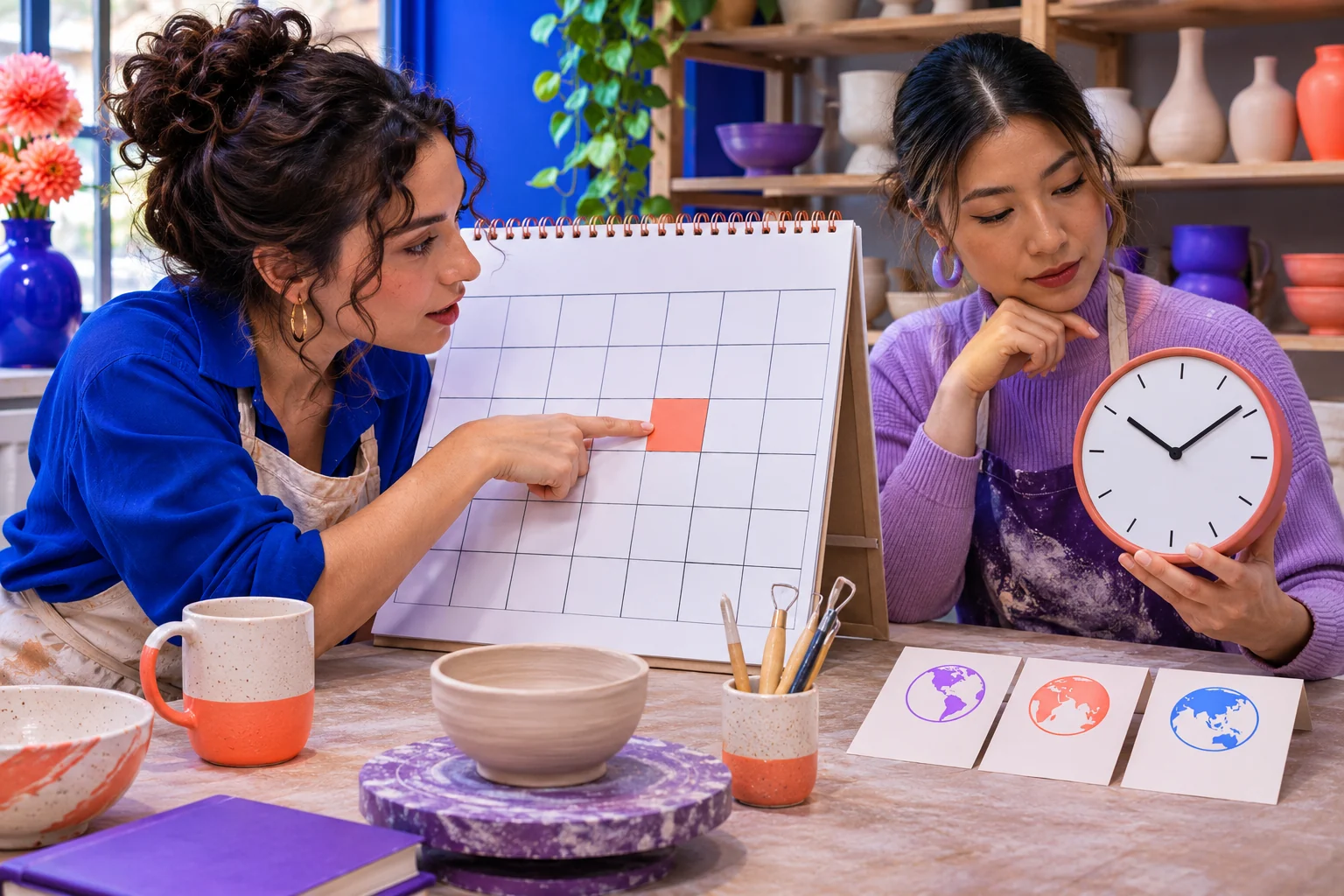
Choose a clock time the host can actually deliver, then specify the timezone in every human-written announcement. An Instagram event control may present time according to a device or viewer's local settings, but a screenshot sent across regions can lose that context. Write 'Thursday, 7:00 p.m. Eastern Time' or the appropriate local equivalent in the caption and partner brief; if your audience spans regions, provide a second verified conversion. Check daylight-saving transitions rather than reusing a conversion from last season.
Allow time for preparation and promotion, but do not treat a fixed number of days as a platform rule. Meta's launch announcement said Live schedules could be set far ahead; current limits should be checked in the app and current Help. For a small demonstration, the useful timing question is whether the host, guest, inventory and audience can make the agreed slot. A schedule set months ahead without a confirmed presenter is less reliable than a nearer event with a rehearsed plan.
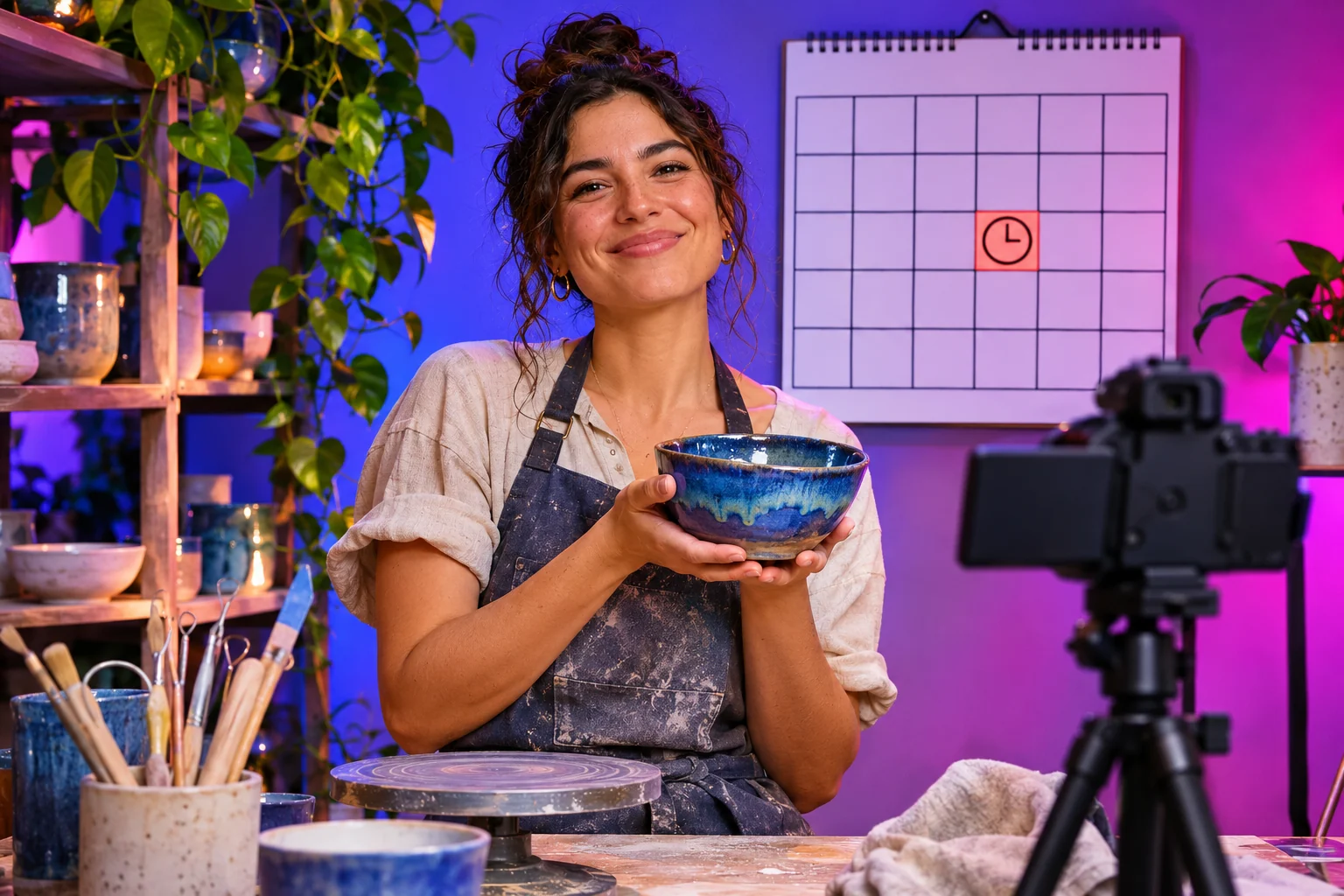
Put one owner in charge of the master time. If a studio manager changes the calendar while a freelance designer keeps an old graphic, two dates can circulate at once. Keep the title, date, local time, timezone and host account together on a one-page brief. The accompanying calendar image is a visual reminder of that decision, not an Instagram screen or a claim about the exact app layout. The final confirmation comes from the event displayed on the host and viewer accounts.
Create the event in Instagram's current Live flow
Meta originally described opening the Live camera, choosing the date option, entering a title and start time, and sharing an announcement post. That is useful history, but menus can move. In the current Instagram app, open the host account's creation area, find Live, then inspect the available scheduling or date choice. Enter the approved title and time, read the review screen and save only after it matches the event brief. If the app asks for a title, use one that explains the outcome rather than only the business name.
Do not confuse scheduling a Live with setting a phone alarm, scheduling an ordinary feed post or creating a Facebook Live event. They can help the campaign but are separate actions. A feed announcement may carry the Live event or a reminder control when the app supports it; a normal image caption with the date does not automatically become that event. After saving, return to the account and locate the scheduled item. If it is not there, recheck whether the action saved and whether you were in the intended account before posting promotional links.
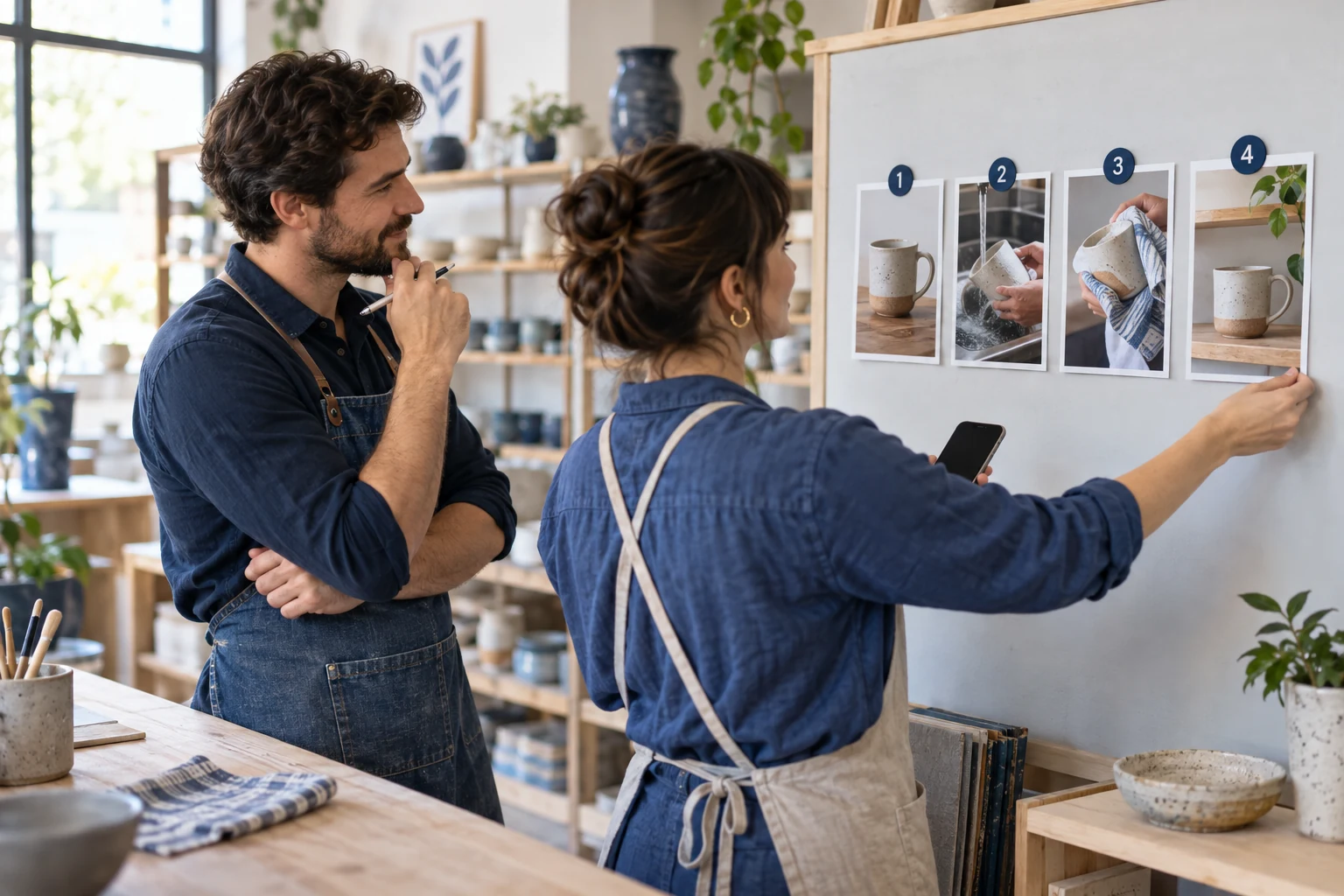
One worked example: the ceramics studio approves 'Care for handmade bowls: live finishing demonstration' for a Thursday evening. The host checks that the Live date and time match the team brief, then shares a relevant photo of the bowl rather than an unrelated stock image. A colleague opens the announcement on another account and reads the displayed title and time. Only then does the team send the link to partners. This verification takes less effort than correcting several mismatched announcements later.
- Prepare a short event title and check the timezone on the host device.
- Open the Live creation surface in the current Instagram app and inspect any scheduling or date option offered.
- Enter the intended time, review the confirmation, then share the event if the app offers an announcement route.
- Open the resulting event from a viewer account to verify the title, time and reminder rather than relying only on the host screen.
Publish a useful announcement and test the reminder
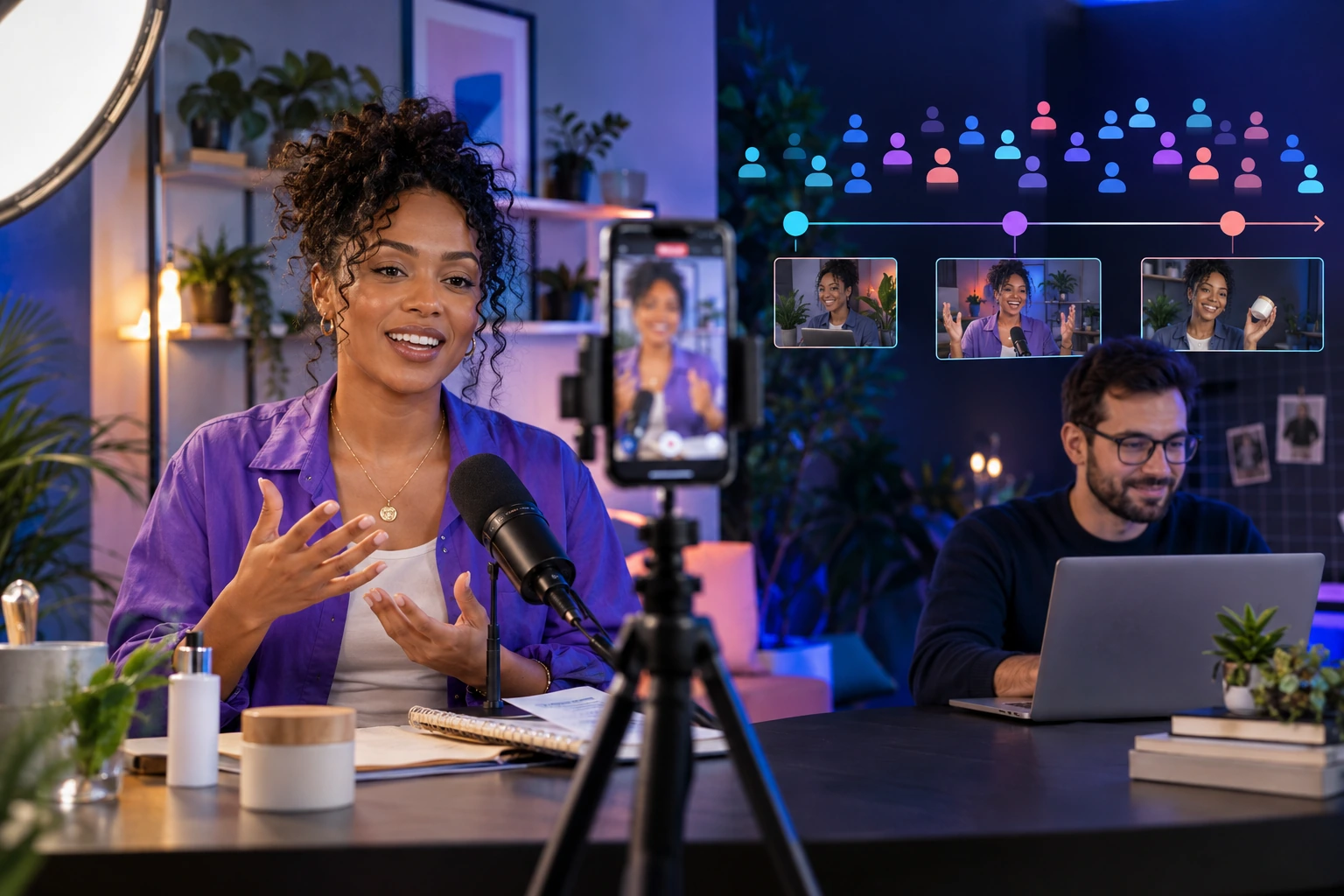
The announcement should answer four viewer questions quickly: what will I learn, who is hosting, when is it, and how do I find it? Use a clear visual showing the person or demonstration. Add an accessible written date, time and timezone even if the app also displays event metadata. Include a single reason to save the reminder, such as bringing a question about glaze care. Avoid a stack of unrelated offers that makes the event look like a generic promotion.
Meta's launch material described a reminder mechanism for scheduled Live posts. Do not promise a precise notification sequence without checking the current product and the viewer's own notification settings. From a separate account, open the published announcement, confirm that the right event is attached and see whether a reminder action is available. If the app does not expose one to that viewer, keep the human-readable time and a reliable alternate reminder channel. A saved reminder is a convenience, not a verified attendance commitment.
Check the share result before sending it widely. A link may point to a draft, the wrong Instagram profile or a post without the event attached. Read it as a person unfamiliar with your campaign would: can they understand the topic without a long caption, and can they find the host? If you use Stories, a website or email for the notice, repeat the same approved time and link. Treat each channel's performance later as its own input rather than adding all impressions into an imaginary count of unique interested people.
Confirm guest, moderator and permission decisions
A guest can add expertise, but the guest's availability and access need confirmation before their name appears in the event title. Meta has documented Live Rooms with multiple participants, yet the exact guest controls available today should be checked on the hosting account. Decide who sends the invitation, who handles a failed join, and whether the host can deliver the promised topic alone. If the guest is essential, prepare a postponement threshold rather than improvising while viewers wait.
Name a moderator even for a small session. They can verify the stream from another device, flag poor audio, collect questions, watch for spam and protect private details. If one person does both hosting and moderation, simplify the format enough to make that realistic. Give the moderator the event brief, a one-line fallback message and the contact route for the host. Do not make them guess whether they should post from the brand account when an interruption occurs.
Confirm permission for music, guest likeness, customer images and any people or private material visible in the studio. A scheduled Live is still a public broadcast when started for a public audience. A customer photograph used on a promotional card may need separate permission from the one that allowed an ordinary repost. If a guest is paid or endorses a product, make any relevant disclosure decision before the announcement. Keep this rights check in the same document as the run of show, where the team will actually see it.
Use a small, realistic launch timeline
Treat the following as a planning example, not Instagram's mandatory schedule. Several days before the session, confirm the host account and event title, save the Live if the app permits it, and publish the announcement. Later, add a useful preview showing the bowl or a question the demonstration will answer. On the event day, repeat the confirmed time and check the viewer route. Shortly before start, test audio and the connection and make sure the host can still see the intended event. Then begin the actual Live at the agreed time.
For a team with one employee, replace elaborate campaign stages with a simple checklist. The host may write the brief, schedule the event, create one announcement, rehearse and start it. For a larger team, record a named owner and completion evidence for each action. A checklist should include the calendar time, timezone, username, announcement link, guest confirmation, rehearsal note, fallback message and final go/no-go decision. The point is to eliminate silent assumptions, not to add bureaucracy.
Rehearse the production and a failure route
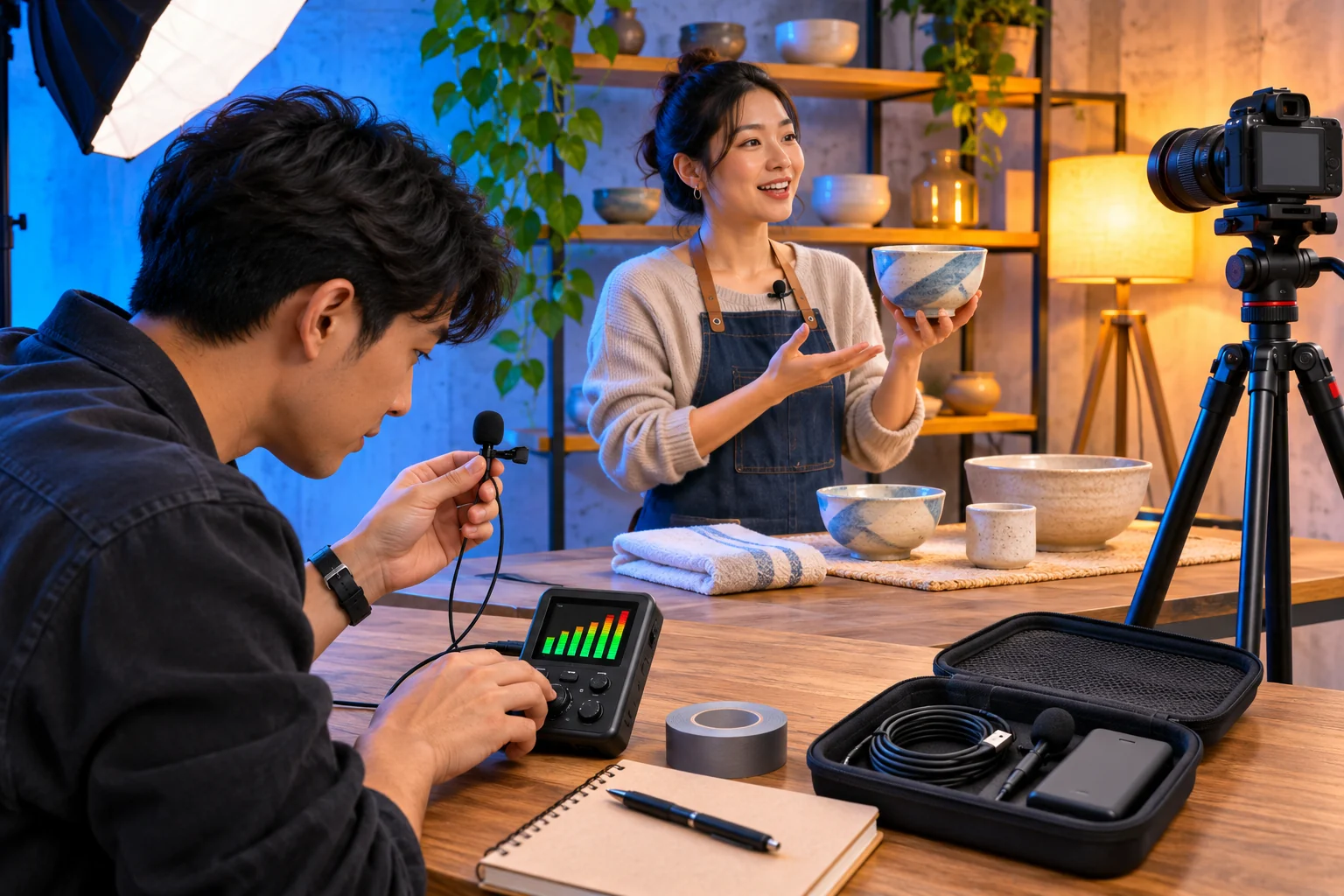
Rehearse under conditions close to the real event: same room, device, network, light, microphone, camera position and demonstration objects. A ceramics presenter may discover that a blue glaze looks muddy under a warm lamp or that the wheel drowns out spoken steps. Record a short local test if suitable, listen back and move the microphone or camera before the event. Do not accidentally publish a rehearsal from the real account; use the preview or safe test controls available to that account and check who can see them.
The moderator should watch on a second device, not only the host's preview. The monitor can spot an inverted frame, unreadable prop, frozen picture or muffled voice. Check battery, power, connection, device notifications and whether the host can read the prepared title. If the planned guest participates, practice the join and exit process without pretending that the older Live Rooms interface exactly matches today's app. The accompanying rehearsal image shows an audio check and demonstration setup, not a fabricated platform screen.
Write the fallback before it is needed. Decide whether the team will restart within a short period, move to a later date or cancel. Choose one official channel for the update and one person who can post it. If a stream drops, viewers need a truthful status and the new time only after the team has confirmed it. Do not repeatedly create fresh scheduled events or contradictory Stories while troubleshooting. A calm, verified message is more useful than several optimistic guesses.
- Test the actual hosting account, device, app, connection, microphone, camera and power source.
- Rehearse the opening, demonstration, guest join and moderator handoff in the same room and lighting.
- Keep private screens, customer details, copyrighted music and unapproved people out of the frame.
- Write a one-channel fallback notice before a failure so the team does not post conflicting updates.
Start the scheduled broadcast and verify it is live
A scheduled event is not an automatic broadcast. At the planned time, open the hosting account's current Live screen, locate the scheduled event or event reminder if available, and follow the displayed start action. Meta's launch explanation allowed the host to enter Live normally or use the reminder to start; read the current app before relying on an old tap sequence. Confirm the title and camera view, then start. Keep the first spoken line useful so early viewers receive the promised subject immediately.
Have the moderator verify from another account that the broadcast is visible, audible and attached to the intended host. If the event card does not appear but Live access is available, follow the current official path to start and send one correction to viewers only if the original announcement no longer leads them correctly. If Live access itself is absent, do not claim that a hidden setting, a new purchase or a third-party tool can restore it instantly. Use Instagram Help and the team's prewritten postponement plan.
Change or cancel a date without leaving stale notices
If the host cannot deliver, decide whether to update the existing scheduled event, create a replacement under the current product rules or cancel it. Check the options shown in the app and the current Help rather than assuming every edition of Instagram offers the same edit button. Do not announce a new time until the host, guest and venue have confirmed it. If the event is cancelled, say so plainly and do not leave an old reminder in circulation as though the session will still happen.
Trace every place the old time appears: the Instagram event, feed announcement, Story, pinned comment, profile link, email, website, guest post and partner share. You may not be able to edit every copy, so publish a clear correction on the channels you control and ask partners to update theirs. The correction should name the old date or time, the new confirmed date or cancellation, and where the verified status lives. A quiet change in one app field can miss someone who saved a screenshot.
For example, a studio loses power on the event afternoon. It confirms a replacement slot with the host and guest, updates the Instagram event if possible and posts one correction with the exact timezone. The moderator checks the old announcement from a viewer account and notes whether it now points to a useful update. That is a scheduling success even if the original date failed; it protects trust by treating viewer time as valuable. The lesson for the next event is whether the fallback channel worked.
Review event reliability separately from viewer counts
Afterward, compare four simple facts: the event was created as intended; the announcement and reminder were visible; the actual start matched the promised time; and viewers could find the broadcast. Preserve the screenshots or links needed to answer those questions, with dates and the host account. If any one failed, repair that step before judging the topic or the presenter. A weak attendance number alone cannot tell you whether the issue was the schedule, promotion, content or an app restriction.
Then review content and audience measures using the exact terms Instagram provides to your account. Views, concurrent viewers, questions and replay activity can answer different questions; avoid substituting one for another. Compare similar events, noting guests, timezones, promotion channels and delays. The studio might learn that a timezone-free caption caused confusion, while its demonstration itself held attention. That leads to a better next event brief, not a vague instruction to 'go live more'.
If you separately evaluate HitsBoost Instagram Live views, read the current package quantity, eligible active-session conditions, price, delivery timing and support before deciding. A paid order does not schedule the event, enable Live access, guarantee people will interact or prove organic reach, retention or sales. Keep an order record separate from the event-reliability and audience-content review. Use the service only for its stated scope, and keep the editorial decision about the next Live grounded in what the actual session taught you.
Explore Instagram Live ViewsFrequently asked questions
Can I schedule an Instagram Live in advance?+
Meta introduced native Live scheduling and event reminders, but availability and controls should be confirmed on the exact hosting account in the current app. Check its Live creation area and Instagram's current scheduling Help page before promising a reminder.
Does a scheduled Instagram Live start automatically?+
No. A scheduled event gives a planned time and may give viewers an announcement or reminder. The host still starts the broadcast through the current Live flow at that time.
How far ahead can I schedule an Instagram Live?+
Meta's 2021 launch announcement described a long advance window, but limits and account eligibility can change. Read the date choices in your current app and the linked Instagram Help page; do not base a campaign on a historic maximum without checking.
Why can't I see the Instagram Live schedule option?+
Check that you are in the intended hosting account, that Live itself is available, and that the app is current. Inspect account status and official Help for any restriction or feature difference. Do not assume a third-party scheduler or purchased views can unlock it.
Can viewers set a reminder for my scheduled Live?+
Meta described a reminder on an announcement for scheduled Live. After sharing, test the actual post from a second account and see whether that viewer can open the event and reminder. Notification settings and current product behavior may differ.
What should I put in the Live title?+
Name the subject and the specific audience outcome in a short, readable line. 'How we finish handmade bowls and answer care questions' gives a clearer expectation than a brand name or 'big Live tonight'.
What if I change the time after sharing the announcement?+
Confirm the replacement time first, update the scheduled event where the app allows it, and correct every active announcement or partner share you control. State the timezone and point viewers to one verified status.
Can I schedule a Live for a guest on someone else's account?+
The event belongs to the hosting account and should be created and started by an authorised person with access to it. Confirm guest availability and current Live guest controls before naming them in promotion. Do not exchange account passwords as a workaround.
Will scheduling or buying Live views guarantee attendance?+
No. Scheduling helps coordinate a time and potential reminder, while a Live views package has its own eligible-session terms. Neither guarantees organic attendance, recommendations, engagement, customers or sales.
Compare Instagram Live Views packages.
Prepare the public destination, then review the quantity and terms that fit your goal.
Review Instagram Live views packages and terms