
This English guide is shared with our global site. Follow related UK service links for current packages. Other service links open the global catalog in its stated currency.

An imaginary cafe's carousel checklist: one purpose for each item
| Sequence | Material and purpose | Check before sharing |
|---|---|---|
| 1. Introduce | A clear photograph of the cafe's current weekend breakfast | The pictured food is available and the opening wording describes the actual offer. |
| 2. Explain | A closer photograph showing what the breakfast includes | Portion details are accurate; the caption does not imply that optional extras are included. |
| 3. Show | A short preparation clip explaining one part of the dish | The clip adds information and any necessary explanation works for someone watching without sound. |
| 4. Answer | A readable card with service times and the enquiry route | The time, date and contact instructions are correct and easy to read on a phone. |
| Every item | An accessibility and permission review | Describe each photograph accurately, review text and obtain any needed permission for identifiable people. |
| Whole post | A complete visitor journey | The sequence stands alone, its captions agree and the reader can find the stated next step. |
Know what an Instagram carousel does
A carousel gathers several photos or videos into one feed publication. People move through the set rather than opening a separate post for every item. Instagram's Help Center says the first item appears as the opening view, with indicators that more content is available. Likes and comments apply to the whole publication, rather than becoming separate totals for each photograph or clip.
This is useful when several pieces belong to one explanation: a room before and after a renovation, a product shown from different angles, or an event with practical details. It is less useful when the items have unrelated purposes. A collection of yesterday's leftover photographs does not become a clearer story simply because the app lets you select several at once.
Keep the format distinct from a Reel. Instagram explicitly says videos inside carousels are not considered Reels, do not appear in the Reels tab and do not have Reels features. If your project depends on a Reel-specific control, choose that format and check its instructions. Do not upload the same clip inside a carousel expecting every setting from the Reel composer to appear.
Choose one reader need before choosing photographs
Start with the question the publication should answer. For a cafe, it could be what the weekend breakfast includes and when it is available. For a maker, it could be how a commission moves from first enquiry to collection. Write the question in ordinary language. It gives you a reason to include a photograph beyond liking how it looks.
Then identify what the reader needs to know to act on that answer. A menu photograph may show the food but omit service times. A studio process may look attractive while leaving the ordering route unexplained. List those missing details before opening the composer. You can decide whether they belong in a caption, a clearly designed card, another photograph or a different publication.
Keep a simple boundary around the topic. Breakfast details and an unrelated staff recruitment announcement usually need different explanations. Combining them saves one upload but asks the reader to switch tasks halfway through. Add the selected topic to the content calendar so a later post can address the other need without repeating the same material merely to fill a schedule.
Plan a sequence that earns each swipe
Choose an opening item that honestly represents what follows. A recognisable dish with a clear description can introduce a breakfast guide. A decorative cover with a vague promise forces the reader to work out the subject later. This is an editorial choice about clarity, not a formula for a particular reach or a claim about how Instagram must distribute the post.
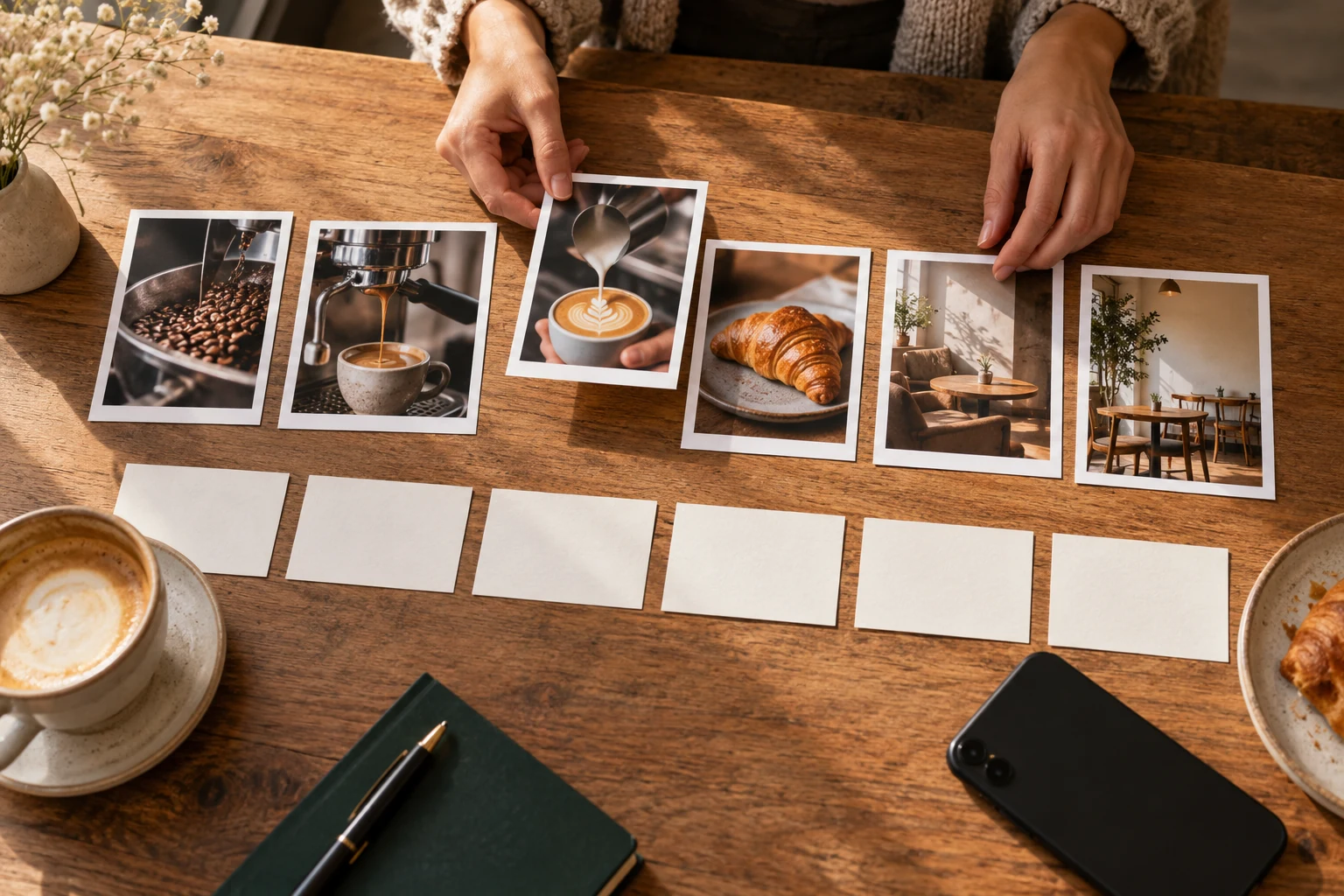
Lay out the remaining items in a note or on a desk. Put context before any detail that needs it. Show the finished object before discussing its unusual component if that makes the explanation easier to understand. Keep a process in its actual order when rearranging it would misrepresent what happened. Move the practical answer where it is useful instead of hiding essential conditions behind an artificial surprise.
A useful test is to explain why every item exists. If two photographs show almost the same angle and add no distinction, keep the clearer one. If removing an item leaves a confusing jump, restore it or rewrite the explanation. The limit of 20 is a publishing allowance, not a target. A complete four-item set is preferable to a stretched collection that repeats itself.
- Write the reader's question at the top of a note.
- Give each proposed item one job: introduce, explain, demonstrate or answer.
- Remove duplicates and place necessary context before details that depend on it.
- Read the sequence without its caption, then read the caption without relying on the photographs.
Create the carousel in the Instagram mobile app
The current iPhone and Android Help pages describe starting a post and using Select multiple to choose library items. Both versions allow up to 20 photos and videos. Confirm the active account before selecting files, especially if one phone manages several businesses. A screenshot of the right photograph is not necessarily the original file you intended to publish.
Follow the sequence below, checking the preview at each stage. Instagram documents pressing and holding an item to change its position during preparation. Make that change deliberately and preview again; the order you remember selecting is not a substitute for checking the current draft. Remove an unwanted selection through the composer before publication rather than assuming you will remember to fix it later.
The documented mobile caption stage currently offers a single caption for the publication or multiple captions for its individual items. That is different from an older assumption that every carousel must have only one caption. Use the choices your app actually presents. This guide follows the verified mobile Help instructions; it does not assume every device, app version or desktop composer displays an identical set of controls.
- Open the intended Instagram account and start creating a post.
- Choose Post, then Select multiple, and choose the intended library items.
- Review the frame for each item, then continue to the editing stage.
- Adjust the selected items; press and hold an item to drag it into the intended order.
- Continue to the caption stage, review the available caption and tagging choices, then share when the checks are complete.
Check every crop, clip and piece of text
Instagram's current instructions say the orientation chosen for this carousel route applies across its items. Review the entire set after choosing the frame. A portrait photograph and a wide group photograph may need different preparation to fit a consistent orientation without losing the important subject. Check the real preview instead of assuming a commonly recommended pixel size will preserve every photograph exactly as expected.
Look especially at faces near edges, product details, dates and text embedded in artwork. A good first image does not prove the fifth is readable. If essential wording is cut off, revise the source artwork or choose a better frame before sharing. Avoid making readers depend on tiny writing in a photographed menu when a clear caption can provide the same information more comfortably.
Play every included clip and listen to what it contains. Confirm that the sound belongs with this publication and that you have the necessary permission to use the material. If an explanation depends on speech, consider how someone will understand it while watching without sound. Carousel video is a separate format from a Reel; do not promise that a caption or audio control documented for Reels will necessarily appear here.
Write captions and photograph descriptions for different jobs
Use captions to explain context the visuals cannot carry alone. In the cafe example, say what is included, when it is served and where a customer can ask about availability. If you use individual captions, read them in order and remove contradictions. Keep the main explanation understandable even when a reader does not already know the business or recognise the place in the photograph.
Alternative text describes a photograph for someone using a screen reader. Instagram explains that automatic descriptions can be replaced with more useful descriptions. Its current Android instructions place Write alt text under More options before publication; after sharing, the photo's edit controls offer Edit alt text. Follow the linked photograph guide for a fuller walkthrough, and review the available fields for the photos in your set.
Describe the actual visual information. For a breakfast close-up, a useful description might identify toast, eggs and roasted tomatoes on a blue plate. Do not paste the full promotion under every photograph or turn the field into a list of search phrases. When important information appears as image text, make that information available accessibly as well. A photo description does not replace a video explanation or guarantee more discovery.
Work through a complete cafe example
Imagine a small cafe preparing a guide to its current weekend breakfast. The owner has six attractive photographs, one preparation clip and a note of service times. The task is to explain the offer accurately. This is a hypothetical planning example, not a report of customer results or evidence that one sequence produces more orders than another.
The owner chooses a finished-dish photograph first, a closer ingredient view second, the useful preparation clip third and a readable information card last. Two near-identical table photographs are left out. The preparation clip stays only because it explains something the still images do not. The closing card gives the actual service window and enquiry route without implying that availability is unlimited.
Next, a colleague checks the claim that everything pictured comes with the breakfast. An optional drink was included in the first photograph, so the owner clarifies it in the caption before sharing. They also check that no identifiable customer appears without the required permission. The table above turns these checks into reusable prompts. Another cafe can change the sequence to suit its own question rather than copying this example mechanically.
Consider Edits for a more involved layout
Meta's Japanese Newsroom announcement of October 8, 2026 introduces carousel creation in Edits, with a canvas for arranging photos, videos and text. Consider it when your layout needs more preparation than a straightforward library sequence.
Its route is Projects, a new project, then Carousel: arrange the material and share to Instagram. The announcement also describes adding and reordering slides. These are dated Edits instructions, separate from Instagram's ordinary composer.
At release, Meta said this was available on iOS with Android to follow. That does not confirm Android availability today. Check your current Edits app and use the ordinary Instagram route if the option is missing.
Publish, then check the actual post
Before sharing, read the publication as a new visitor. Check the account, chosen material, order, captions and permission to use the content. Open any destination promised in the wording, such as the profile's current enquiry route. If the post concerns an event, compare the date and time against the actual arrangements rather than an older planning note.
After the upload completes, open the published carousel and move through every item. Look for a missing selection, an unexpected crop or a caption attached to the wrong part of the explanation. Check the clips too. A correct-looking first image does not confirm the entire publication. Use another person's ordinary view where appropriate while respecting the account's intended audience and privacy settings.
If you share the publication outside Instagram, copy and test that post's link. A profile link takes someone to the account, while a post link identifies the individual publication. Label the destination accurately. If the guide becomes useful long-term profile information, consider whether pinning it serves visitors; pinning is a separate presentation decision and does not replace publishing or checking the carousel itself.
- Confirm the correct account and the complete set of intended items.
- Swipe through the published post and check order, crops, captions and any included video.
- Open the promised next step and check its wording against the actual destination.
- Record the publication and any fact that will need a later update, such as an event date or availability.

Fix order mistakes and upload problems carefully
Current Instagram Help instructions say that after sharing a carousel you can reorder its existing material and remove photos or videos. They describe opening the post's three-dot menu, choosing Edit, then holding an item to change its order and saving with Done. This matters because older advice often says reordering is impossible. Inspect the actual edit controls available on the account before deciding that deletion is necessary.
The same Help page says new photos or videos cannot be added to an already shared carousel. Correcting a caption, reordering an existing image and adding a missing image are therefore different tasks. If an essential item was omitted, decide how to supply the missing information without assuming a new upload can be appended. Consider the importance of the correction and preserve useful existing information before any deletion decision.
For an upload that has not completed, keep the original files and protect any saved work before disruptive troubleshooting. Instagram notes that posts with several videos may take longer to upload and recommends a reliable connection. That is not a universal waiting-time guarantee. Use the separate upload troubleshooting guide to isolate the problem, and check whether the publication actually exists before starting another attempt that could create a duplicate.
Review usefulness before changing the next carousel
Begin a review with the job the post was meant to do. Did customers understand the included items? Did the enquiry route lead to the right place? Were repeated questions caused by information you left out? Note a concrete correction rather than declaring that a colour, slide count or cover design caused a business result. Several things can change between publications, and one comparison does not establish causation.
Read visible responses in context. Instagram documents likes and comments for the whole carousel, so do not report those totals as proof that a particular slide was liked or read. Likewise, do not invent an item-by-item completion figure from a post-level number. Use the controls and measurements actually available to your account, and keep comments, likes and saves distinct when considering what people did.
Creating a carousel does not require a paid service. If you separately consider HitsBoost's Instagram likes packages, review the current options, eligible destination and terms first. A purchased count does not guarantee recommendations, meaningful discussion or sales. Keep the practical publication checks in place whichever commercial decision you make, and use the next carousel to answer another genuine reader question instead of repeating the same offer with a different cover.
Frequently asked questions
How do I make a carousel post on Instagram?+
In the mobile app, start a post, use Select multiple to choose photos or videos, check the frame and order, complete the available caption choices and share. Open the published post afterward and review the entire sequence.
How many photos or videos can an Instagram carousel contain?+
The iPhone and Android Help instructions checked on October 20, 2026 allow up to 20 photos and videos in one carousel. That is a maximum, not a recommended length for every topic; use only the items that help explain your subject.
Can a carousel include both photographs and videos?+
Yes. Instagram describes a carousel as a post containing multiple photos and videos. Check each included clip during preparation. Instagram says a carousel video is not considered a Reel and does not have Reels features.
Can I rearrange a carousel after posting it?+
Instagram's current Help instructions say you can reorder existing content after sharing. Open the post's three-dot menu, choose Edit, use the available hold-and-reorder control and save. Check your account's actual controls before making a change.
Can I add another photograph to a published carousel?+
Instagram's current Help page says you cannot add new photos or videos after sharing the carousel. Adding an omitted image is different from reordering an existing one or editing its caption. Decide how to provide the missing information before deleting anything.
Does every carousel have to use a single caption?+
The current mobile Help instructions offer Single caption for the whole publication or Multiple captions for its individual items. Check the choices presented by your app and review the final result; do not assume all devices have an identical composer.
Do likes and comments belong to each carousel image?+
Instagram says likes and comments apply to the complete post rather than its individual photographs and videos. A post-level total does not establish that a specific item was read, watched or liked.
Should I use all 20 available carousel places?+
Only if the explanation genuinely needs them. Remove repeated angles and material that does not answer the reader's question. A shorter complete sequence can be clearer than one extended to fill the allowance.
Is Edits carousel creation available on Android?+
Meta's October 8, 2026 announcement said the feature was on iOS and Android would follow. That dated statement does not confirm today's Android availability. Check your current Edits app and use the ordinary Instagram composer when the option is unavailable.
Compare Instagram Likes packages.
Prepare the public destination, then review the quantity and terms that fit your goal.
Review Instagram likes packages and requirements