
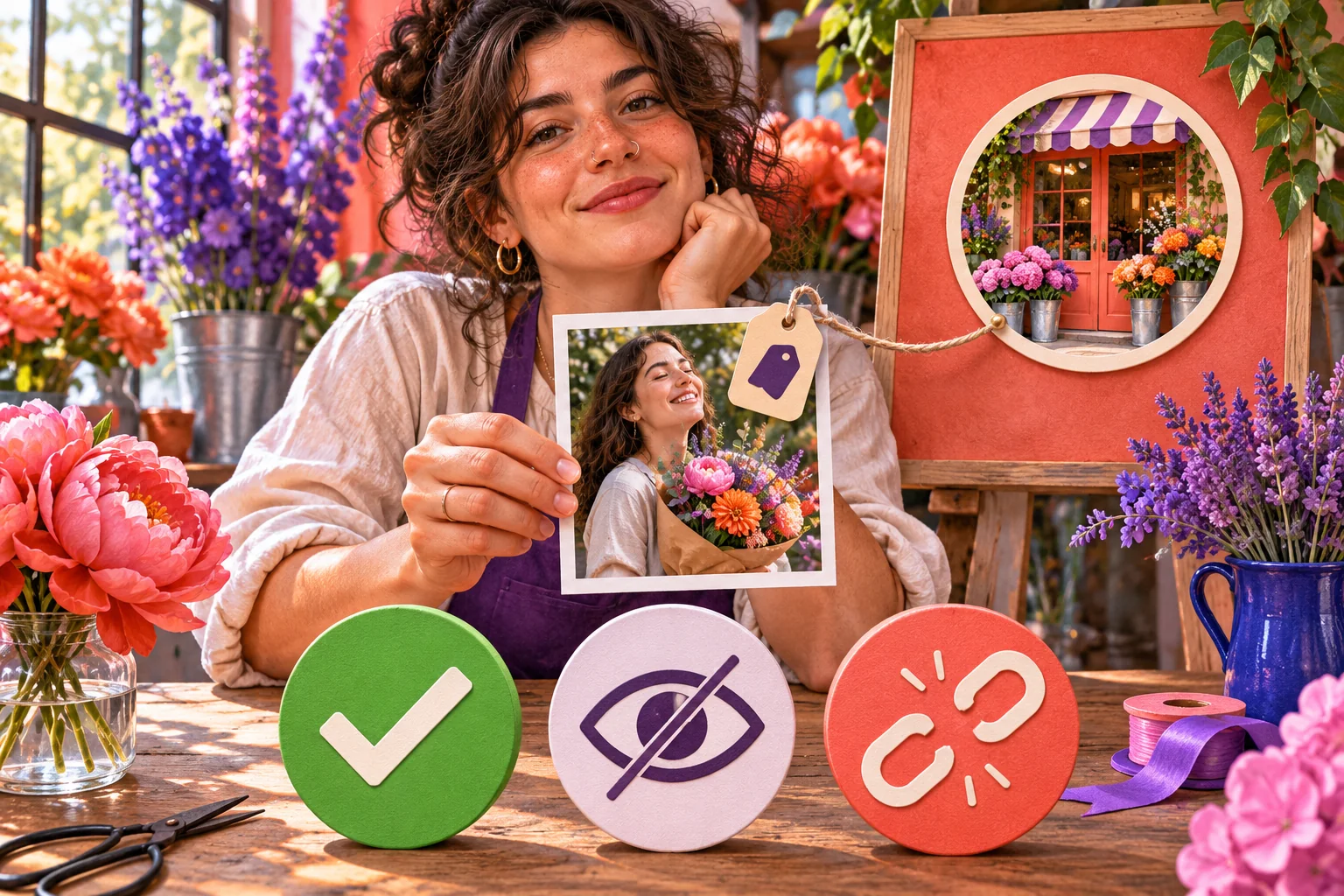
Choose an action for the actual tagged-post problem
| What you found | First useful action | What still needs checking |
|---|---|---|
| A relevant customer photo that you want in your tagged section | Review and approve its profile appearance | Identity, accuracy, context and any separate permission before reuse |
| A harmless post you do not want displayed on your profile | Hide it from your profile | The tag and original post may still remain elsewhere |
| A mistaken or unwanted connection to your account | Remove your tag from the post | The original post belongs to its publisher and can remain visible |
| A suspicious promotional or impersonating tag | Do not open its links; remove or decline the tag and report if warranted | Check account security and other affected posts |
| Repeated future tags from accounts you do not follow | Review who may tag you and enable manual review | Existing tags require their own review |
| A caption merely writes @yourname or invites a Collab | Use the mention or Collab control for that interaction | It may not be an ordinary tagged-photo entry |
Identify the interaction before changing a setting
A post can name you in several ways. A photo or Reel tag attaches your account to the media itself and can make that post eligible for the tagged section of your profile. A written @mention in a caption, comment, Story or message is a different connection. A Collab invitation asks you to accept a shared publication relationship; it is not merely a customer adding a photo tag. Start by opening the exact post and looking at what the publisher did. If there is no media tag, the tagged-post controls in this guide may not be the route you need.
Imagine a florist whose customer posts a bouquet photograph. The customer may tag the shop on the image, write the shop's username in the caption, or invite the shop to co-author a post. Those choices create different expectations. The florist can review whether a tagged image appears on its own profile, but that does not make the florist the owner of the photograph. Accepting a Collab post is a separate choice with its own visibility and consent checks. A written mention does not necessarily create an item in the tagged grid.
Find the original post and your tagged section
Open your Instagram profile and find the section that collects posts other accounts have tagged you in. It is separate from the main grid of posts you published yourself. A tagged customer photo can appear there without becoming your own post. Some app versions put a person-in-a-frame symbol above this area; labels and placement can change, so identify it by the content and the current on-screen explanation rather than by an old screenshot. Open a specific entry to inspect the publisher, full caption, image or Reel, and any link or location context.
If you received a tag notification but see nothing in the section, do not jump to a ban or shadowban explanation. Manual review may be on, the entry may still be pending, Instagram may have filtered a suspected spam tag, the publisher may have removed the tag or post, or the notice may have been an @mention instead. Check the current pending-review area and the original post when it is safe to do so. A deleted or private original may no longer be accessible to you in the same way.
Set who can tag you and review mentions separately
Instagram offers a choice about who may tag the account, and Meta describes options such as everyone, people you follow and no one. The account may also have a distinct who-can-@mention-you choice. If a shop likes customer photos from the public, closing all tags may cut off useful invitations; a profile facing persistent spam may prefer a narrower audience. Choose for the actual contact pattern. Do not assume that allowing a tag is an endorsement, an invitation to advertise, or permission to reuse a customer's image.
In the current app, open the intended account, find its Tags and mentions settings and read the tag audience and mention audience independently. Meta noted in its 2026 account update that Instagram photo-tag choices remain Instagram-specific settings. A Facebook or broader Meta Account preference should not be assumed to set this Instagram control for you. App menu names can move, so treat the path as a search route rather than a permanent sequence of exact taps.
- Open the Instagram account whose tagged section you want to control; confirm the username before changing a setting.
- Find the current Tags and mentions area and inspect who may tag you and who may @mention you as separate choices.
- Choose the narrowest tag audience that fits your work, then look for a separate manual-approval option.
- Review old visible and pending tagged posts individually; a new setting is not a retrospective cleanup.
Turn on manual approval and work through the queue
Manual approval adds a checkpoint before a tagged post appears in your profile's tagged section. Meta's Instagram safety materials show a Manually Approve Tags control alongside who-may-tag-you settings, and Instagram has a dedicated Help page about choosing manual approval. Verify the switch in the current app rather than treating a historic screenshot as a guarantee of its location. The decision is about profile display: the other person's original post still exists according to its own audience and the tag may be present pending your choice.
A ceramics shop might receive tags from a workshop attendee, a supplier and an unrelated coupon account in one afternoon. The shop can inspect each original post before allowing it into the tagged section. It should ask whether the content really shows the shop or product, whether the caption is accurate, whether the account is authentic, and whether showing the post could confuse customers about an offer. Approval is a display decision; it does not transfer copyright, make a testimonial verified or prove the publisher wants the shop to reuse the image elsewhere.
- Find the tagged-post review queue in the account's current settings or tagged section.
- Open the original post and confirm its publisher, image, caption, links and the account actually tagged.
- Approve it for profile display only if it fits; otherwise leave it pending, hide it, remove the tag or report it as the case requires.
- Return to your profile's tagged section to verify the result without asking another account to test it.
Use five checks before approving a business tag
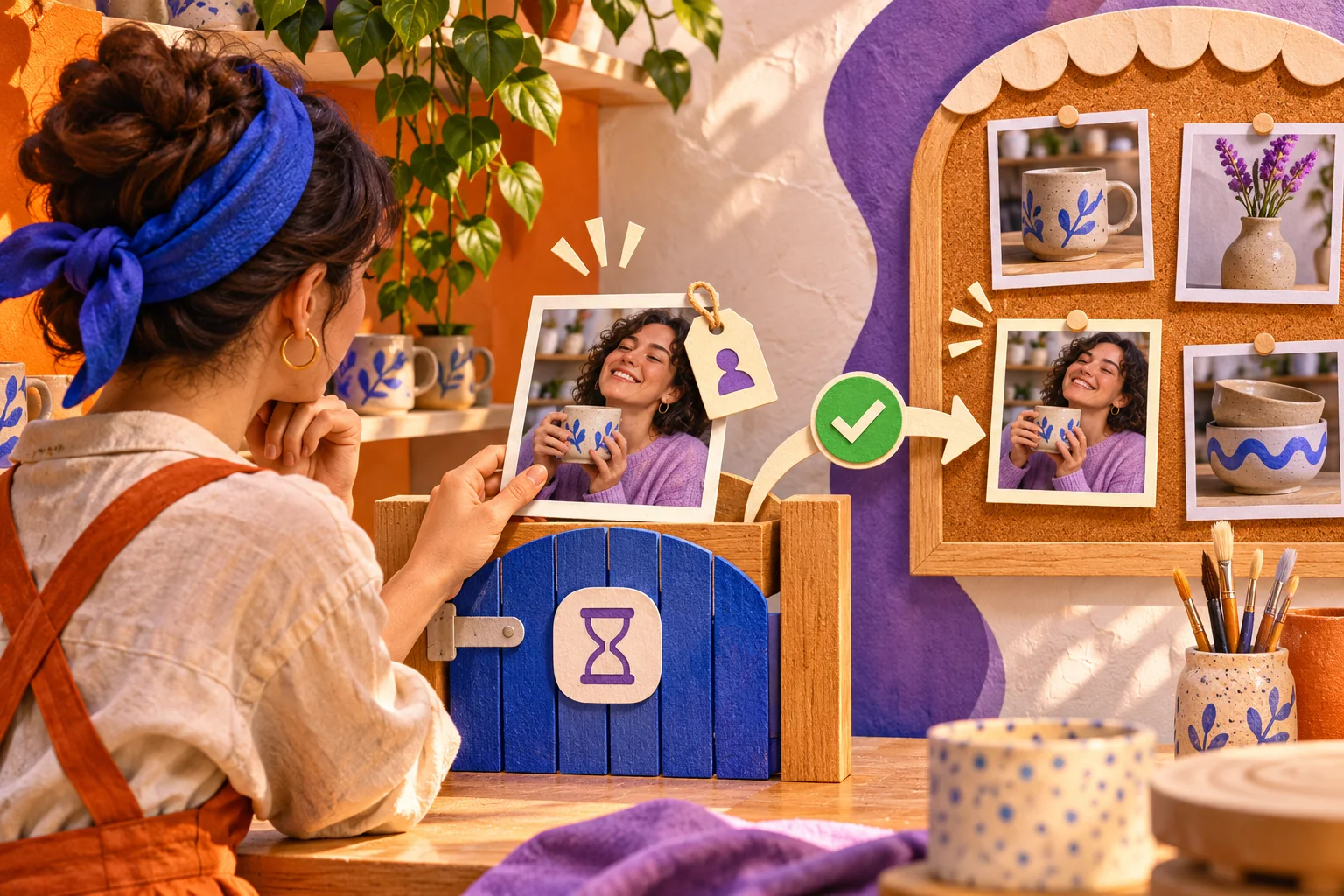
A useful approval rule can fit on one card. First, is the publisher the person or organisation you think it is? Second, is the media actually relevant to your shop, product, event or work? Third, does its caption make a claim you would be comfortable showing beside your brand, such as a price, guarantee or endorsement? Fourth, does the post expose a person's private details or a location the account should not amplify? Fifth, is any separate reuse, advertising or collaboration request being mistaken for a simple tag? These checks are more useful than approving every flattering picture automatically.
Suppose the ceramics shop is tagged in a beautiful photo of a glazed cup. The publisher says it was bought at the studio, but the pictured design might be a different maker's work. The shop can ask privately before allowing it into its tagged section. A photo that is genuine but contains a child's face may call for more caution than a close-up of a mug. A caption advertising a discount that the shop never offered should not be treated as a harmless compliment. The decision sheet above separates relevance, accuracy, privacy and the desired action.
Choose Hide from profile or Remove tag for an old post
These two controls answer different questions. Hiding a tagged post from your profile changes the display in your tagged section while leaving the original publisher's post in place; the tag itself may remain attached to that original. Removing your tag is the choice when you do not want the connection to your account to remain on the post. In neither case are you deleting another person's publication. Instagram has separate Help pages for hiding a tagged post and removing yourself from one, which is a useful signal that the actions should not be collapsed into one vague 'delete tag' instruction.
Use Hide when the photo is harmless and accurate but does not belong in your profile gallery. A café could be tagged in a busy street scene that happens to include its sign; the café may leave the tag on the original but keep its own gallery focused on food and staff. Use Remove tag when the photo falsely identifies your business, associates your handle with an unrelated promotion, or keeps linking you to a post you do not want to endorse. If the post itself includes harassment or impersonation, consider reporting it as a separate action.
Read the exact label and confirmation on your current device. Some versions expose options from the original post, others surface them in tag-review controls; the important part is the effect, not an unverified fixed menu route. Afterwards, check both the original media and your own tagged section. The paired illustration shows why a hidden profile copy can coexist with the publisher's original and why untagging breaks a link without erasing that original. Do not promise that old screenshots, notifications or outside copies vanish too.

Remove a mistaken connection without losing the evidence
When a tag is mistaken or misleading, capture the exact post link or enough context to identify it before changing your account connection, particularly if a colleague may need to report or explain the incident later. Avoid saving other people's private details unless there is a real purpose. Open the original post through Instagram, inspect the media tag and confirm it points to your account. Choose the current remove-tag action and read the confirmation so you do not accidentally choose Hide if you need the underlying account link gone.
Verification has two parts. First, your profile's tagged section should no longer display the post as a tagged entry. Second, the original post should no longer show your handle as its media tag, if the post remains available for you to inspect. A temporary cache or another account's copy may cause a short mismatch; use the current app and a fresh view before reporting a failure. Do not ask strangers to click the post as a test, and do not log in through a third-party 'bulk tag cleaner' to perform an ordinary Instagram control.
- Record the exact original post and username before taking action, especially if a team manages the account.
- Choose Hide only when the profile display is the issue and the underlying tag may remain.
- Choose Remove tag when the account should no longer be linked to the post.
- Check the original post and your tagged section afterwards; report harmful content separately.
Handle spam tags and harmful posts separately
Meta has described proactive detection of suspected spam tags and a review area where accounts can decide whether to approve such requests. That is an additional filter, not a guarantee that every unsafe post will be caught. A tag may be a harmless mistake, a bulk promotion, or part of a phishing attempt. If the poster urges you to open a reward link, enter an Instagram code or pay a fee to remove the tag, stop. Use Instagram's own controls and official help rather than the link inside the suspicious post.
For an ordinary irrelevant tag, decline, hide or remove according to the effect you want. For impersonation, threats, fraud or abusive content, report the account or post through the app as appropriate. Meta's safety guidance says people can manage tags and mentions and use blocking where contact needs to stop. A report asks the platform to review conduct under its rules; it does not promise a removal deadline or outcome. If there is an immediate personal safety concern, a platform report is only one part of getting suitable local help.
A business team should not confuse customer complaints with spam simply because a post is unflattering. An accurate complaint about an order deserves a factual service response, even if the shop decides the tagged post is not suitable for its gallery. A fake voucher account using the shop's logo is different: remove its tag, report the impersonation, warn customers through an official channel if warranted, and review login security. The moderation decision, the customer-care decision and the account-security decision should be made separately.
Work through four realistic tagged-post decisions
A workshop attendee tags a studio in a photo of a finished cup. The studio checks the account, the piece and the caption, then approves it for the tagged section if it fits. If the studio wants to repost the image as a testimonial, it asks for that additional permission. A local seller tags the studio in an unrelated promotion. The studio hides or removes the tag depending on whether it wants its handle attached at all; it need not publish the promotion just to be polite.
A partner posts a planned campaign image and invites the studio as a Collab author. That is not the same as approving a routine tag. The studio reviews the final content, disclosure, timing and ownership under its collaboration workflow before accepting. A stranger tags the studio in a post that pretends to offer a free checkout voucher. The studio does not click the voucher, removes or declines its tag and reports the account if it appears to impersonate the shop. These are four different choices despite the same notification area being involved.
Troubleshoot a missing tag, queue or control
If a person says they tagged you but you cannot find the post, ask for the direct post link rather than guessing from a cropped notification. Check that they tagged the exact account you manage and that they used a media tag rather than only @mentioning you. Look in the tagged section, the pending manual-review area and any separate suspected-spam queue that your version shows. The original may have been removed, the tag changed, the account made private or the request left in a different surface. None of those possibilities proves a platform penalty.
If you cannot find the manual-approval switch, confirm that you are using the intended Instagram account and look for Tags and mentions in current settings. Update the app through its official store and read Instagram's current Help page before relying on a 2021 tap path. Meta has made clear that photo-tag permissions are Instagram-specific, even where a wider Meta Account exists. If a colleague sees a control that you do not, compare the active account, device and permissions rather than sharing a password.
If Hide or Remove is absent on a particular entry, verify that the post really tags your account and that you are viewing the original, not a shared screenshot or a Collab invitation. Try the app's own post and tag options. If the feature still behaves inconsistently, use Instagram's in-app problem-reporting route with the app version, device and exact post link. Avoid tools that ask for your Instagram password to 'fix' a tag; the problem should be diagnosed inside the service before granting another party access.
- Confirm the post actually tags your account rather than only @mentioning it or inviting a collaboration.
- Check the correct account, the tagged section and any pending-review queue; look at the original post too.
- Update the app and read the labels visible in that version; avoid old screenshots and untrusted browser extensions.
- If the control remains missing, use Instagram's in-app help route with the exact device, app version and post link.
Keep a simple review rule and separate growth decisions
For a creator or small shop, a short rule is enough: decide who can tag the account, choose whether all future tagged posts need manual review, name who reviews the queue, and record why an exception was hidden, removed or reported. Revisit the rule after a campaign, staff change or spam wave. A permissive setting may suit a creator who relies on customer participation; a restrictive setting may suit a profile that receives persistent unrelated promotions. Neither choice is universally best.
Measure the result against the tag problem. Can a visitor see only the tagged posts the business has chosen? Is an unwanted link to the account gone? Are genuine customer questions getting a response? Follower count, post views and likes cannot answer those questions by themselves. A tag approval does not guarantee reach or customer trust, and removing a tag is not an algorithm reset. The original publisher also keeps control of their own post, subject to Instagram's rules and your separate requests or reports.
If you separately consider HitsBoost Instagram follower packages, review their current quantity, profile requirements, price, terms and support before deciding. A purchase cannot approve a tag, clean up a misleading post, grant photo-reuse rights or guarantee recommendations, engagement or sales. First make the profile and tag-review choices on their merits. Then evaluate any audience service as a separate commercial decision, using engagement and customer evidence rather than treating a neat tagged gallery as a promised growth result.
Frequently asked questions
Where do posts I am tagged in appear on Instagram?+
They can appear in a separate tagged section of your profile, distinct from the main grid of posts you published. Manual approval or a suspected-spam review may keep an entry pending. Check the original post and the exact account tagged.
How do I approve a tagged Instagram post before it shows on my profile?+
Find your account's current Tags and mentions settings, enable manual approval if offered, and review the pending entry in the app. Open the original post, check its publisher and context, approve only if you want it in your tagged section, then verify the display.
Does hiding a tagged post remove my tag from the original?+
No. Hiding is a profile-display choice; the original post and its tag can remain. If you want your account disconnected from that post, use the separate remove-tag action and verify it on the original.
Does removing my Instagram tag delete someone else's post?+
No. It removes the link to your account. The publisher's original post can remain under their own audience and platform rules. A harmful post may need a separate report or a request to its publisher.
Is a photo tag the same as an @mention or a Collab invitation?+
No. A media tag attaches an account to a photo or Reel. An @mention is a written reference, while a Collab invitation asks for a shared publication decision. Use the control that matches the actual interaction.
Can I stop future Instagram tags without clearing existing tagged posts?+
Yes. Who-can-tag-you and manual-review settings address future tags and profile display. Review existing visible or pending posts individually; a new permission choice does not automatically remove old tags.
Why is a tagged post missing from my profile?+
It may be pending your manual approval, screened as suspected spam, hidden from your profile, removed by the publisher or not a media tag at all. Check the direct post, exact username, tagged section and any review queue before assuming a technical fault.
Should I approve a customer's tag before using their photo in an ad?+
Tag approval is not permission to reuse a photo in an advertisement. Confirm the creator's rights and consent for that specific use separately, and check any relevant advertising and privacy requirements.
Should I report a post after untagging myself?+
If it impersonates you, threatens someone, attempts a scam or otherwise appears to break Instagram's rules, use the app's report route. Removing a tag alone is not a report, and a report is a review request rather than a guaranteed removal.
Compare Instagram Followers packages.
Prepare the public destination, then review the quantity and terms that fit your goal.
Review Instagram follower packages and conditions