
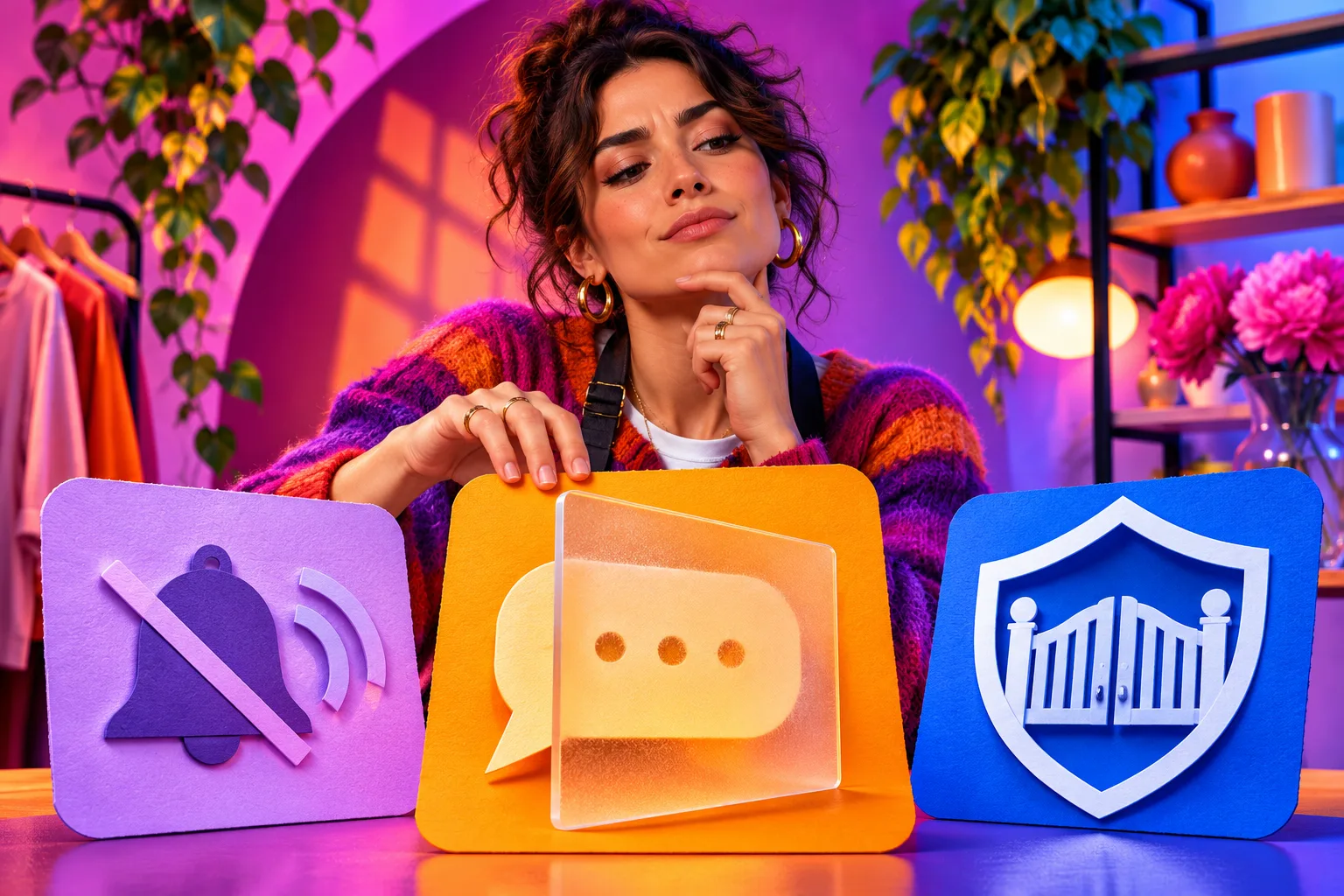
Choose the Instagram control that addresses the actual problem
| What is happening | Better first control | What to check next |
|---|---|---|
| Their posts crowd your feed, but they are not contacting you | Mute their posts or Stories | Can you still see their profile when you choose to? |
| One person leaves unwanted comments or DMs | Restrict that account | Review its held comments and Message Requests on your own schedule |
| You do not want that account to contact or view your Instagram profile | Block that account | Read the block confirmation, including any related-account option |
| A message looks like a login scam or impersonation | Report and Block where appropriate | Do not open a suspicious link or share a code |
| Many unfamiliar accounts arrive at once | Review Limits, Hidden Words and reporting | An individual Restrict action will not handle a whole surge |
| You simply need fewer alerts for a period | Review notification or Sleep Mode settings | Account-level Mute may solve a different problem |
Start with the interaction you want to change
The three controls sit near each other in Instagram, but they act on different parts of your experience. Mute is for content you no longer want to see from a particular account. Restrict is for unwanted attention from a particular account without making a public confrontation out of every comment. Block is for a firmer account-level separation. None is a verdict about the person's character. Pick one because its documented effect fits the specific interaction in front of you.
Suppose a pottery studio follows a supplier whose frequent personal Stories clutter its work feed. Muting that supplier's Stories addresses the viewing problem while leaving the business relationship alone. If a customer starts posting repeated hostile comments under the studio's own work, muting the customer's posts will not solve it. Restrict may give the team space to review that person's comments. If a stranger sends threatening messages, the team may need to block and report the account rather than spending time testing quieter controls.
Mute an account when you need a quieter feed
Meta describes muting an account as a way to hide its posts from your feed without unfollowing it. Depending on the control Instagram offers, you may be able to mute posts, Stories or other account activity separately. The account can still have a profile that you deliberately visit. The key distinction is direction: you are changing what appears to you, not installing a barrier around what that person can do on your account.
Imagine that a former collaborator publishes a high volume of Reels you no longer want in your working feed, but you still need to keep a professional connection. Mute is a reasonable starting choice. Review the available switches rather than assuming one tap hides every surface. If their posts still appear from another account, a repost or a recommendation, inspect that specific source instead of concluding the mute failed across the board. The control is scoped to the selected relationship and surface.
Mute is a poor fix for someone who is leaving troubling comments on your posts or repeatedly messaging you. The muted account can still attempt those actions. It is also different from silencing your phone's notifications for a day; notification settings and Instagram's time-management controls answer a broader interruption problem. If the issue is one account's contact with you, go to Restrict or Block rather than trying to force a feed control to do an interaction-control job.
Restrict one account's comments and message requests
Meta's Restrict explanation is specific. New comments from a restricted account on your posts are initially visible only to that account. You can inspect one, approve it for others to see, delete it or leave it unapproved. Direct messages from that account move to Message Requests, and Meta says you do not receive their usual notifications. The restricted account cannot see when you are active or whether you read its messages. That is more than muting what appears in your feed.
This is useful when an account's comments are disruptive but you want time to assess each new contribution without a public argument. A café could restrict a person repeatedly posting irrelevant accusations on a menu post, then review those comments with the staff member responsible for customer care. A genuine, verifiable concern deserves a substantive response through a suitable channel; Restrict should not become a way to bury every difficult but legitimate question. The control changes visibility and inbox placement, not the truth of what was said.
Restrict is account-specific. It is not the same as Meta's Limits control for a rush of comments and message requests from broader groups, and it is not the same as Hidden Words matching phrases. It also does not make a public profile private. If the account uses another identity or someone shares a screenshot, Restrict does not promise that every future interaction is contained. Check the actual restricted-accounts view and the relevant message folder, and use a stronger boundary or a report when the conduct warrants it.

Block when you need an account boundary
Blocking is the strongest of these three individual controls. Instagram's published safety description says a blocked account cannot view your profile, posts or Reels through that account and cannot interact with you in the ordinary way. Meta expanded the block prompt so you may be offered a choice that includes other accounts the person already has or creates. Read the option on your own screen before confirming; the exact scope of any related-account identification is not something an outside guide can verify for every person.
Choose Block when contact itself is unwanted: repeated harassment, impersonation, a suspected phishing account, or a former contact who should not use Instagram to reach you. You do not owe someone a period of Restrict before you set that boundary. If a message looks like a fake Instagram security warning, Meta says Instagram will not send account-security notices through DMs. Do not use the message's link or give a code; report and block the suspicious account through the app instead.
A block is strong but not magical. Someone may infer the change when a profile no longer opens in their account, and an account you have not identified may still encounter public information elsewhere. A block does not erase screenshots, messages already saved by another person or material on a public website. For a persistent threat, use reporting and appropriate outside support. Keep the focus on the boundary you can set, rather than promising that one button will make the other person disappear from every channel.
Read the side-by-side comparison carefully
The table maps the problem to a sensible first action, but the controls are not a ladder everyone must climb in order. Someone who merely wants a cleaner feed can Mute without first restricting anyone. Someone who faces direct threats can Block immediately and report the conduct. The decisive question is whether you want to change your own viewing experience, moderate one person's access to your comments and inbox, or stop that account from contacting you through Instagram.
If an account causes harm on more than one surface, consider each surface. Restrict may quiet its comments and message requests, but a public post about you may still need a separate report. Block may stop ordinary contact from that account, while an email from a different address is outside Instagram's control. This is why the comparison asks what to check next. One app action should never be described as a complete safety plan for every scenario.
Use four real-world decisions instead of guessing
First, a friend posts a lot of travel Stories you cannot keep up with. There is no unwanted contact; you just want less content in the feed. Inspect the Story Mute choice. Second, a known account leaves repeated snide comments under your tutorials, and you want to review future comments before they are public. Restrict better fits that interaction. Third, a stranger sends a password-reset link while posing as Instagram. Meta advises treating such DMs as suspicious: do not click, report the account and Block where appropriate. Fourth, a sudden flood comes from many newly following accounts. One-by-one Restrict is cumbersome, so look at Limits, Hidden Words and reporting.
The examples also show why 'quiet' is not automatically 'safe'. A person can be muted and still send a harmful DM. A restricted person may still be able to see a public profile even when their comment is held for review. A block provides a stronger account barrier, but does not substitute for support if someone has a real-world route to you. Ask who can see your information through other channels, especially if a post includes a home location or private contact detail.
Make a quick written rule if a business team shares an account: who can mute routine content, who can restrict a troubling account, and who can block or report. A tiny decision log can say the account, observed behavior, action, date and review owner without copying private messages into a broad-access document. This is especially useful when a customer service representative is absent and another colleague must understand why a conversation is in requests rather than the main inbox.
- Name the unwanted action: seeing posts, receiving one account's comments or DMs, or unwanted contact altogether.
- Choose the smallest control that actually addresses that action, unless safety calls for a stronger boundary immediately.
- Check the result in your own account and set a review reminder if the choice is temporary.
- Report a harmful account or item separately; a safety control is not a report.
Apply the chosen control and confirm the account
Open the exact account in the Instagram app and check its username and profile before changing a setting. If you are responding to a comment or message, follow it to the actual account rather than relying on a cropped screenshot. Meta originally described Restrict routes from a comment, from privacy settings and from the person's profile. Current app menus may place those controls elsewhere, so read the explanation shown in your version instead of memorizing one sequence of taps from an older guide.
For Mute, inspect which content surfaces are offered and choose only the ones you want to quiet. For Restrict, read how comments and messages will be handled, then confirm the specific account. For Block, pause at the confirmation to see whether Instagram offers to include other accounts that person has or creates. If you manage multiple Instagram identities, make sure the business or personal account you intend to protect is the one currently active. A setting changed from the wrong identity will not solve the original account's problem.
Now verify the result in a place that matches the job. Check your feed for a mute, the restricted-account list and Message Requests for a Restrict choice, and the blocked-accounts area for a Block. You do not need to message the other person to test a setting. A safe verification is about your own account state, not provoking an interaction. If a control is missing, update the app, confirm that you are looking at the intended account and use Instagram's in-app help route if the behavior remains unclear.
- Open the specific account in the Instagram app and confirm its username before changing anything.
- Open its current profile or relationship menu and read the Mute, Restrict or Block description shown on your version.
- For Block, inspect whether the confirmation includes other accounts the person has or creates.
- Return to your own feed, comments or Message Requests to verify the effect that matters to you.
Know how to review or reverse a temporary choice
Mute and Restrict can be temporary working choices. A shop might mute a partner's off-topic Stories during a busy launch, or restrict an account while it reviews a complaint. Put a calendar note to reassess rather than letting an old decision silently shape the inbox for months. When you revisit the account, ask whether the behavior changed and whether the same action still fits. A difficult message may need a fair answer; a persistent threat may call for a stronger boundary.
To reverse a control, find the same account in the current Instagram profile or settings area and look for its unmute, unrestrict or unblock action. Inspect the confirmation, then check the specific surface again. Unrestricting changes how future comments or messages are handled, but it is not a promise that an earlier hidden comment becomes public or that a conversation automatically appears exactly where it once did. Review past items individually instead of assuming they all changed with the toggle.
If you unblock a person, reconsider follow relationships and privacy separately. The act of unblocking is not a general restoration of trust, and it does not necessarily reinstate an old follow state. A colleague should not reverse a safety choice simply because a customer asks; hand the case to the account owner and inspect the recorded reason. When there is harassment, preserving the boundary may be more important than restoring a tidy inbox.
- For Mute, check whether the selected account's new posts or Stories still appear in the place you intended to quiet.
- For Restrict, check the account's restricted status, then review held comments and Message Requests when safe.
- For Block, review the blocked-accounts area and test the exact account boundary without contacting the person.
- Undo through the corresponding account menu when appropriate; recheck any separate follow, privacy or notification setting.
Do not promise the other person will never notice
Meta's explanation of Restrict says the person is not notified by the app about that action. Meta's safety writing also describes blocking without sending an explicit notification. Muting is likewise a private feed choice. That is narrower than saying the person can never work out what happened. Someone may compare how a profile opens from different accounts, notice that a comment is not visible to others or infer a change from a stopped conversation. You do not control those observations.
For a business account, avoid using a quiet control as a substitute for a clear response to a legitimate service question. If you have to restrict a person while investigating a complaint, give them a private support route where appropriate and do not promise that their public comment is visible. A real delivery or billing issue should be handled on its facts. A person repeatedly posting threats, slurs or scam links presents a different situation; protect the team and follow the reporting path rather than inviting more exposure.
Report harmful conduct and seek help when needed
Mute, Restrict and Block change your experience; they do not automatically send Instagram a report about a threatening message, impersonation or scam. Meta recommends reporting questionable content and accounts using the menu on a post, a held message or the account profile. Read the current report categories and describe the actual conduct, rather than choosing an unrelated category because it sounds more urgent. A report is a platform review request, not a guarantee of removal or a specific response time.
If a message asks you to enter a password, two-factor code or recovery key, stop there. Meta says Instagram will not send account warnings through direct messages. Use the app's own security route and, if you believe the account was compromised, secure your login through official channels. When a serious incident might need later review, preserve only the smallest useful evidence in a restricted location. Do not circulate screenshots of private details around a large team or keep material indefinitely without a purpose.
Some situations need help beyond Instagram. If someone threatens immediate harm, shares private location information or follows harassment into another channel, contact an appropriate local emergency or specialist support service. Block and report can be part of the response, but a platform control cannot assess physical risk or protect a person outside the app. The image beside this section represents that distinction: set an account boundary, keep proportionate evidence and escalate to people who can help when required.
- If a message asks for a password, code or urgent link click, do not comply; inspect the account and report the suspected scam.
- Preserve the smallest useful record of a serious incident in a secure place before deleting something you may need to report.
- Use Instagram's current report control for the account, message or content, then Block if you need the account boundary.
- For immediate danger, get help from an appropriate local emergency or support service rather than relying on an app setting.
Keep safety controls separate from growth choices
These controls protect attention and interactions. They are not performance levers. Muting a supplier does not tell Instagram to recommend your product posts more widely. Restricting a hostile commenter does not prove your engagement quality improved. Blocking a spam account is not a way to raise follower conversion. Read the result against the problem you set out to solve: fewer unwanted posts, quieter review of one person's comments and messages, or a firm account boundary.
If you separately consider HitsBoost's Instagram follower packages, review the current public-profile requirements, price, quantity, terms and support before ordering. No package can prevent harassment, determine whether an account should be blocked or guarantee a recommendation, engagement or sale. Keep account credentials and security codes out of any purchase flow for a public-destination service. The purchasing decision belongs after the safety and audience decisions, not in place of them.
The practical rule is simple: choose Mute for unwanted content you see, Restrict for one account's unwanted comments or DMs, and Block for unwanted account contact. Verify the effect in your own account. Report harmful behavior separately and get human support when the situation extends beyond the platform. That sequence lets a creator or shop make an immediate, proportionate choice while leaving room to revisit it as the facts change.
Frequently asked questions
What is the difference between Mute, Restrict and Block on Instagram?+
Mute mainly reduces what you see from an account. Restrict holds that account's new comments on your posts for review and moves its messages to Message Requests. Block creates the stronger account boundary. Check the current in-app descriptions before confirming.
Can a muted Instagram account still comment or message me?+
Yes. Muting what appears in your feed is not a control that stops that account from attempting comments or messages. Choose Restrict or Block when the problem is contact with you.
What happens to comments when I Restrict someone?+
Meta says that account's new comments on your posts are initially visible only to that person. You can view, approve, delete or leave a comment unapproved. Review the actual comment before deciding whether it is harmful or a legitimate concern.
Where do messages from a restricted account go?+
Meta says they move to Message Requests without the usual notification. The restricted account does not see your activity status or whether you read its messages. Check your requests folder on a schedule that fits your situation.
Will Instagram tell someone that I muted, restricted or blocked them?+
These controls do not rely on a direct app notification to the person. That does not mean a visible change can never be inferred, especially with a block. Do not promise complete secrecy.
Does Block also cover a person's other Instagram accounts?+
Meta says the block confirmation can offer to include other accounts the person has or creates. Review the option on your own screen. An outside guide cannot verify that every account has been identified.
Is Restrict the same as making my Instagram account private?+
No. Restrict affects a selected account's interactions. Private/public is a broader audience setting for ordinary publications. Review the separate private-versus-public guide before changing your whole profile's access.
Should I report an account after blocking it?+
If it sent threats, impersonated someone, attempted a scam or otherwise broke Instagram's rules, use the current report route for the specific account, message or content. Blocking alone is not a report, and a report does not guarantee removal.
Compare Instagram Followers packages.
Prepare the public destination, then review the quantity and terms that fit your goal.
Review Instagram follower packages and conditions