Choose the right action for an Instagram post or Reel
| What you want to do | Better starting action | Check before sharing |
|---|---|---|
| Show an eligible public original to your followers with credit | Native Repost | Is the original creator and context clear? |
| Add a temporary visual comment for Story viewers | Share to Story, if offered | Will the source, audience and expiry make sense? |
| Show one person a post for a specific conversation | Send in a direct message | Does the recipient need the link or a brief explanation? |
| Reference the original in a guide or another channel | Copy its link | Can the reader open the original, and is it still public? |
| Create a joint post with shared ownership and approvals | Consider a Collab invitation | Have both accounts agreed to the role and wording? |
| Place the media file on your own website, ad or grid | Separate permission and production review | A native Repost tap is not a licence for a new upload. |
What Instagram's native Repost actually does
Meta introduced native reposts for public feed posts and Reels in 2025. The action lets a person share an original item without downloading the creator's file and uploading a new copy. Meta says the original poster receives credit, the repost appears in a dedicated tab on the sharing account's profile and it may be recommended in friends' and followers' feeds. Think of it as pointing your audience toward a specific original, with your choice to share visible, rather than claiming the media as your own work.
That dedicated tab matters. A repost is not automatically a normal new tile in your main profile grid, and it is not the same as creating a fresh Reel. A visitor looking only at your standard posts could miss it; a person who opens the Reposts tab can review your selections. If you manage a business profile, the tab becomes part of the account's public editorial footprint. A careless repost may therefore remain discoverable there even after the fleeting reason for sharing has passed.
Meta describes recommendations as a possibility, not a delivery guarantee. Its announcement says the feature can create an opportunity for the original creator to reach people who do not follow them. It does not promise a number of views, a sale or a particular audience size for either account. Use the control because the original will genuinely help your audience, then judge any later result from your own observations. The simple first question is whether you would stand behind recommending that specific item today.
Check whether the post and account are a good fit
Start at the original item, not a screenshot someone sent to you. Meta's documented scope is public feed posts and public Reels. If a creator uses a private account, limits sharing, removes a post or changes its availability, a Repost control may not appear. A missing icon is not a reason to find a downloader or upload their media as a new file. It may simply mean this item is outside the eligible surface or unavailable to your account at that moment.
Read the creator name, caption, date and surrounding context before tapping. A post about a one-day opening may be stale; a product clip may show an older variant; a joke may read differently to your customers than it did to the original creator's audience. Open any relevant linked source if the post makes a factual claim. If you cannot tell whether the recommendation is accurate, save the link for review rather than passing the uncertainty along under your brand name.
Confirm the account switcher too. A personal account and a company account may follow different people and speak to different audiences. If several teammates share responsibility, decide which account may repost on behalf of the business and which subjects require review. These are small checks, but they prevent the most common avoidable mistake: endorsing a post through the wrong identity and only discovering it when someone opens the profile tab.
Repost a public post or Reel in the app
Open the intended public post or Reel in Instagram. Meta's launch instructions say to tap the Repost icon on that item. The app may then offer a thought bubble for a short note; adding one is optional. If you write one, say why the item is useful rather than copying its caption or making a claim the creator did not make. Review the active account and wording before completing the action, especially if the icon is close to other share controls on your phone.
Afterward, go to your profile and look for the dedicated Reposts tab described by Meta. Open the item there to check that the original creator remains attached and the selected item is the one you intended. If a team member is preparing several recommendations, do this after each one. A list of saved candidate links is not proof that each link was reposted; the profile tab is the more direct check of your own account's action.
App screens change, so a guide should describe the job and the verification rather than pretend every phone shows the same label. If the expected control is absent, pause and use the eligibility checks below. Do not repeatedly tap a nearby arrow, quote button or Story control hoping one will act like Repost. Those controls lead to different outcomes. A deliberate tap plus a tab check is faster than repairing an accidental share to the wrong audience.
- Open the eligible public feed post or Reel in the Instagram account that should recommend it.
- Identify the original creator and check whether the content still says what your audience will think it says.
- Tap the Repost icon if the current app offers it, then decide whether an optional brief note adds useful context.
- Open your own profile's Reposts tab to confirm the item and credit appear as intended.
Use an optional repost note to add context
Meta says a repost can include a note entered in the thought bubble. The note should tell your audience why you chose the original: 'Useful lighting example for our workshop' is more informative than 'Must see'. If the original creator gives a practical tip, add what part your team found helpful. Keep the message small enough to be read alongside the original. Detailed terms, dates or an important qualification belong in a destination where readers can review them fully.
A note is also a place where an accidental endorsement can creep in. 'Our partner' implies a relationship; 'our customer' implies you know who posted; 'approved by us' may imply formal review. Use those claims only when they are true and current. A neutral explanation can be as simple as 'Example of the framing we discussed'. If a caption is misleading, a tiny note may not repair it; choose a better source or publish your own explanation instead.
Do not confuse the thought bubble attached to a repost with the separate Instagram Notes feature near the Messages inbox. The latter has its own audience and temporary display rules. A teammate planning a post should write 'Repost note' or 'Inbox Note' in the content calendar so the action is unambiguous. Both can be short sentences, but they sit in different places and solve different reader problems.
Choose Repost, Story, message or link deliberately
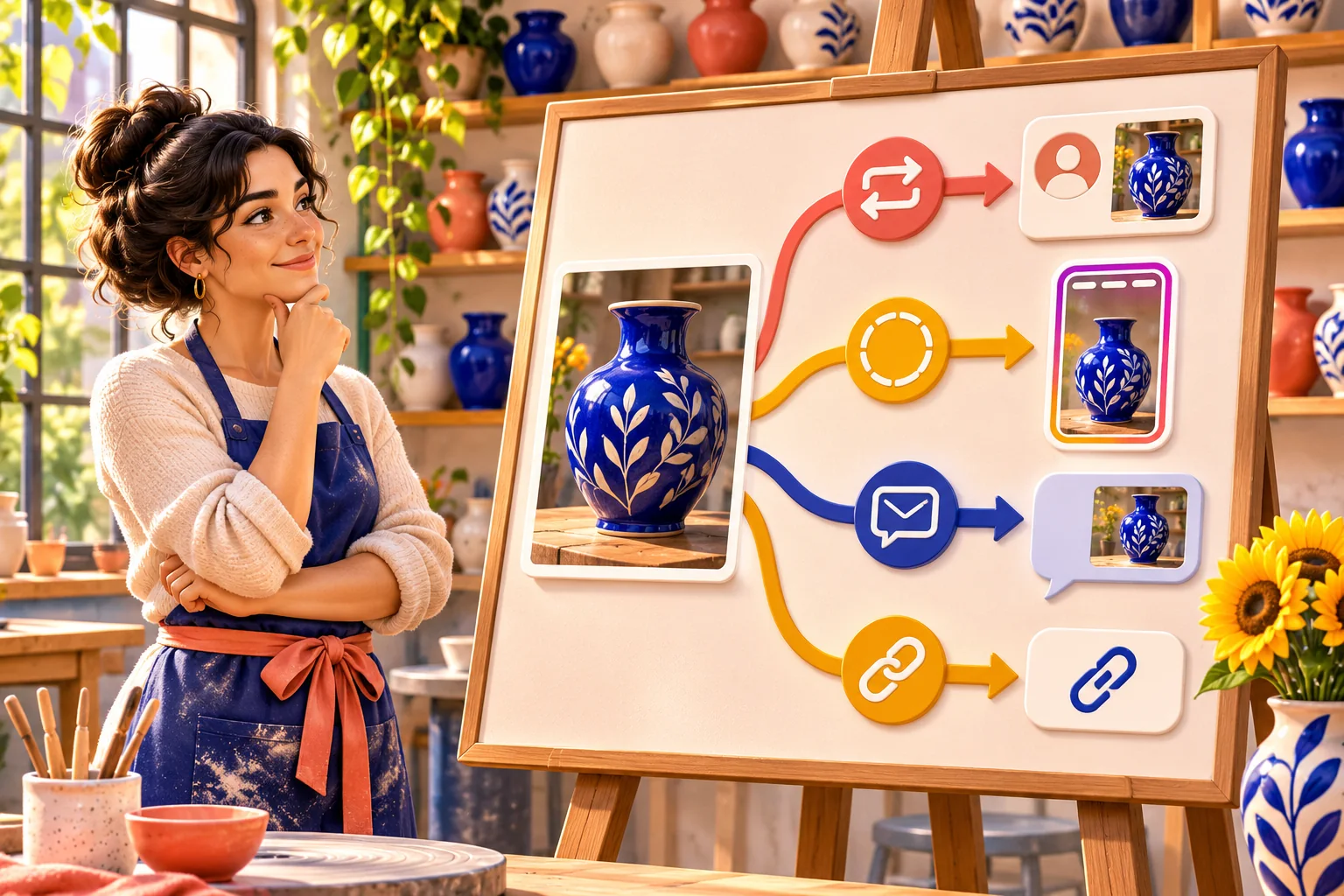
A native repost is useful when the original public item itself is worth recommending to the people who see your account. A Story share, if Instagram offers it for that item, is a different temporary presentation for Story viewers. Sending a post through a direct message is a private conversation with a particular person. Copying a link is useful when someone needs to inspect the original from a guide, email or planning note. None of those actions should be described in a report as the same thing.
Ask three questions before choosing. Who needs to see it: your wider social audience, Story viewers, one colleague or a reader outside Instagram? How long should the pointer remain useful? Does the person need the original creator's own post, your explanation or a joint publication? A brand and creator planning a shared announcement may need a Collab invitation and separate agreement, not an ordinary repost. The comparison table above maps these jobs without relying on vague language such as 'share everywhere'.
Downloading a photo or Reel and uploading it as a fresh post is a separate production decision. It can break the native connection to the original, change the presentation and raise permission questions. This guide is about the native control; it does not turn that control into permission for ads, website use or a new file upload. If a customer or creator wants their work reused more broadly, agree on the exact use before producing a new placement.
Undo an accidental repost and verify the result
First confirm which account made the repost. Open that profile's Reposts tab, locate the item and open it. Instagram's controls may show the active Repost icon or a removal action in the item menu. Use the in-app option to remove your repost, then return to the Reposts tab and check that this item no longer appears. If you still have the original link, opening it can help you confirm you are changing the intended item rather than one with a similar cover image.
Removing a repost changes your account's sharing action; it does not delete the original creator's post. It also cannot rewind what someone may already have seen. Avoid the stronger claim that no one was notified or that an earlier feed impression vanished: Meta's public feature announcement does not promise either. The practical repair is to remove the mistaken item, check your profile and correct any separate statement you made elsewhere if it could confuse a reader.
If you accidentally shared a questionable item through a Story, DM or website as well, each surface needs its own check. The Reposts tab only shows one type of action. A simple team incident note can record the source link, account, approximate time, reason for removal and the places checked. Keep the record useful without collecting unnecessary follower information. If the issue involved a false claim, update any lasting page that repeated it rather than assuming the repost removal fixed every copy.
- Check your active profile and open its Reposts tab.
- Open the item you want to undo and inspect the current Repost or item menu for the removal option.
- Remove only that repost, then reopen the tab and verify the item is gone.
- If it was a business mistake, correct any separate Story, message or website copy individually.

Find an older repost without guessing from the main grid
The dedicated tab is the first place to look when you remember sharing an item but not its date. Scan the covers and creator names, then open the candidate to inspect the full original. A cropped preview can hide the distinction between two similar Reels from the same account. Do not remove several items just because one title looks familiar. Verify the source, caption and your reason for sharing before changing anything.
A team can make future review easier by storing a short list of approved original links in its content calendar. Include the posting account, why the item was useful and the date it was checked. This is a planning record, not a second copy of the media. It also helps if the creator edits a caption or removes the original later. When the source changes, reconsider whether your own recommendation still makes sense and whether it should remain in the tab.
Troubleshoot a missing Repost or removal control
Begin with the original's eligibility. Meta describes native reposts for public feed posts and Reels. Check whether you are looking at the original rather than a Story, private item, ad or screenshot. A creator's sharing settings and an item's current availability can affect which controls you see. If you have permission to inspect another clearly public item, compare the two: a control visible there but absent here suggests an item-specific difference, not proof of an account-wide penalty.
Next check the active account and app. A company profile, personal profile and colleague's phone can show different controls because account access, rollout state and app versions vary. Update Instagram through the normal app store and reopen the item. Do not install a third-party 'repost unlocker', give it your password or switch your account to public solely to force a button. Those actions can introduce a new risk while doing nothing to resolve the original cause.
For removal, start from your own Reposts tab and open the actual item. If you cannot find it, check whether the repost was made from a different account or whether you actually used Story or DM sharing. If the app displays an error, note the device, app version, account, item URL and exact wording, without publishing private credentials. Meta's professional dashboard includes account-specific guidance for creators where available, while Instagram's problem-reporting route is more appropriate for a control that simply does not work.
- Is the original a public feed post or Reel, and does the creator allow that sharing action?
- Are you on the intended Instagram account, and can that account see the same control on another eligible item?
- Is the app updated, and does the post open normally rather than showing a privacy or availability notice?
- If the control still fails, note the device, app version and exact symptom for Instagram's problem-reporting route.
Respect the original creator and the post's context
Native credit is one of the feature's strengths, but it does not answer every relationship question. A creator may have posted an image for their own community and not want it used as a brand endorsement. If you are sharing from a business account, ask whether the item could make viewers think the creator is a customer, sponsor or partner. If that implication is material and unconfirmed, either clarify it plainly or choose not to repost. The app's ability to share is not a substitute for a truthful description.
Be especially cautious with a customer complaint, private story, child, sensitive event or a product demonstration whose specifications have changed. Public availability is not an instruction to repurpose a person's situation. A small business can often link to the original for internal review, then make its own accurate post answering the underlying question. When separate permission, credit or removal handling is needed for a customer photo in the UK, use the dedicated customer-photo workflow rather than forcing those legal and operational questions into this feature guide.
Also review what appears next to the media: an old caption, visible comments, audio and tags may shape how your audience reads it. If you have promised to amplify a creator's work, confirm the public post is still the approved version. A quick context check protects the creator and the recommending account. It is more useful than a blanket rule to repost everything with your logo or to add a promotional call to action to every creator's work.
Make reposts a small, reviewable part of your content plan
An account full of other people's work tells visitors less about what your own business makes or knows. Decide what a repost should add to your normal output: perhaps a community resource, a partner's confirmed announcement or a visual example that readers cannot get as clearly from your account. Then return to your own explanations, demonstrations and customer answers. Meta's feature can make a useful original easier to discover; it is not a plan to replace original work with borrowed media.
Use a five-field review note if several people manage the account: original URL, reason to share, context checked, account to use and a review date. That record makes it easier to remove a stale event notice or correct a mistake. Do not build a fake approval bureaucracy for a personal account; the point is simply that the person who taps Repost knows why. For a business, a clear owner also means a customer question about the shared item gets an answer rather than a generic sales reply.
Evaluate the experiment in ordinary terms. Did the item help followers understand a topic, lead to a useful conversation or point them to a credible creator? Review any available account insights in their real date range, and keep a repost's performance separate from that of your original posts. Do not claim the Repost icon itself caused a follower increase or a sale. Other posts, ads, seasonality and the creator's own activity may have changed at the same time.
Keep a clear recommendation and an easy way to reverse it
The safest working sequence is short: check the original public item, check the account, tap the native Repost control if available, add only useful context and verify it in the Reposts tab. If the recommendation later becomes wrong or unwanted, locate that same item and remove your own repost with the current in-app control. Confirm the tab afterward. This is a reversible editorial choice, though it cannot take back an impression someone has already seen.
HitsBoost also offers optional Instagram follower packages. If you consider one, review the current live price, eligible profile details and conditions as a separate purchase decision. A package cannot validate the original creator, choose the right sharing surface or guarantee that a repost will be recommended. The durable habit here is editorial: recommend something genuinely useful, keep its source visible and correct a poor recommendation promptly.
Frequently asked questions
What can I repost with Instagram's native Repost button?+
Meta describes the feature for eligible public feed posts and public Reels. Check the specific item's control in your current app; a private, unavailable or restricted item may not offer the same action.
Where does an Instagram repost appear?+
Meta says it appears in a dedicated Reposts tab on your profile and may be recommended in friends' or followers' feeds. It is not the same as uploading a new item to your main grid, and a particular amount of distribution is not guaranteed.
How do I repost a Reel or photo post?+
Open the eligible original in the intended account and tap the Repost icon Meta describes. Add a brief note only if it genuinely helps, then open your profile's Reposts tab and verify the item and original creator.
How do I undo an Instagram repost?+
Open the account that made it, find the item in its Reposts tab or the original post and use the current in-app Repost or removal control. Return to the tab and confirm the item is gone. Interface labels can change by version.
Does undoing my repost delete the original?+
No. You are reversing your account's sharing action, not deleting another person's original post or Reel. It cannot guarantee that nobody saw the repost before you removed it.
Why is the Repost icon missing?+
Check that the item is an eligible public feed post or Reel, that its creator allows the action, and that you are in the intended account with an updated app. If the control still fails, report the exact symptom through Instagram.
Is an Instagram repost the same as sharing to a Story?+
No. Native Repost has a dedicated profile tab and keeps a link to the original creator; a Story is a separate temporary presentation to Story viewers where that sharing option is available.
Can I download a Reel and call the new upload a repost?+
That is a new upload, not the native Repost action. It can change attribution and may require permission for the particular use. Use the built-in control for an eligible original or agree on a separate reuse before uploading a file.
Compare Instagram Followers packages.
Prepare the public destination, then review the quantity and terms that fit your goal.
Review Instagram follower packages and conditions