Choose the control for the audience boundary you actually need
| Reader goal | Control to inspect | Important limit |
|---|---|---|
| Keep a Story or Live from selected accounts | Hide Story and live from | It is not a block on ordinary profile posts or Reels. |
| Share one Story only with a small chosen group | Close Friends or another audience list your account offers | Check the list and the final share audience; do not assume a prior Story changes. |
| Limit account content to approved followers | Private account where your account type permits it | Existing approved followers may still see content unless separately removed or excluded. |
| Stop direct interaction from one named account | Block or another appropriate safety action | A public profile may still be visible outside that account; this is broader than a Story audience choice. |
| Keep personal or customer information confidential | Remove the detail from the content and use a suitable private channel | No audience control can undo a screenshot or an earlier view. |
Identify the account and the exact content boundary
Start with a concrete question: which Instagram account must not see which type of content? A person running a public flower shop might want most followers to see a workshop preview but exclude a former collaborator from Stories and Lives. That differs from wanting every post hidden, wanting only trusted friends to see a personal update, or needing to stop unwanted contact altogether. Write down the account you manage, the account to exclude and the content format before touching a setting. This reduces the chance of changing the wrong profile or promising a boundary Instagram does not offer.
Instagram presents audience controls in several places. Its Story-hiding Help page describes a specific choice for hiding Stories from named accounts, while Meta's business Live lesson describes hiding a broadcast from selected people before going live. Meta's separate Close Friends material describes sharing a Story with a chosen group. These are related but not interchangeable. A feature's label or menu may move between app versions; the important observation is the scope described beside the control on the account you actually use.
Know what Hide Story and live from does
The named setting is an exclusion list: selected accounts are kept from the Story and Live audience that the setting covers. Instagram Help's Story guidance also discusses Highlights saved from Stories. A current independent safety guide based on Instagram Help gives the newer route under Story, live and location. Use the wording on your own account to confirm what is covered, especially if you are handling an existing Highlight. Think of this as a visibility setting for those formats, not a deletion tool or a retroactive promise about a Story someone already opened.
The setting does not make a public profile private. A person excluded from a Story may still see the profile, ordinary feed posts and Reels when the account and content are otherwise public. They can also hear about a Story from someone who was allowed to view it. Even if your own app does not display a notification to the excluded person, do not promise that they cannot infer the change. Use a stronger account boundary if the actual need is to stop direct interaction from that account rather than to adjust one content audience.
Find and verify the current exclusion list
First switch to the exact account that will publish. In the current mobile app, start at its profile and open the menu. Look under Story, live and location, or search settings for Hide Story and live from. A 2026 safety guide that cites Instagram Help uses that path; earlier app versions group the same choice differently. Open the exclusion list, search the intended username carefully, and inspect the profile picture and handle when names are similar. Select the account using the current app's checkmark or selection control.
After the change, follow the app's save or back navigation and reopen the list. The selected account should still appear selected. Some interfaces save immediately while others have a Done or confirmation step; do not assume that tapping a name alone completed the change. A small shop with two Instagram profiles can easily update the personal account while leaving its business Story audience untouched. Record the handle, the account you changed and the date in a private team note, without turning the note into a list of personal grievances.
- Open the exact Instagram account whose Story audience you want to change.
- From the profile menu, find Story, live and location or the current Story audience settings, then Hide Story and live from.
- Search and select the intended accounts, save or back out as the current app instructs, then reopen the list to verify it.
Choose exclusion or an included group deliberately
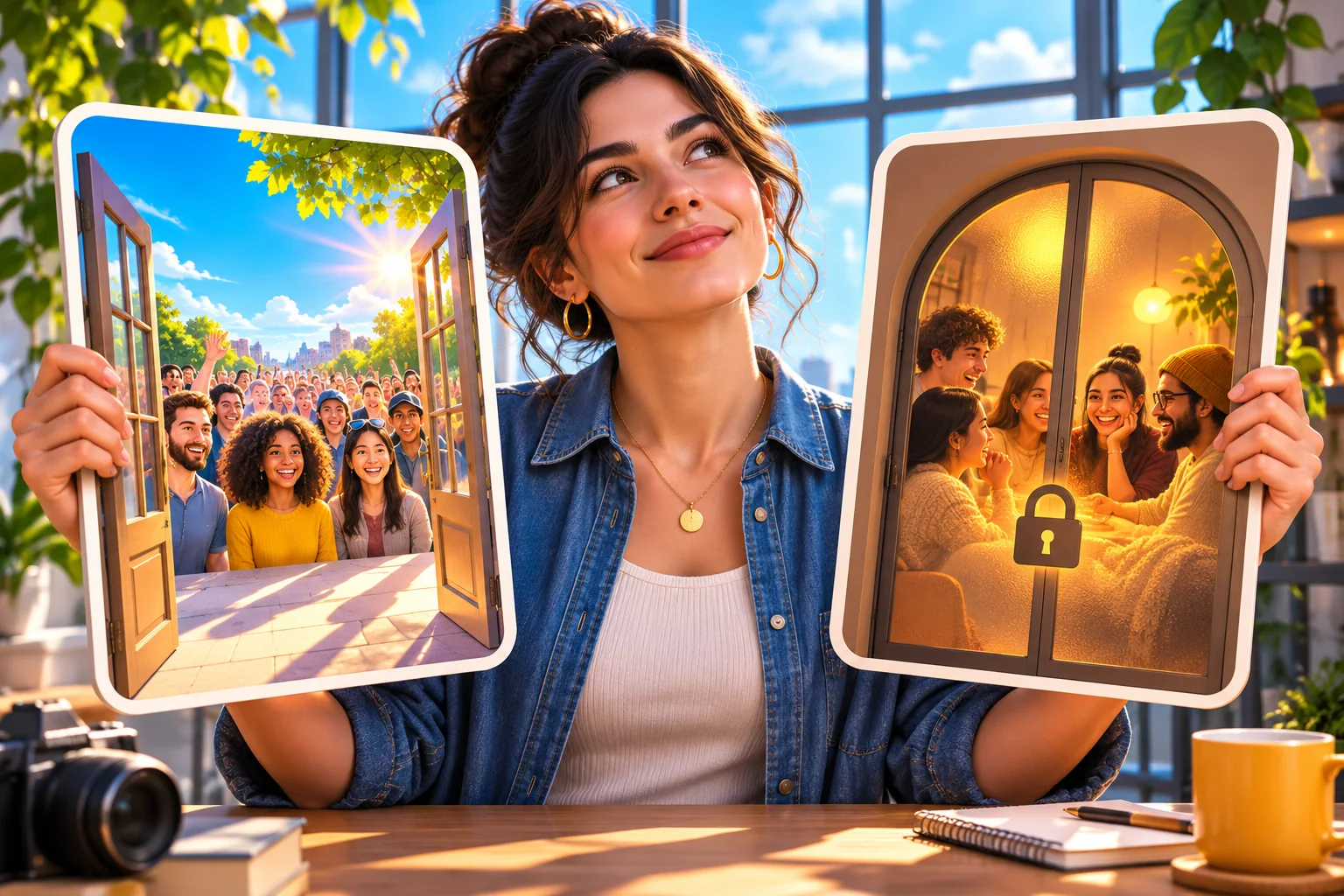
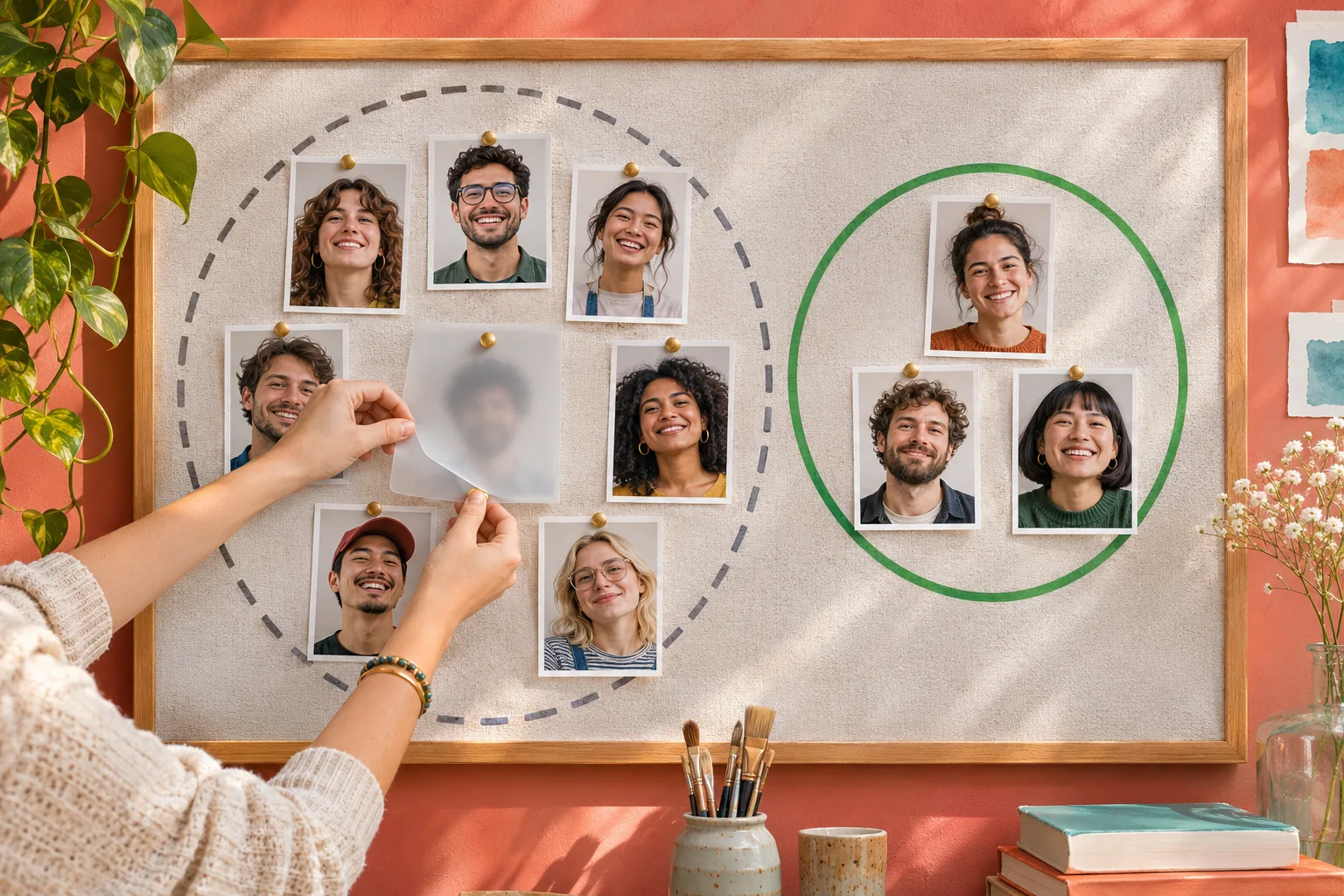
Hide Story and live from starts with the wider audience the account otherwise has and subtracts selected accounts. Close Friends starts with a chosen list and shares a Story only to that list when you choose it on the share screen. A florist who wants nearly all regular followers to see a public workshop preview may prefer excluding one former collaborator. The same florist sharing an unfinished client design with three approved teammates should consider a selected audience or a genuinely private channel. The photo-card illustration makes those two decisions visible without pretending to be an app screenshot.
Meta's Close Friends explanation says the list is controlled by the account owner. Meta later announced optional Instagram Plus multiple Story audience lists in 2026; rollout and subscription access can vary. Do not assume every account has more than the familiar free Close Friends choice, and do not treat the optional lists as a reason to purchase an upgrade. Inspect the audience choices actually displayed when you share. The separate Close Friends guide covers how to build and review that included list in detail.
A private account is broader again: new viewers generally need follower approval, while existing approved followers do not vanish merely because the account became private. A block can be appropriate for a stronger person-specific boundary. Restrict and Mute mainly change interactions or what you see; neither should be substituted for the Story audience selection without checking the relevant setting. Choose the smallest control that achieves the actual boundary, and write down what remains visible.
Review current Stories and saved Highlights
Before relying on a new exclusion, look at any Story already live on the account and the Highlights on its profile. A Story that someone already watched cannot be unwatched. Changing today's setting also does not erase a screenshot, a screen recording or a description shared by an allowed viewer. If a current Story contains something genuinely sensitive, evaluate its own delete or archive options and the people who may already have seen it, rather than treating a new exclusion as a clean reset.
Instagram's Story-hiding help and current safety guidance include saved Highlights in the scope the excluded account should not see. Still, a Highlight is a durable display on the profile, so review its actual visibility from a consenting second account if that matters. A team may have added an old customer event to Highlights months ago when permissions were different. Check the underlying content and permission before assuming that the new audience choice makes an old photo appropriate to keep.
If you later copy a Story image into a feed post, carousel, Reel, external website or another account, that new publication has its own audience and permission questions. A Story-only setting does not travel with the file. The separate Highlights guide explains how to curate saved Stories; this guide is about the exclusion decision and its verification. Keep a short list of current and saved surfaces that need checking when the audience changes.
Check the Live audience before broadcasting
A Live has less time for a correction after it starts. Meta for Business describes an audience choice in Live setup and a gear control that can hide a Live video from specific people. The lesson's example interface may differ from the current app, so look for the equivalent audience and hide controls on the account before you start. Confirm the selected accounts and the visible audience label while the camera is still off. A scheduled Live announcement is not itself proof that the eventual broadcast will use the intended audience.
The florist might plan a public bouquet demonstration but have a reason to exclude one account from the live room. She should also decide who can moderate comments, whether any customer details are on the workbench and whether a colleague has permission to appear. Hiding the Live from one account is not the same as removing every viewer or deleting a later replay. If the Live is saved or republished, inspect the audience and privacy on that resulting item separately.
If the exclusion is safety-critical, do not use a high-pressure live moment as the first experiment. Practice the setup on the actual account with a harmless rehearsal, use a consenting second account to check the intended view where possible, and have a backup plan to stop or change the broadcast if the audience controls are unclear. Meta's Live lesson supports the existence of audience controls; it does not promise that every interface or circumstance will behave identically.
Test the boundary without probing another person
A useful test is small, consensual and fresh. Ask a trusted adult who controls a separate account to help, or use another account you legitimately manage. Make one harmless Story with a neutral image. Confirm the publishing handle, exclusion list and share audience, then ask the tester what they can see from their own account. If you need to test an excluded state, change only that consenting tester's entry, save, and repeat with a new Story. Keep the test brief and avoid sending repeated messages to the person whose access is the concern.
The result is evidence for those accounts, that time and that app version. It is not proof that a person did not see an earlier Story or that no one else can pass along a screenshot. An allowed follower might show the image to the excluded person; a public profile may still reveal other content. If the test does not match your expectation, recheck the exact handle, selection, saved state and audience at the final share screen before changing other privacy tools.
Avoid asking a friend to sign in to someone else's account or using a third-party anonymous viewer. Do not enter Instagram credentials into a supposed Story-privacy checker. The in-app controls, a trusted second account and the official Help route are enough to establish the practical state you can observe. If the stakes are high, keep the sensitive material off Stories entirely and use a channel designed for the intended people.
- Use a consenting second account to check a fresh, non-sensitive Story rather than probing the excluded person's account.
- Confirm the correct profile, saved exclusion list, selected share audience and time of the new test Story.
- Record what the tester could and could not see; do not generalise that observation to every account, old view or screenshot.
Remove private details from the frame first
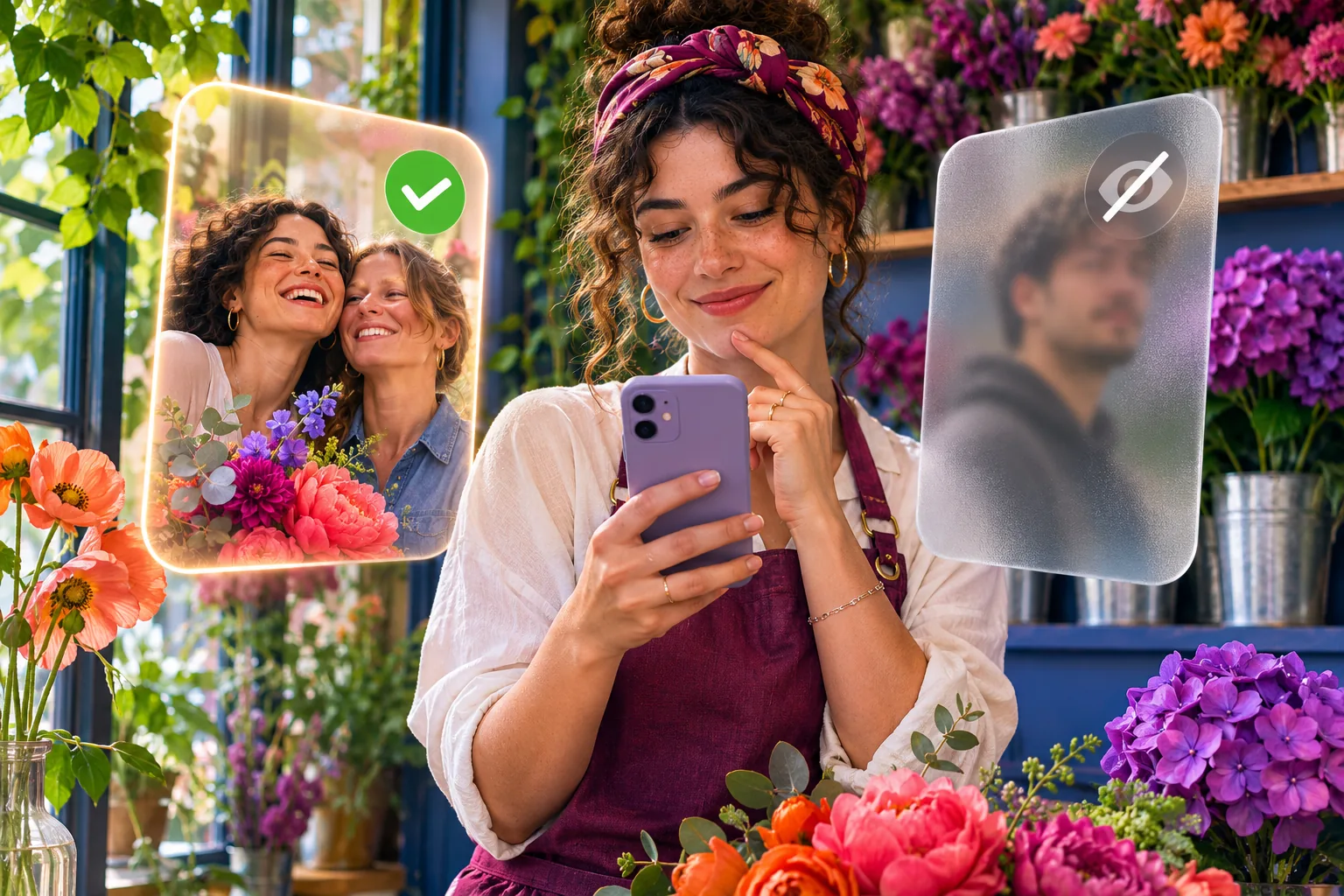
Audience selection is only one part of a safe publish decision. The florist's workshop Story might accidentally show a customer's name on an order card, an address on a delivery slip or a staff rota behind the bouquet. The third image shows a colleague moving a blank order card outside the filming area. That is more dependable than trusting an exclusion list to compensate for information that never belonged in the image. Check faces, voices, reflections, whiteboards and background screens before recording.
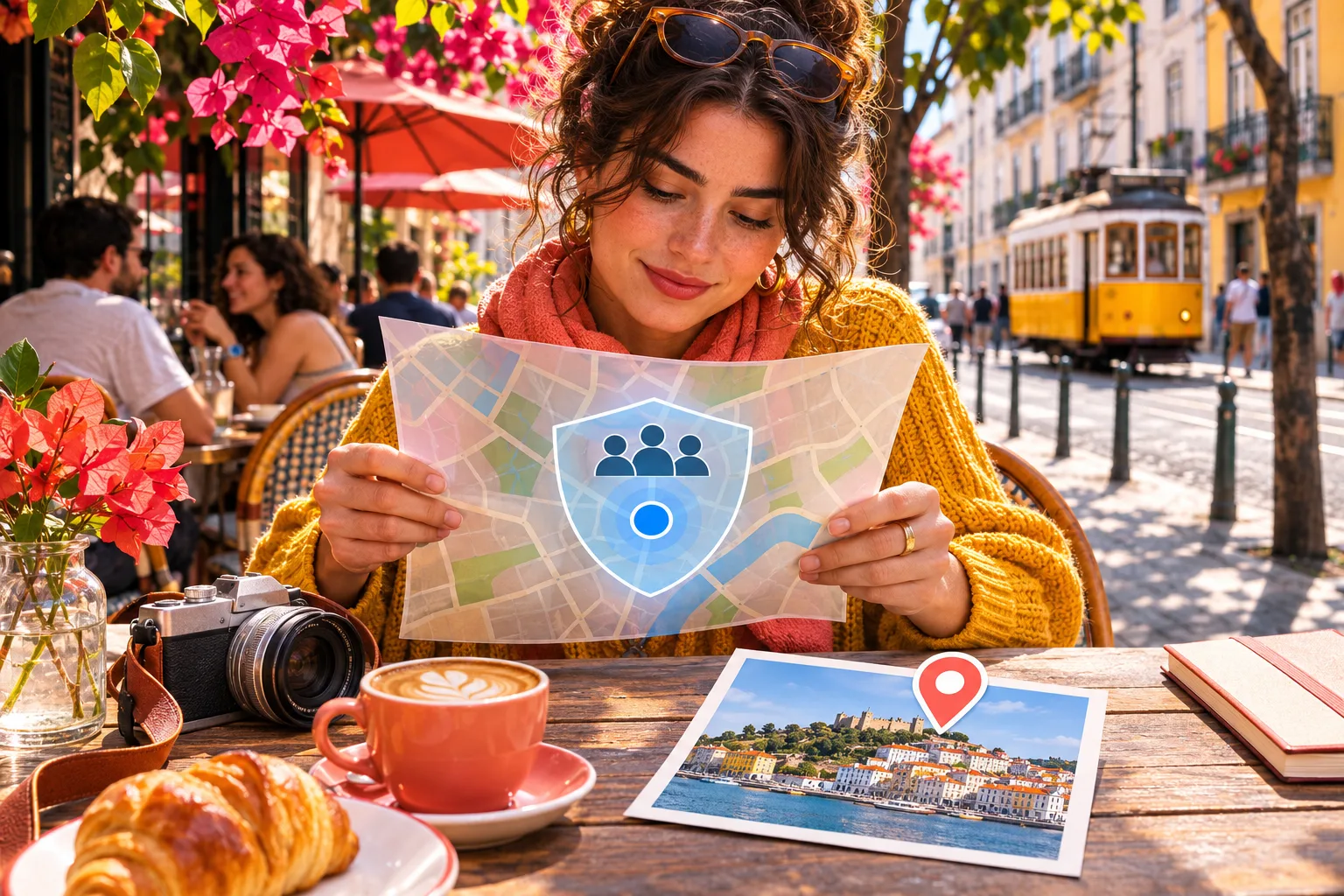
Also inspect stickers, tags and location clues. Meta's Instagram Map announcement describes separate, opt-in location-sharing controls, and says location-tagged content can appear on a map for people who can see that content. A Story audience setting is not a substitute for reviewing a location sticker or the separate Map sharing choice. If the scene identifies a private home or a customer's appointment, remove the clue before publishing. Ask permission when another person's image or work is the subject, and do not infer consent from their presence at the workshop.
Preview the final Story as a viewer would. The planned audience might change if the composer is set to Close Friends or another list; check the label immediately before sharing. If a mistake is already public, use the relevant delete or correction route promptly, and consider who may already have viewed it. Neither changing a setting nor deleting a post guarantees recovery of what someone copied. Keep the message useful while leaving unnecessary private details out.
- Remove customer names, order details, addresses, staff notes and unapproved faces from the visible frame.
- Check whether a tag, location sticker or background clue reveals more than the intended audience choice.
- Preview the Story or Live framing, confirm permissions and only then share to the audience shown in the app.

Unhide an account only after reviewing what is saved
Exclusion is a reversible choice in the account's settings. Return to the same Hide Story and live from list, locate the exact username, and use the current app's selection control to remove it from the excluded set. Save or back out as instructed, then reopen the list to verify the account is no longer selected. Do not rely on memory of a green or grey icon from an old tutorial; verify what the current screen describes. A team should decide who is allowed to make this audience change.
Before un-hiding, review any current Story, saved Highlight or planned Live that could be visible under the account's current rules. Do not assume a change affects only a future Story or automatically exposes every older one; the safest practice is to inspect the specific item and, where appropriate, test from a consenting account. If old material includes a private address or a customer image without permission, remove that material rather than leaving it up and hoping the audience switch compensates.
For a business, record the reason in plain terms such as 'former project guest no longer excluded after handover,' not a speculative claim about that person's intentions. Recheck the audience whenever a teammate changes, a client campaign ends or someone reuses a Story in a Highlight. This makes the choice reviewable without treating a temporary audience boundary as a permanent judgment about a person.
Troubleshoot a missing control or unexpected view
If Hide Story and live from is missing, first confirm the account and update the official Instagram app. Search settings for Story, live and location, Story privacy or the current Hide wording. A desktop interface may offer a different set of controls; use the current mobile Help path when the desktop route does not match. Do not install an extension that asks for the Instagram password to reveal a supposedly hidden viewer list. The controls can move, and a help screenshot from another year is not proof that your account lacks the feature.
If someone says they saw a Story after being excluded, ask when and where they saw it. They may have viewed it before the change, seen a repost or screenshot from an allowed person, watched an ordinary Reel with the same clip, or found that the wrong account was excluded. These are possibilities, not a verdict about the person. Check the account, the actual saved list, the current Story's share audience and any separate publication of the material. Use a new harmless test to check the present state.
If a specific account is harassing or impersonating the business, a Story audience choice may be too narrow. Meta offers report, block and other safety routes for different conduct. The Restrict/Mute/Block guide explains those boundaries; account security guidance covers suspicious logins or phishing. Do not react by making every post private without considering whether the public shop account still needs to be found by customers. Match the action to the actual risk and verify the result.
Keep business visibility and paid views separate
Story views are a count of the people or accounts that actually opened a Story under Instagram's rules; the separate view-definition guide covers that measurement. Hiding a Story from selected accounts can change who has access, but it is not a performance tactic and does not guarantee a larger or smaller view count. If the shop separately considers a HitsBoost Story-view package, it should check the current offer, price, target Story, public eligibility, timing, terms and support. A restricted or private Story is not a sensible assumed target for a public-view service.
A purchased view count cannot override an audience setting, make a private Story publicly eligible, restore access for an excluded person or guarantee recommendations, replies, leads or sales. The audience decision should stand on its own: publish the right information to the people who should see it, then assess genuine questions and customer actions separately. If the content is too sensitive for an allowed viewer to save or repeat, use another channel rather than trying to solve the risk with a metric.
Explore Instagram Story ViewsFrequently asked questions
How do I hide my Instagram Story from one person?+
On the account that will post, open current Story audience settings and find Hide Story and live from. Select the intended username, save as the app instructs, then reopen the list to verify. Menu labels can move; Instagram's Help page is the best current reference.
Does Hide Story and live from also affect an Instagram Live?+
Meta's Instagram Live lesson describes a control to hide a broadcast from specific people. Check the audience choices in your own Live setup before starting, because the menu may differ from an older screenshot.
Will the person still see my profile posts and Reels?+
A Story and Live exclusion is not a block on a public profile. Ordinary public posts and Reels can remain visible under their own audience rules. Use a stronger account boundary if that is the actual need.
Will changing the setting remove a Story someone already saw?+
No setting can undo an earlier view, screenshot or retelling. Check any current Story and saved content separately; do not assume a later audience change rewrites what happened before.
Can I hide a saved Instagram Highlight from the same person?+
Instagram's Story-hiding guidance and current safety instructions include Highlights saved from Stories. Review the exact Highlight and, if the boundary matters, test its present visibility from a consenting second account.
Is Hide Story and live from the same as Close Friends?+
No. Hide Story and live from excludes selected accounts from a wider eligible audience; Close Friends shares a Story to a selected included group when you choose that audience. Review the final share screen in either case.
Does Instagram tell someone I hid a Story from them?+
Do not rely on a promised notification state. Even if no direct notice appears, a person may infer the choice or learn about content from another viewer. Use the control for its actual visibility scope, not for guaranteed secrecy.
Why can someone still see a clip after I hid my Story?+
They may be seeing an older view, a copy from an allowed person, or the same clip republished as a public post or Reel. Confirm the correct account and saved exclusion, then test a fresh harmless Story to check the current setting.
Can I unhide someone later?+
Yes. Reopen Hide Story and live from, remove the intended account from the selected list and verify the saved state. First inspect current Stories and Highlights that might become visible under the updated audience.
Compare Instagram Story Views packages.
Prepare the public destination, then review the quantity and terms that fit your goal.
Review public Instagram Story view packages separately