A florist's decision sheet before filling a Reel template
| Decision | Good evidence | Change course when |
|---|---|---|
| Viewer task | Show the visible steps of building one bouquet. | The template makes the process appear instant or obscures the hands. |
| Clip sequence | Empty vase, stems being arranged, finished bouquet. | The required action has no slot long enough to be understood. |
| Audio | Owned speech or a soundtrack cleared for this post and its intended use. | The preloaded track cannot be verified for this business use. |
| Text and crop | A legible step cue and a phone preview showing the real bouquet. | Controls cover the key action or the cover promises a different result. |
| Publish | Correct account, caption, audience and approved final version. | The selected draft or destination cannot be confirmed. |
Know what a native Reels template actually provides
Meta introduced Instagram Reels templates as a way to start with preloaded audio and clip placeholders, then add your own photos or video clips. That is a reusable arrangement, not a finished story. In the current Instagram app you may see an eligible Reel offering a template or a template browsing route; the label and placement can vary with the app version and account. The important boundary is that the source pattern does not supply permission to reuse another creator's footage or guarantee that its soundtrack suits your purpose.
The template is also different from Remix. Remix responds to or incorporates another eligible post using Instagram's collaboration controls. A template helps arrange your own material in a familiar rhythm. Meta's separate Edits app has its own templates and project files; this guide stays with Instagram's native Reel creation flow. If a tutorial shows an Edits screen or a third-party editor, do not assume those controls exist in the Reel composer. Check the product name before following a step.
For our hypothetical florist, a useful Reel answers one question: how does a loose group of stems become the finished bouquet pictured in the shop? A template might provide three timed slots. It does not choose the correct opening shot, film the hand placement, check the actual bouquet or write an honest caption. Those decisions belong to the florist, even when the assembly takes fewer taps.
Choose the viewer's task before the pattern
A template is worth using when its structure matches what you need to explain. Write a one-sentence brief first: 'Show the empty vase, the placement of the main stems and the finished arrangement.' Then inspect the available slots and the pace. A slow instructional close-up may need a longer middle shot than a reveal template allows. A fast transformation can be attractive, but if the viewer needs to see how a stem is supported, a flash of motion is not a useful demonstration.
Use the decision sheet above to compare the template with the actual footage. Three clips can work for an overview: setup, action and outcome. They may be insufficient for a detailed flower-care lesson that needs a cut, a water level and a storage condition. Do not trim away a necessary safety or product detail just to keep a beat. Starting with a blank Reel is a reasonable choice when the available templates force a misleading sequence.
Find a candidate template and check what is available
Meta's original template announcement pointed people to template ideas from the Reels camera. Instagram has changed creation screens since then, so use that description as background rather than a promise about today's exact button position. In the current app, open Reels and look for an eligible 'Use template' action on a Reel, or look for a Templates area while creating your own Reel. If neither appears, do not follow a third-party link asking for your password to unlock it. Check the app version, account and current Instagram Help before assuming something is broken.
Preview a candidate before importing media. Count the placeholders and look at their approximate duration. Ask what is already attached: audio, timing, maybe text or effects depending on the version. A clean visual rhythm is easier to adapt than one whose appeal depends entirely on a track your business cannot use. If a template is tied to a creator's specific joke or product, copying the structure without the context may produce a confusing video. Find a pattern that can carry your own answer.
Prepare original clips and permissions before filling slots
Film for the meaning of each slot. For the florist, the first frame establishes the empty vase and the materials; the second shows a hand placing the main stems; the last shows the same finished bouquet in good light. Use vertical framing with enough room around the subject for later cropping. Record a little extra time around the action so a trim does not cut off the hand entering the frame. A stable view is more helpful than extra camera movement if the point is where the stems sit.
Keep the files clearly named while you work. 'Vase-start', 'stems-close' and 'bouquet-final' are internal labels, not words to put across the picture. Check that each file is the approved take, especially if a colleague shared several versions. A template can make an old or wrong clip look polished enough to pass a quick glance. Compare the visible product, materials and colour across all shots. If the final bouquet contains flowers not shown during the process, use an honest caption or a closer matching final shot.
Also check people and rights. A customer walking through the background, a colleague's music playing in the workshop or footage supplied by a partner may require a different review from an original flower close-up. Ask whether the intended Reel, account and possible future reuse are covered. The technical ability to import a clip is not the right to publish it. If permission is uncertain, film a clean version or leave the material out. This makes the finished template easier to use responsibly later.
- Write the single thing a viewer should understand and choose only the footage needed to show it.
- Check who appears in each clip, the source of any music, and whether a customer or creator has approved this use.
- Label your own files by stage so the correct take goes into each placeholder.
Replace the placeholders with clips that serve the story
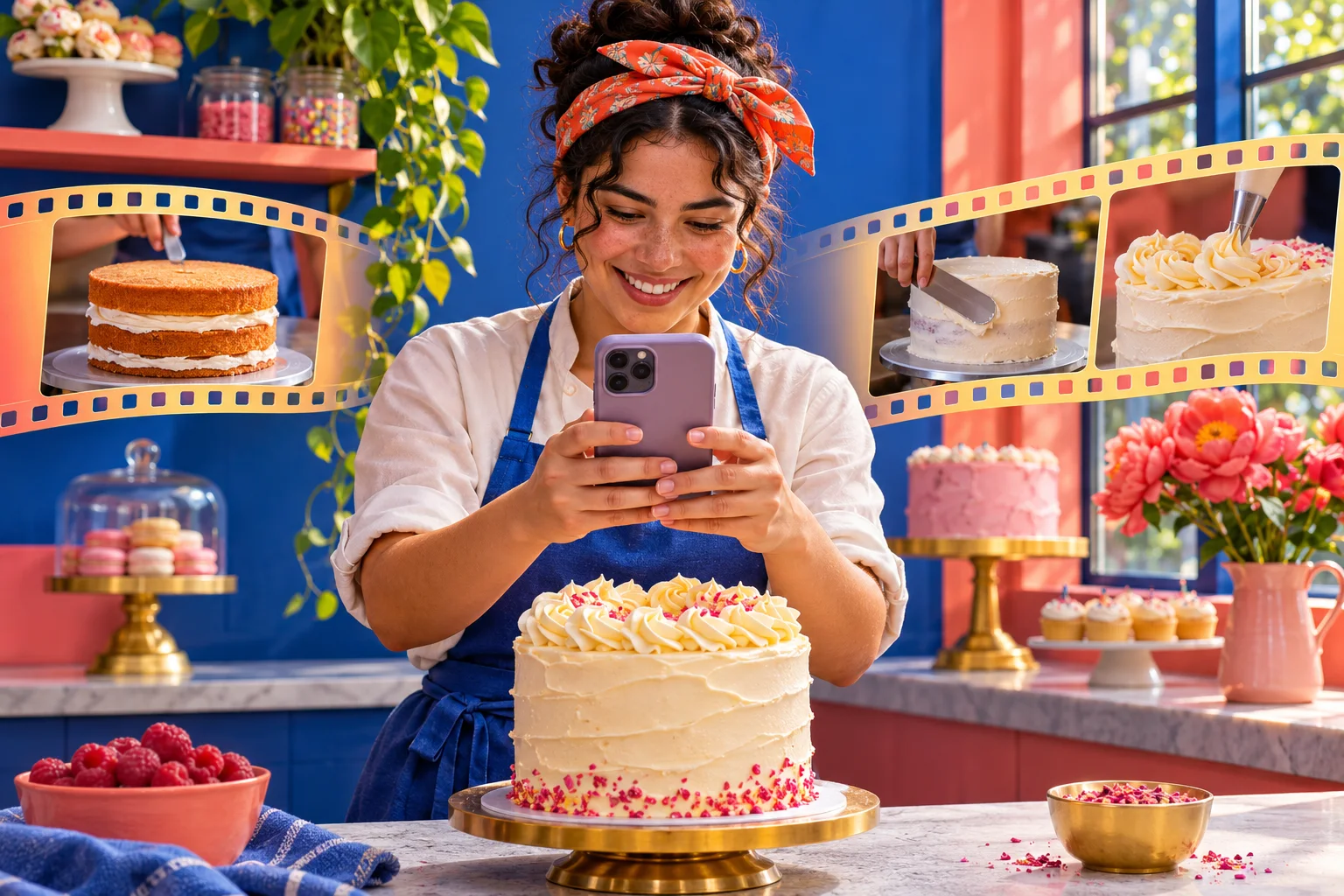
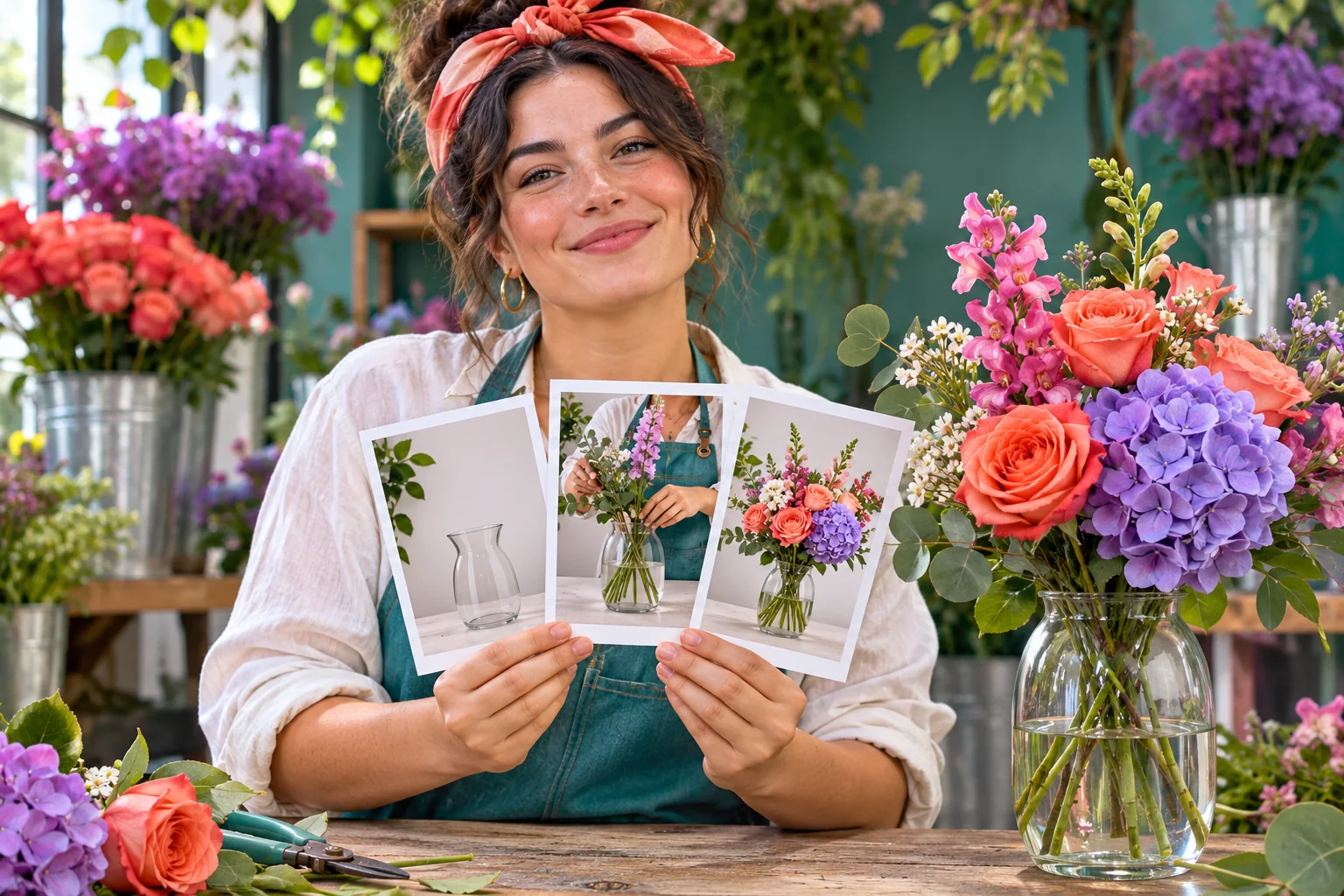
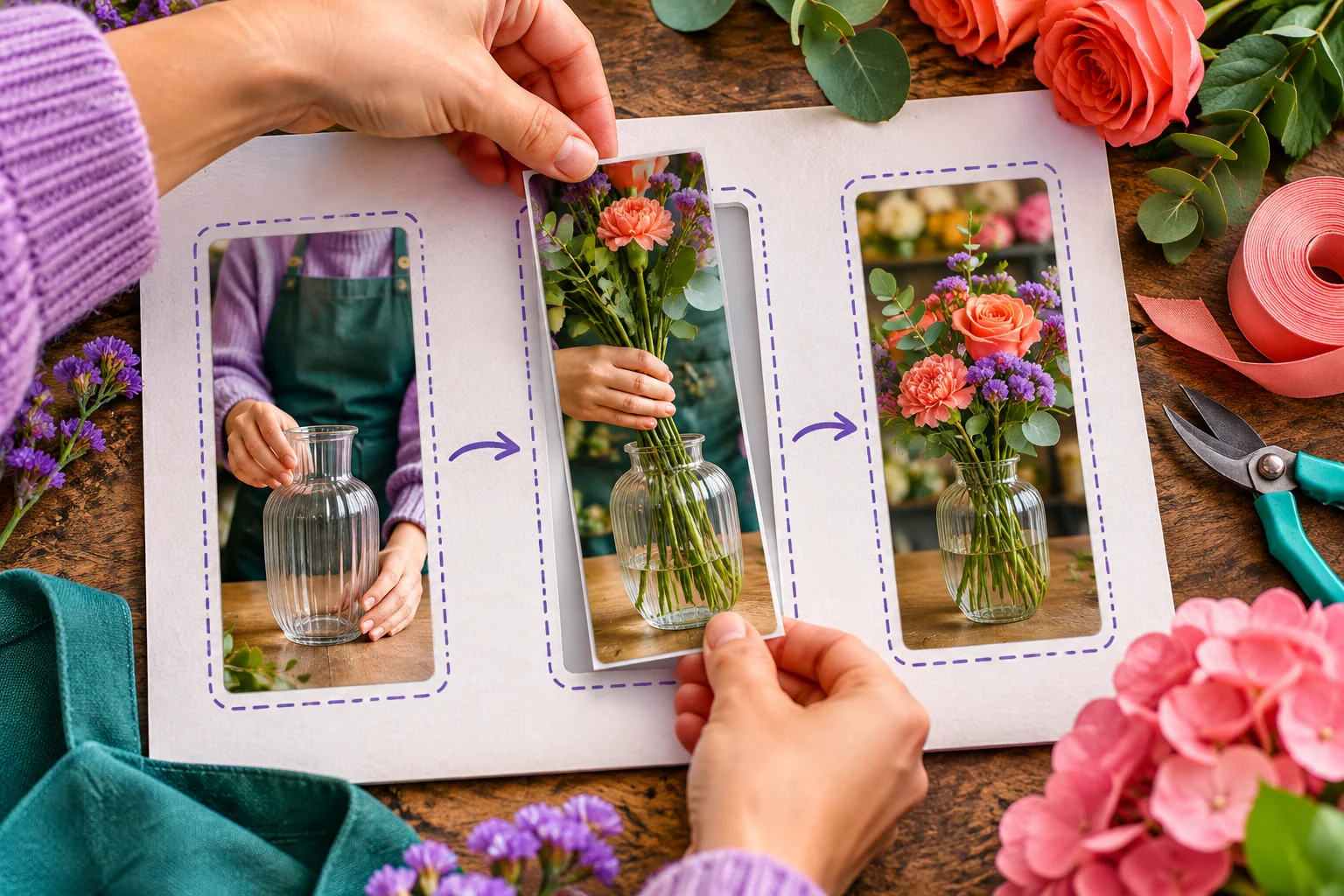
Once you have chosen a template, add your own media to its placeholders in the order the current interface asks. Meta describes the basic model as preloaded audio and clip slots. Select the opening image that sets the question, then the action that answers it, then a result that truthfully follows from the same work. The adjacent paper storyboard shows the underlying decision. It is not an Instagram screenshot. If the app rearranges the chosen media, inspect the actual preview rather than trusting the order in your camera roll.
The middle slot matters most in the florist's example because the hand movement is the answer. If that footage is too long, trim around the placement while leaving enough time to recognise the action. If it is too short, use a different template or film a clearer take. Do not use a still photograph of the finished bouquet in place of the missing process and call the Reel a demonstration. A template can organise existing evidence; it cannot create the evidence that was never recorded.
Meta announced a Replace editing control in 2023 that swaps a clip without disturbing other clips' timing and order, audio and elements. The exact control shown to you may differ, but the editorial test remains simple: after any swap, watch the entire sequence again. A replacement may solve a blurry shot yet introduce a colour mismatch, a late hand movement or an awkward cut at the next beat. Check what the viewer sees before deciding the change was successful.
Adjust pacing when the template fights the explanation
Templates are often chosen for rhythm. That is helpful for a quick reveal but can work against an explanation. Watch the rough cut without looking at the sound waveform. Can you see the empty vase, the important placement and the finished bouquet in order? If a beat switch interrupts the florist's hands, the video is serving the song rather than the viewer. Use the available trim or split controls to make the action readable, or choose a slower pattern. Meta has described split, speed and replace features in the native Reels editor, but verify the controls you actually have.
Speeding up a routine step can save time while still showing that the step occurred. Speeding up the only moment that answers the question makes the Reel less useful. Consider a short hold or a second close-up rather than a decorative transition. The same applies to pauses: a long opening shot may suit a mood piece but make a how-to video hard to follow. Keep enough context for a viewer to identify the materials and the result without pretending that the arrangement took only the length of the template.
If none of the current editing tools can preserve the important detail, stop using this template. You can make an original Reel with a sequence tailored to the footage, or use a different creation tool such as Edits if its planning and timeline features suit the project. That is a workflow choice, not a statement that one app earns more distribution. Save the approved source clips before trying another route so the next edit does not depend on an unstable draft.
Check preloaded sound against the intended use
A template may bring audio with it. Listen to the entire track and the florist's original sound before relying on either. If the Reel teaches a physical step, the sound should not mask the explanation. A trending song is not proof of wider distribution. It may also be unsuitable for a business post, an advertisement, an export or another destination. Rights and music availability depend on the particular track, account, region and use, so verify the current licence and publishing path rather than assuming that a track bundled with a template is cleared for every context.
For the bouquet example, original workshop sound or a properly cleared soundtrack may make the action easier to understand. If spoken instruction is essential, record it clearly and check the mix on a phone speaker. If the preloaded song cannot be verified, replace it where the current editor permits or choose another template. Do not promise that any music library item can be reused outside the platform. A video downloaded for another site can have different rights from a Reel posted inside Instagram.
Add only the words and captions the video needs
A template might carry space for text, but the florist should not fill every frame with a paragraph. A short opening cue such as 'Building one bouquet' gives orientation; the close-up should leave the hands visible. Put flower names, care conditions or collection details in a caption when they need full sentences. If the video includes a claim about a particular product, make sure the filmed item and current offer support it. Do not leave a template's sample words, offer date or decorative numbers in the final post.
Spoken steps need readable captions when possible. Check the words after the last trim, especially a flower variety or instruction an automatic tool could mishear. Place text where a phone's Reels controls do not cover it. Meta's Reels ad resources explain the safe-zone idea for ads; a practical phone preview can still help an ordinary Reel, without claiming the same ad specifications are mandatory for every organic post. If text obscures the hand placement, move it or simplify it.
The caption under the Reel has a different job from text on the video. It can name the process, clarify that the pictured bouquet is an example, and give a useful next step such as asking about today's availability through the shop's verified contact route. Avoid copying a template creator's caption or a string of unrelated hashtags. A clear description should match the actual video. Our captions guide covers spoken-video checks, while the Reel cover guide covers the separate thumbnail decision.
Preview on a phone before making the Reel public
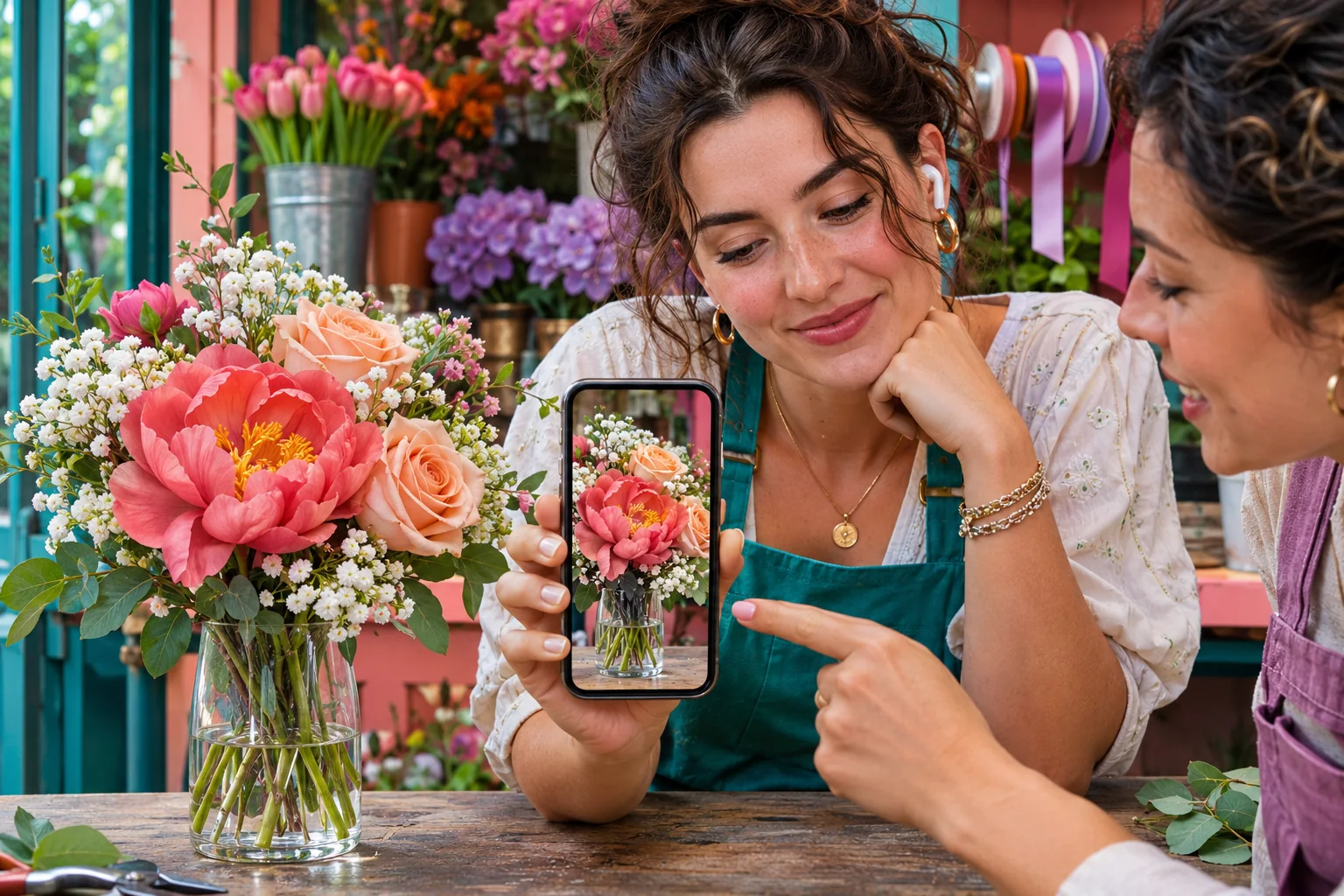
Play the entire rough cut on the kind of phone your audience will use. The adjacent image shows a florist comparing the same bouquet with a vertical preview; it is an illustrative scene, not an Instagram control. Watch once with sound and once muted. The sound check catches music that overpowers speech, a hard cut or missing words. The muted check asks whether someone can still understand the visible process and captions. If the key placement is invisible without narration, film a clearer angle or add an honest cue.
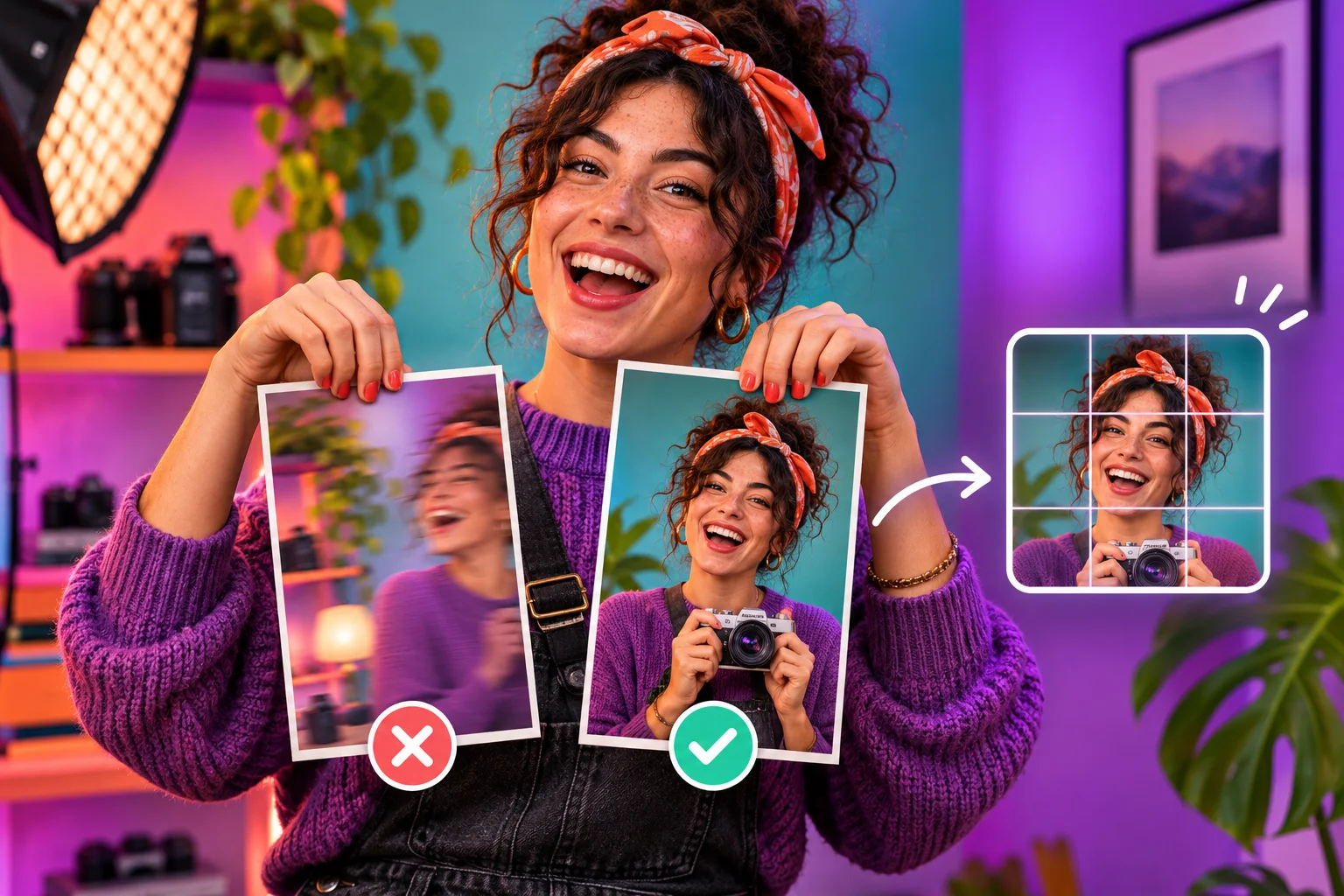
Pause on the first frame, the hand-placement moment and the last frame. Is the vase fully visible? Did the template crop the top of the bouquet? Are any labels or captions covered by the platform interface? The video may look fine on a wide editing preview and fail in a narrow phone view. Then check the cover separately in its profile-grid crop. A clean video does not automatically yield a useful cover, especially if the template opens on an empty work surface rather than the finished arrangement.
Ask one person who did not edit the Reel what they think it shows. If they describe an instant transformation rather than a hand technique, consider whether the current sequence is misleading. Compare the filmed bouquet with the caption and any product page you link. This review is a small quality test, not a claim that a particular retention score will follow. It is a reliable way to catch errors while they are still cheap to fix.
- Watch once with sound and once muted on a normal phone.
- Pause on the important action, the first frame and the last frame; check the vertical crop and any overlaid controls.
- Compare the cover, caption and final video with the actual product or process shown.
Publish the approved version and learn from real response
At the final sharing step, confirm the active Instagram account, audience, caption, cover, sound and any current collaboration or promotion setting. A shop owner who also has a personal account should not assume that the composer chose the business profile. If you need a future date, use an actual scheduling route supported by the account and verify the queued item there; selecting a template alone does not schedule anything. Open the public Reel after posting to confirm the complete sequence and audio survived the final share.
Keep a copy of the approved source files and a note about permissions. If the florist later uses the same clips for an ad or a different platform, check music and appearance rights again rather than assuming the original Instagram post settled them. If someone notices a wrong price, mismatched flower or unapproved face after publication, correct the post through the current platform controls or remove and remake it as appropriate. Do not leave a known misleading claim online because the Reel already has views.
Review actual questions and defined measures over a sensible period. Did viewers ask about the stem placement? Did the team receive a useful enquiry? A high view count alone cannot tell you whether people learned the method or intend to buy. Our Reel view guide explains what the displayed count means and its limits. Compare several relevant posts before making a creative decision, and treat each difference as a question to investigate rather than a causal rule about templates.
- Confirm the intended account, audience and current publishing options before the final tap.
- Open the live Reel afterward and verify its cover, sound, caption and full sequence.
- Record the approved version and any permission notes so a later reuse does not rely on memory.
Troubleshoot missing templates and decide when to start fresh
If you cannot find a template option, first check that you are in Instagram's Reel creation flow rather than the Edits app, Stories or a third-party editor. Update the official app and inspect the current controls for your account. Some source Reels may not offer a reusable template, and interface labels can change. Try a different eligible Reel or the template browsing route if it is shown. Avoid a site promising to unlock the feature after you enter an Instagram password. Use official support for a persistent account-specific problem.
If your chosen media will not fit, inspect the file and slot before blaming the account. A clip may be too short for the placeholder, the important action may fall outside the template's visible crop, or the wrong version may have been imported. Change the media, trim where the editor permits, or choose a more suitable pattern. If the template's preloaded audio is unavailable or wrong for the planned business use, use approved audio or build from a blank Reel. A saved draft may also be device or app-state dependent; keep your source footage outside the draft until publication is verified.
Use a template only while it saves work and preserves meaning. The florist's practical test is whether the final Reel shows the same real bouquet, the hand technique and an accurate next step. If the template fails that test, discard it. If the business later considers HitsBoost's Instagram views service, inspect its package terms as a separate purchase decision. Purchased views cannot repair an unclear video, clear music rights, guarantee recommendations or create genuine customer questions. The content must stand on its own first.
Frequently asked questions
What is an Instagram Reels template?+
Meta describes a Reel template as a starting structure with preloaded audio and clip placeholders. You add your own photos or videos and review the resulting edit. The controls you see may vary with the current app version and account.
How do I find Reels templates in Instagram?+
Look in the current Reel creation flow for a Templates area, or check an eligible Reel for a 'Use template' action. Meta's original announcement described a Reels camera route, but button placement can change. If neither route appears, update the official app and check the account and source Reel.
Can I replace a clip after filling a template?+
Meta announced a Replace control for the native Reels editor. If your current editor offers it, swap the clip and replay the whole Reel: a new shot can change continuity or crop even when other timing stays in place. Otherwise choose another edit path.
Do I have to use the template's music?+
No if your current editing options allow a different track or original sound. Check whether any selected music is available and appropriate for your account, business use and destination. A track attached to a template is not universal permission to reuse it everywhere.
Is using a template the same as remixing someone else's Reel?+
No. A template gives you a timing and placeholder pattern for your own media. Remix is a separate response or collaboration format involving another eligible post. Check which action you selected before publishing.
Will a Reels template increase my views?+
There is no guarantee. A template can help arrange clips, but it cannot establish that viewers understand the topic or that Instagram will recommend the result. Review the actual video, its rights and real audience response.
Why does the template option not appear?+
The app interface may have changed, the source Reel may not offer a usable template, or a feature may be unavailable on your account or device. Check the official app, account and current Reel composer; do not give your password to a supposed template-unlocking service.
Should a business use a template for every Reel?+
Only when the format fits the business's real footage and message. A short product reveal may work; a detailed demonstration may need a longer middle shot or a blank Reel. Review permissions, audio, text, crop and current offer details before posting.
Compare Instagram Views packages.
Prepare the public destination, then review the quantity and terms that fit your goal.
Review Instagram views packages separately