Start large
A source image with enough resolution gives the crop more room to work.

Choose a cover or post preset, upload an image and preview the crop before downloading. Your image is processed locally in your browser.
Use the free toolEnter your own details below. Results appear here on the page.
Images stay on your device. The preview uses a centered crop; the dimensions are editable.
Prepare a Facebook cover or post image with a centered crop, editable dimensions, and a preview that stays on your device.
A Page cover introduces the business or creator at the top of a public destination. A post image supports one update in the feed. Start with the placement, then choose a preset or enter the width and height you need for that design.
The preset names on this tool are starting points, not a promise that Facebook will display every pixel identically on every device. The width and height fields are editable because layouts and crops can change. After export, preview the result in the actual Facebook placement before publishing.

The resizer uses a centered crop to fill the selected canvas. Cropping removes content near the edges when the source and destination shapes differ; it does not need to squeeze faces or logos to fit. Choose a source image with enough room around the main subject.
Keep important text and faces away from the extreme edges, especially for a cover that may be shown differently on a phone and a desktop. If the preview cuts off a key element, choose another source image or adjust the composition before downloading.
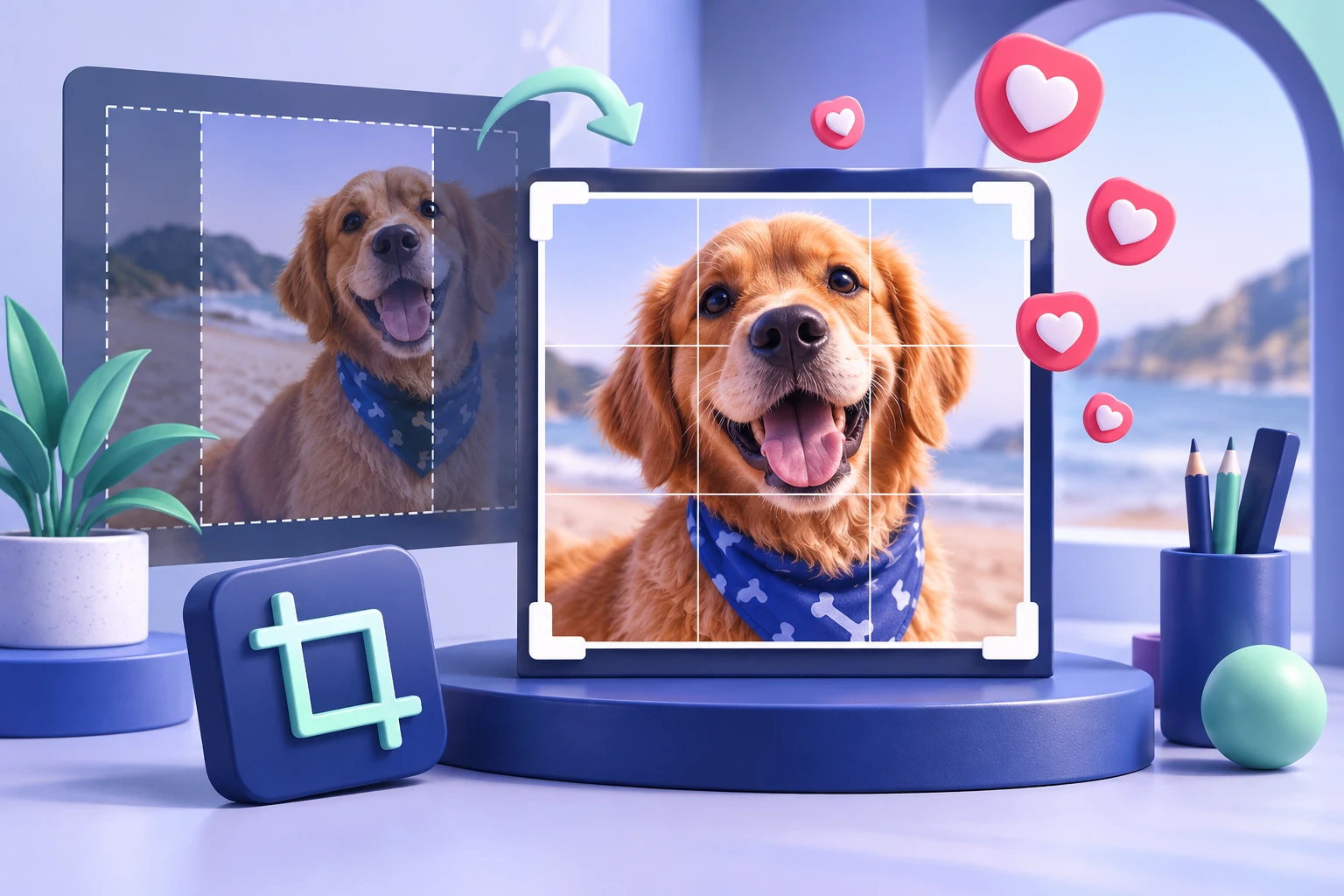
The tool exports a PNG file. Your uploaded source stays in the browser during editing and is not sent to HitsBoost. Download the result, place it in Facebook, and review how the image appears on the devices your audience uses.
If the image introduces a Page, pair it with an accurate description and recent posts. If it supports one post, write a caption that explains the subject. Image preparation is one part of making the destination useful after someone opens it.

Look at the resized image at its actual display size, not only enlarged in the editor. Small text that seems readable on a laptop may be difficult to read in a mobile feed. Keep the main subject visible, preserve contrast, and avoid placing a logo or essential message at the edge of a cover. If an image contains a claim or offer, confirm that the wording is current.
The exported PNG is intended for your Facebook upload. When you add images to a website, use a descriptive file name and an alt description that explains the image in its page context. Those choices help people using assistive technology and give search engines clearer information about the asset. They are separate from the dimensions you choose for a Facebook placement.
A source image with enough resolution gives the crop more room to work.
Leave space around faces, logos, and text so changing crops do not cut them off.
Facebook can display the same image differently across placements and screens.
No. The image is read and resized in your browser; this tool does not upload it.
Yes. The width and height fields are editable.
No. Facebook may crop the same cover differently on each screen. Preview it on both after uploading.
The current browser tool downloads PNG. The images used on the HitsBoost site itself are optimized WebP assets.
No. It reads your selected image in the browser and exports a separate cropped PNG.
The source and target aspect ratios differ. A centered crop fills the target without stretching the source.
Use custom dimensions and review the result in Facebook's Story editor before publishing.
We use Google Analytics and Ahrefs to understand visits and improve HitsBoost. The site and checkout links work if you decline. You can change this choice later in the footer. Cookie details.