

A practical pin-selection check for an imaginary ceramics studio
| Candidate publication | Question it answers | Decision before pinning |
|---|---|---|
| An explanation of available pottery classes | Is this class suitable for me? | Pin if the format, location and booking instructions are current. |
| A Reel showing a bowl being formed | What kind of work does the artist make? | Consider it if the finished work represents what the studio offers today. |
| A photograph announcing a sold-out market | Where can I buy this weekend? | Leave it unpinned unless its wording still provides useful, accurate information. |
| A post about collection and delivery | How would I receive an order? | Consider it if those arrangements apply to the current products. |
| A popular but unrelated holiday photograph | What does the studio actually offer? | Keep popularity separate from relevance; a high count alone does not earn a place. |
| A commission enquiry checklist | What information should I send the artist? | Consider it when the studio is accepting the type of commission described. |
Pin a published post from your Instagram profile
Start in the account that owns the publication. If you manage a shop profile and a personal profile, compare the username before changing anything. Open the chosen item from the profile itself rather than working from a screenshot, a saved collection or another person's share. Instagram's current Help instructions for both iPhone and Android use the same basic route through the post's options.
The steps below put a publication at the top of the main profile grid. After selecting the pin control, go back to the profile and check what appears. Read the actual publication as well as its cover. Two posts can use nearly identical photographs while describing different workshops, collections or dates. Choosing the right thumbnail is only the start of checking that you featured the correct information.
Instagram documents a maximum of three pinned posts. Treat that as a limit, not a requirement to find three things to promote. One clear, relevant publication can be more helpful than a full selection containing expired offers. If three posts are already pinned, review which one should give up its place before adding another. This guide does not assume a particular automatic replacement behaviour when the limit is reached.
- Open your own Instagram profile in the iPhone or Android app and select a published post you want to feature.
- Open that post's Options menu in the upper-right corner.
- Choose Pin to main grid, then return to the profile and check the result.
Unpin or replace content without deleting the publication
To remove a featured position, open the pinned item, use its options and select the unpin control. Instagram says the post returns to its original position in the profile grid. An older publication may therefore appear much farther down once its pin is removed. That is the expected placement change; it does not mean you need to upload the same material again.
For a replacement, make two deliberate decisions: remove the pin from the item that no longer deserves the position, then pin the chosen replacement. Revisit the profile afterward. Check the whole selection rather than promising a fixed left-to-right order from a remembered sequence of taps. The current Help page explains pinning and unpinning but does not document an ordering method that this guide can guarantee across app versions.
Keep deletion and archiving separate from this task. Unpinning is the appropriate control when a post can stay published but should stop leading the profile. If its content is inaccurate or you need to remove it from view, consider that separate editorial or privacy decision. Read the archive guide before changing visibility, and do not delete useful work merely to rearrange the opening row.
- Open the pinned publication from your own profile.
- Open its Options menu and choose Unpin from main grid.
- Check its original place in the grid; pin a replacement separately if one is needed.
Know which kind of pin you are changing
A profile pin concerns an existing publication in your account's grid. Meta's original feature announcement described both feed posts and Reels as eligible formats. That announcement dates from 2022; the linked current Help page supplies the present app controls and three-post limit. Open your own published Reel when you want to feature that performance, demonstration or explanation on the profile.
Do not confuse this with pinning a conversation in your inbox or keeping a message near the top of a chat. Those controls help organise messages; they do not select the publications a profile visitor sees first. Saving someone else's post also serves a different purpose. Looking at a saved item does not turn it into your own publication or give you control of the other person's profile.
Story Highlights are another separate publishing choice. If your task is to organise a collection of Stories, use the relevant Story controls rather than looking for a main-grid post pin. First name the result you need: feature a published post on your profile, organise a conversation, or keep a Story collection available. This small distinction prevents following the right instructions for the wrong feature.
Choose the question each featured item should answer
Decide what a useful profile visit should accomplish before choosing material. A person arriving from a local event announcement may need the studio's location and class details. A returning customer may need the current commission process. A curator may want to see representative work. You cannot control why every visitor arrived, but you can remove obvious gaps in the information available near the top.
Write one question beside each candidate: What can I book? What does this work look like? How do I enquire? Two publications that answer the same question may be redundant even if both are attractive. Prefer a selection that covers distinct needs. These are planning prompts, not three compulsory content categories. A personal artist account can have a different purpose from a retail account selling finished products.
Check the bio alongside the candidates. If the bio promises local classes while the featured posts only show older commissions, a visitor has to search for the promised activity. Either choose a current explanation or revise the profile's promise to match the work actually offered. Do not write a new claim simply to fill a gap. A clear next step should reflect the real service and current availability.
Use a selection checklist instead of ranking by popularity
The comparison table uses an imaginary ceramics studio to show the decision. Each candidate needs a purpose, an accuracy check and a reason to deserve prominence. A sold-out market photograph may remain a perfectly good record of an event. That does not make it the most useful opening publication for someone deciding where to buy this weekend.
Use four checks on a shortlist: relevant to today's offer, understandable without another post, accurate at the time of review, and useful to the intended visitor. If a candidate fails one check, decide whether a factual edit resolves the issue or whether another publication fits better. This is a decision framework for your own review, not an Instagram scoring system or a formula that predicts followers.
Counts can inform that review without deciding it. Read what people actually asked and whether the post answers the question it promises to answer. A popular holiday photograph might be important to a personal account but poorly explain a pottery class. Conversely, a modestly viewed collection guide may be useful to an existing customer. Compare the purpose of the publication before treating its total likes as evidence that it belongs first.
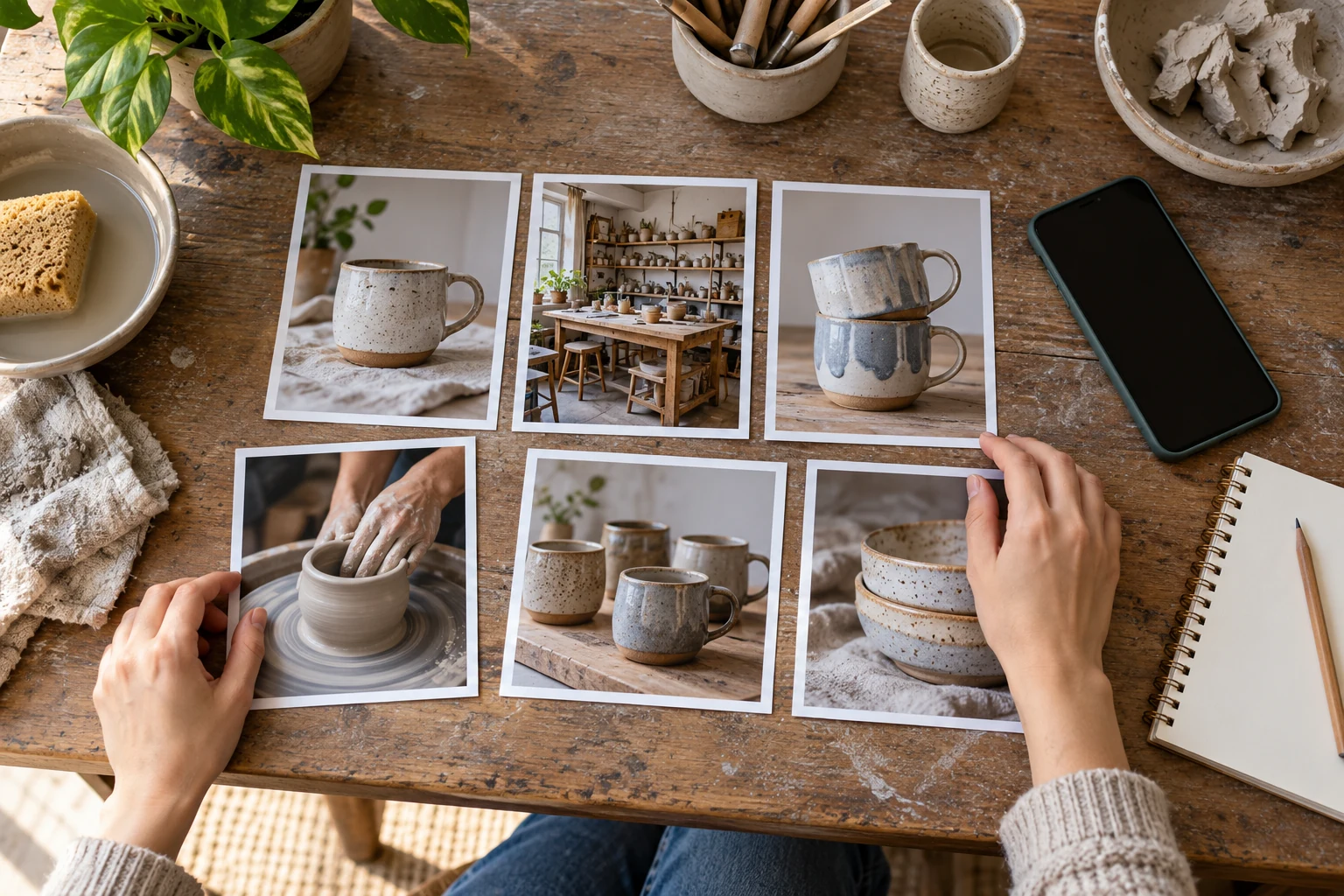
Work through a realistic ceramics-studio example
Imagine the artist is accepting beginner workshop bookings and a limited number of commissions. Their profile contains a class explanation, a bowl-making Reel, an outdated market notice and a commission enquiry checklist. The current objective is simple: help someone identify the work and choose the correct enquiry route. No part of this example represents measured customer results or an ideal selection for every account.
First, the artist reads the workshop post and checks the location, experience level and booking destination. Second, they review the making Reel and confirm that the finished bowl resembles work they currently offer. Third, they check that the commission instructions ask for the information needed to assess a request. If commission enquiries are closed, that third candidate loses its purpose until the studio has an accurate alternative.
The old market notice can remain elsewhere in the published history if the owner wants it there; it need not lead the profile. The artist then asks a colleague to open the account and explain where they would book a class or ask about a commission. Any confusion becomes a specific revision task. This check evaluates whether the information works, without inventing a conversion rate or promising that pinning produced new customers.
Review covers, captions and accessibility before featuring
A candidate should make sense when someone opens it from the profile rather than following the original posting sequence. Read the caption without assuming the visitor saw yesterday's announcement. Replace vague instructions such as message us about this with an accurate explanation of the enquiry, where appropriate. If the item depends on an earlier post, decide whether it can stand alone or whether a different publication is a clearer entry point.
Check whether important words and objects are understandable in the profile preview and in the opened publication. Avoid assuming every visitor sees the same crop on every device. Open the profile on the phone you normally use and ask a colleague to check their ordinary view. If a cover needs changing, verify that the specific post type offers that edit; unpinning does not itself create new editing controls.
Review accessibility separately. For photographs, use the alt-text guide to describe the visible information accurately. For a spoken Reel, review available captions and correct mistakes through the supported workflow. Do not turn alternative text into repeated sales keywords or use captions to claim results the video does not show. Featuring an item increases its editorial importance on your profile, so its explanation deserves the same care as the work itself.
Keep audience settings and recommendations separate
Pinning changes where you present content on the profile; it is not a substitute for the account's audience settings. Instagram's privacy comparison states that private-account photos and videos can be viewed by that account's followers. Do not turn a private account public merely because a collaborator cannot see a pinned item. Agree on an appropriate sharing route while keeping the owner's audience choices intact.
Profile presentation is also a different question from distribution in recommendations. Instagram explains suggested posts using factors such as a viewer's activity, connections and information about posts and accounts. Its pinning instructions do not promise a recommendation boost. Treat making content easier to find during a profile visit as the task you can verify; do not describe a pin as an algorithm reset, a shadowban remedy or a guaranteed way into Explore.
If the concern is a recommendation decision, use the separate Account Status guide to inspect the actual notice and available review options. If the concern is whether a visitor understands a class or product, review the featured content and its instructions. Keeping those questions distinct prevents rearranging the profile repeatedly while leaving an inaccurate booking post, privacy mismatch or policy notice unresolved.
Check a missing option without making disruptive changes
Start by confirming the account and publication. The official instructions concern posts you shared yourself. An item saved from another account is not the same thing. Return to your own profile, open the published content and inspect that item's options. A control on a browser tab, an inbox conversation or an account-settings screen is not necessarily the control for pinning a post.
Instagram's current pinning Help page says this feature is not available on computers and provides iPhone, Android and iPad app instructions. Use the supported app route rather than assuming a missing desktop control means the account is restricted. Check an app update if a feature is not working. Instagram's technical-report guidance recommends updating first and also notes that some features may not be available to everyone.
If the issue continues, use Instagram's Help and problem-reporting route. Explain the device, what publication you opened, which control you expected and what happened instead. Include a relevant screenshot after reviewing what it exposes. Do not send passwords or recovery codes to anyone offering to unlock the feature. Repeatedly deleting posts, clearing saved work or changing account type is not a reasonable first response to an unexplained missing pin option.
Review pins when the underlying information changes
Choose a review point that fits the content. A workshop invitation needs attention when booking closes, while a durable introduction may remain useful much longer. Put that review beside the relevant event or campaign in your content calendar. There is no need to replace a good publication every week merely to create activity. A change in availability or visitor questions is a more useful reason to revisit the selection.
Keep a small note of the item, its purpose and the next fact that could make it inaccurate. For the ceramics example, that might be workshop registration closing, commission enquiries reopening or a change in collection arrangements. When the event occurs, read the post and check its destination before deciding whether to unpin it. The note can be plain language; it does not need a complicated reporting system.
If you review performance, distinguish a clearer profile from evidence of business outcomes. More enquiries after a change do not establish that pinning caused them; other posts, events and customer activity may have changed too. Keep the published material, observation period and relevant changes in context. Use the separate followers-versus-engagement guide when interpreting counts, rather than assigning a growth promise to the three featured places.
- Check the event date, product availability and invitation in every pinned item.
- Open the promised contact or booking route and check it against the wording.
- Ask whether the selection answers different questions for the audience you serve now.
- Record any replacement and the reason for it; review again when something relevant changes.

Finish with a working visitor journey
Open the finished profile and check each featured publication. Does the account name match the intended artist or business? Is the information current? Can the intended audience open it? Does the next step lead where the wording says it leads? A profile that answers those questions has completed a useful presentation task even before you measure any response.
If a colleague needs the account address for a website or partner announcement, copy and test the profile link separately. A link to a featured Reel still opens that individual publication, while the account link introduces the profile. Label the destination clearly. Recheck the pin selection after a handover so the new person managing the account understands which promises need updating when products, bookings or opening arrangements change.
Pinning your own content is free and does not require buying a service. If you separately consider HitsBoost's Instagram followers packages, review the eligible-profile requirements, current price and conditions before deciding. A tidy profile and a password-free order process do not establish Instagram endorsement or guarantee reach, engagement, enquiries or sales. Keep that commercial decision separate from the practical work of making accurate information easy to find.
Frequently asked questions
How do I pin an Instagram post?+
Open your own profile in the iPhone or Android app, open the published post, choose its Options menu and select the main-grid pin control. Return to your profile and check that the intended item appears at the top.
How many posts can I pin on Instagram?+
Instagram's current Help page says you can pin up to three posts you have shared. You can use fewer if fewer relevant publications serve your visitors better.
Can I pin a Reel as well as a photo?+
Yes. Meta introduced profile pinning for feed posts and Reels. Open your own published Reel and use its available pin control, then check the main profile grid. A saved Reel from another account is not your own publication.
What happens when I unpin a post?+
Instagram says the post returns to its original position in the profile grid. Unpinning is a placement action; deleting or archiving the publication is a separate decision.
Can I guarantee the order of my three pinned posts?+
The current Help instructions checked for this guide explain pinning and unpinning without documenting a guaranteed ordering method. Inspect the actual resulting profile rather than relying on a remembered tap sequence.
Does a pinned post become public on a private account?+
No. Pinning does not replace audience settings. Instagram's privacy guidance limits private-account photos and videos to that account's followers; publicly visible profile information is a separate matter.
Why can I not find the pin option on my computer?+
Instagram's current Help page says pinning is not available on computers. Use the supported app route and confirm that you opened a post you own before treating a missing control as an account problem.
Will pinning posts guarantee more reach or followers?+
No. The documented function is profile placement. A useful selection can help explain the account to visitors, but pinning does not guarantee recommendations, engagement, new followers or sales.
How often should I change pinned posts?+
Review them when something material changes, such as a booking deadline, product availability or enquiry process. Keep accurate, useful content featured; there is no need to replace it simply to fill a weekly schedule.
Compare Instagram Followers packages.
Prepare the public destination, then review the quantity and terms that fit your goal.
Review Instagram followers packages for your profile